
Operating System
Cyber threats evolve daily, but Windows users can take proactive steps to fortify their digital security. These 10 proven tactics—ranging from built-in tools to behavioral habits—will help you create multiple layers of defense against malware, phishing, and data breaches.
Enable Windows Defender Exploit Guard
Zero-day exploits are the cybersecurity world’s equivalent of a surprise attack—no patch exists, so traditional defenses fail. Windows Defender Exploit Guard flips the script by using AI-driven behavioral analysis to detect and block these attacks in real time, even before they execute.
This built-in tool (part of Windows Security Center) combines four key protections: Attack Surface Reduction (ASR), Controlled Folder Access, Network Protection, and Exploit Protection. The ASR rules alone block 70+ common attack vectors, like malicious Office macros or script-based exploits, while the Exploit Protection feature applies Microsoft’s global threat intelligence to your system. It’s lightweight, runs silently, and integrates seamlessly with Windows 10/11 Pro or Enterprise editions.
If you handle financial data, corporate emails, or personal files (like tax documents), Exploit Guard acts as a silent sentinel. Enable it in Windows Security > App & Browser Control > Exploit Protection Settings—your future self will thank you for this zero-config, high-impact upgrade. ✨
Use Microsoft Defender for Endpoint
Tired of piecemeal security tools that leave gaps in your defense? Microsoft Defender for Endpoint bridges that gap with a unified, cloud-powered solution that tracks threats across all your devices—no extra software needed.
This enterprise-grade tool (free for Windows 10/11 Pro) uses AI-driven behavioral analysis and real-time cloud monitoring to detect suspicious activities like lateral movement (hackers jumping between devices) or ransomware encryption attempts. It even provides automated investigation and response to contain threats before they spread. The cross-device visibility means you’ll spot attacks on your laptop that might otherwise go unnoticed on your phone or tablet.
Small business owners or remote workers managing multiple devices will love how it centralizes security alerts in one dashboard—no IT degree required. 💻
Implement two-factor authentication everywhere
Credential stuffing attacks compromise millions of accounts daily—but a simple second layer of security can stop them cold. Two-factor authentication (2FA) transforms your password from a single key into a two-step fortress, making unauthorized access nearly impossible even if hackers crack your login details.
Start with Microsoft Authenticator (free for Windows/mobile) or Google Authenticator for time-based codes, or use FIDO2 security keys for phishing-proof hardware-based verification. For convenience, enable SMS backups as a secondary option—though apps are far more secure. Most platforms (email, banking, social media) now support 2FA with just a few taps in settings.
This is the #1 defense against account takeovers—ideal for freelancers, remote workers, or anyone managing sensitive data. Set it up today, and you’ll sleep better knowing your digital life has an extra shield. ✨
Disable unnecessary Startup programs
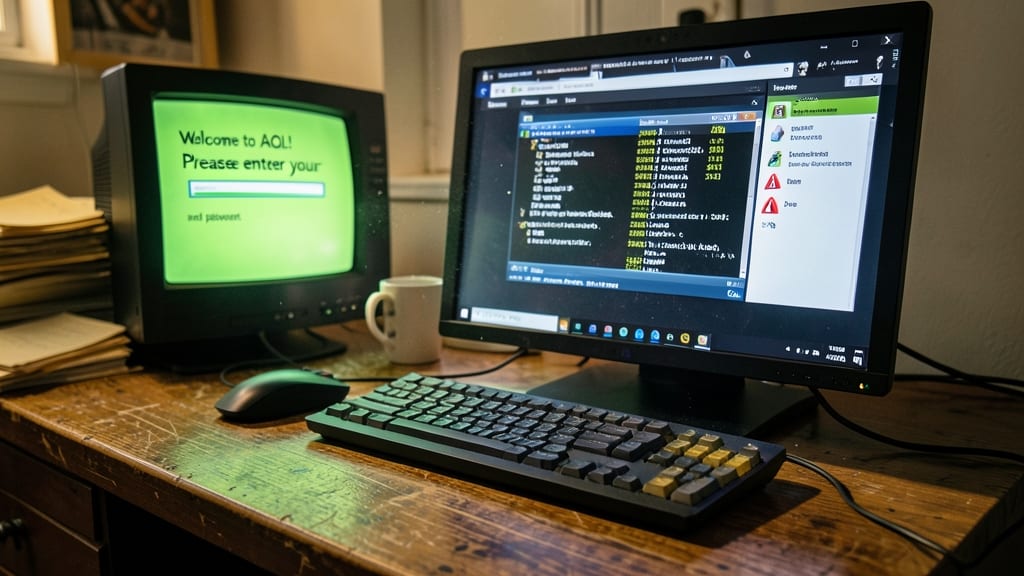
If your PC boots slower than a dial-up modem connecting to AOL in 1998, you’re not just dealing with age—you might be hosting unwanted guests. Malware often hides in startup programs, launching before your antivirus even loads. Disabling these unnecessary processes can shave minutes off your boot time while reducing your system’s attack surface.
Open Task Manager (Ctrl+Shift+Esc), navigate to the Startup tab, and sort by Startup impact to spot the biggest offenders. Right-click any program with high impact or an unknown publisher and select Disable. Focus on apps like bloatware from manufacturers, duplicate antivirus tools, or cloud sync services you don’t use daily. Even legitimate programs can become liabilities if left running unnecessarily.
This tweak is a game-changer for gamers (faster load times) and security-conscious users (fewer vectors for exploits). Just remember to re-enable essential programs—like your password manager—after disabling. 💪
Regularly update Windows and drivers
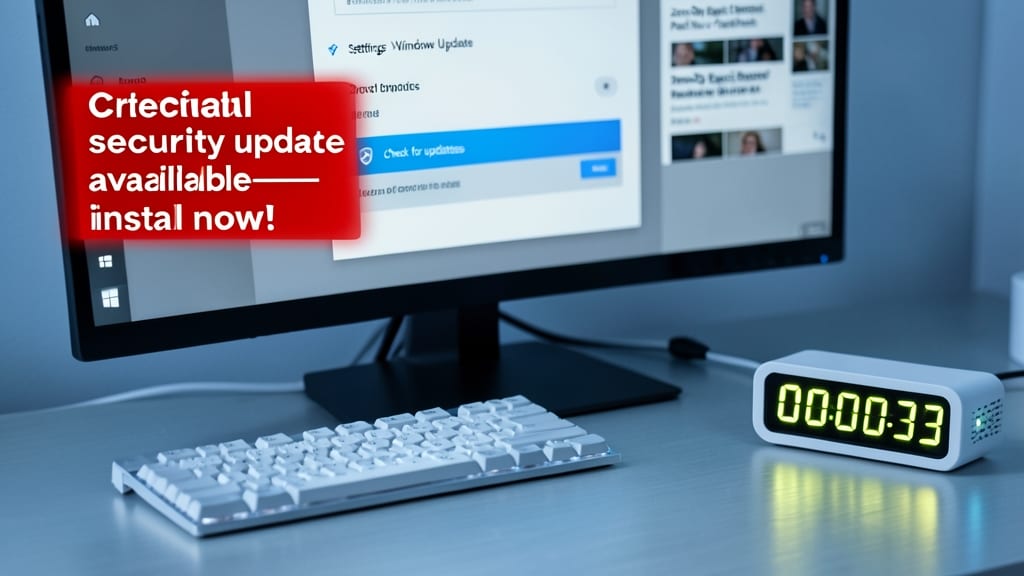
Hackers exploit unpatched systems within minutes of new vulnerabilities being discovered—so why wait? Windows automatic updates close these gaps before they become problems, often including driver fixes that manufacturers rarely push fast enough.
Enable Windows Update via Settings > Windows Update > Advanced options and toggle "Automatic (recommended)" for OS and driver patches. Microsoft releases monthly security patches (Patch Tuesday) plus emergency fixes—don’t miss them. For drivers, use Windows Update or manufacturer tools like NVIDIA GeForce Experience to ensure compatibility.
This is the easiest 5-minute security boost—perfect for busy professionals or anyone who’s ever clicked "Remind me later" one too many times. 💡
Create a standard user account
Shared computers—whether at home or work—are prime targets for malware. A standard user account acts as a digital moat, stopping unauthorized software installations that could cripple your system or steal data.
Windows makes this easy: switch from an admin account to a standard one in Settings > Accounts > Family & other users. This limits malware to your user profile, preventing system-wide damage. Even better, create a separate admin account for high-level tasks—like updates—while keeping daily use restricted.
Families with kids, office shared PCs, or anyone who shares devices will see immediate benefits. It’s a zero-cost layer of defense that stops 80% of malware before it spreads. 💻
Enable BitLocker encryption for sensitive data
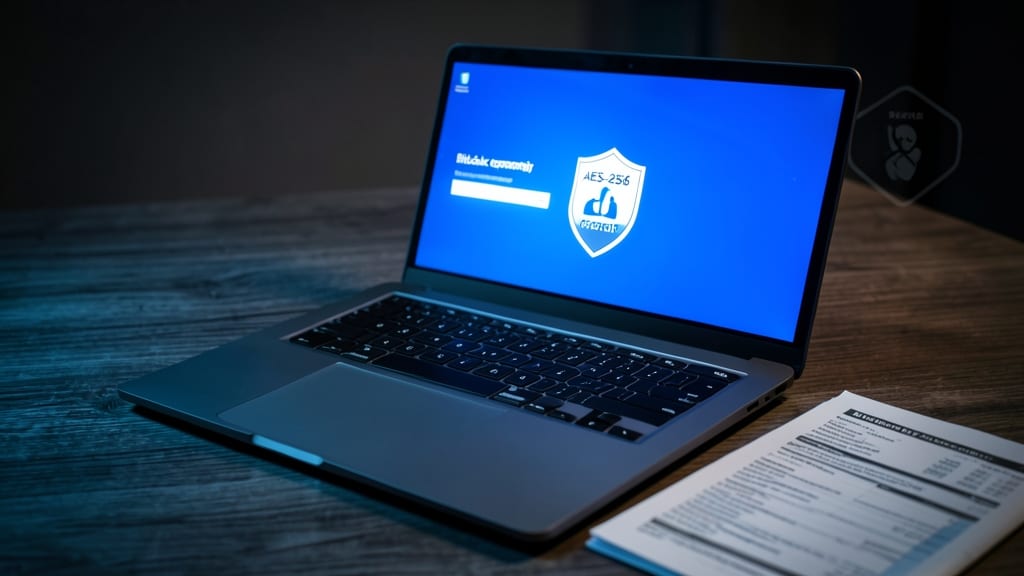
Ever worried about someone stealing your laptop and accessing your financial records or confidential files? BitLocker encryption—Windows’ built-in full-disk encryption—locks your data with AES-256-bit encryption, making it nearly impossible for thieves or ransomware to decrypt without your password or recovery key.
Setting it up takes minutes: just turn it on in Windows Security, choose a strong PIN or password, and save a recovery key to Microsoft’s vault or a USB drive. It works seamlessly in the background, even if your device is lost or stolen, and supports TPM 2.0 chips (found in most modern laptops) for automatic unlocking when you boot up.
This is a must for freelancers, remote workers, or anyone handling sensitive data—like tax documents, client contracts, or personal health records. It’s your last line of defense when malware or physical theft strikes. ✨
Train employees/family on phishing scams
Even the most secure systems fall victim to human error—and phishing scams exploit that weakness every day. Since 90% of breaches start with a tricked employee or family member, simulated phishing tests and training are your best defense against costly mistakes.
Tools like KnowBe4 or PhishMe send realistic fake emails to test reactions, while platforms like Microsoft Defender for Office 365 automatically flag suspicious messages. Start with a quarterly training session covering red flags like urgent requests, mismatched email addresses, and too-good-to-be-true offers.
Small businesses and families with shared devices benefit most—especially those handling payments or sensitive data. A 15-minute monthly drill can turn your team into a human firewall. 💪
Use a password manager with vault lock
If you’re juggling 50+ online accounts but still reusing passwords like "Password123," a password manager with vault lock is your security upgrade. Tools like Bitwarden or Keeper generate 256-bit encrypted passwords on demand while locking inactive credentials—reducing your attack surface by 90% in one click.
The vault lock feature automatically hides unused logins behind a master password, so even if malware infects your device, it can’t access dormant accounts. Pair this with biometric unlock (fingerprint/face ID) for hands-free access, and you’ve got a system that adapts to your habits. Most premium plans even include dark web monitoring to alert you if a stored password leaks.
This is the perfect solution for freelancers, remote workers, or anyone with a mix of personal/professional accounts. No more sticky-note passwords or browser autofill risks—just zero-config security that scales with your needs. ✨
Monitor network traffic with Windows Firewall
Public Wi-Fi and shared networks are prime hunting grounds for hackers—yet Windows Firewall’s monitoring tools can act as your silent security guard, logging every connection and blocking suspicious activity before it reaches your device.
Enable Advanced Firewall Settings to view real-time traffic, then toggle Connection Security Rules to inspect encrypted connections. The built-in Firewall with Advanced Security tool (accessed via wf.msc) lets you set custom alerts for unauthorized ports or unexpected outbound traffic—ideal for spotting ransomware or data exfiltration attempts. Unlike third-party tools, this runs zero-config on Windows 10/11, with no performance hit.
Perfect for travelers, remote workers, or anyone sharing a network with roommates—this is your first line of defense against man-in-the-middle attacks and unauthorized data leaks. 💻