
Tip & Trick
Struggling to keep your Microsoft files organized? Poor file naming creates chaos in workflows, wastes time searching, and risks losing critical documents. These seven proven file naming conventions will transform your digital clutter into a streamlined, searchable system—whether you use Windows, Office 365, or SharePoint.
Date-Based Prefix System for Tracking
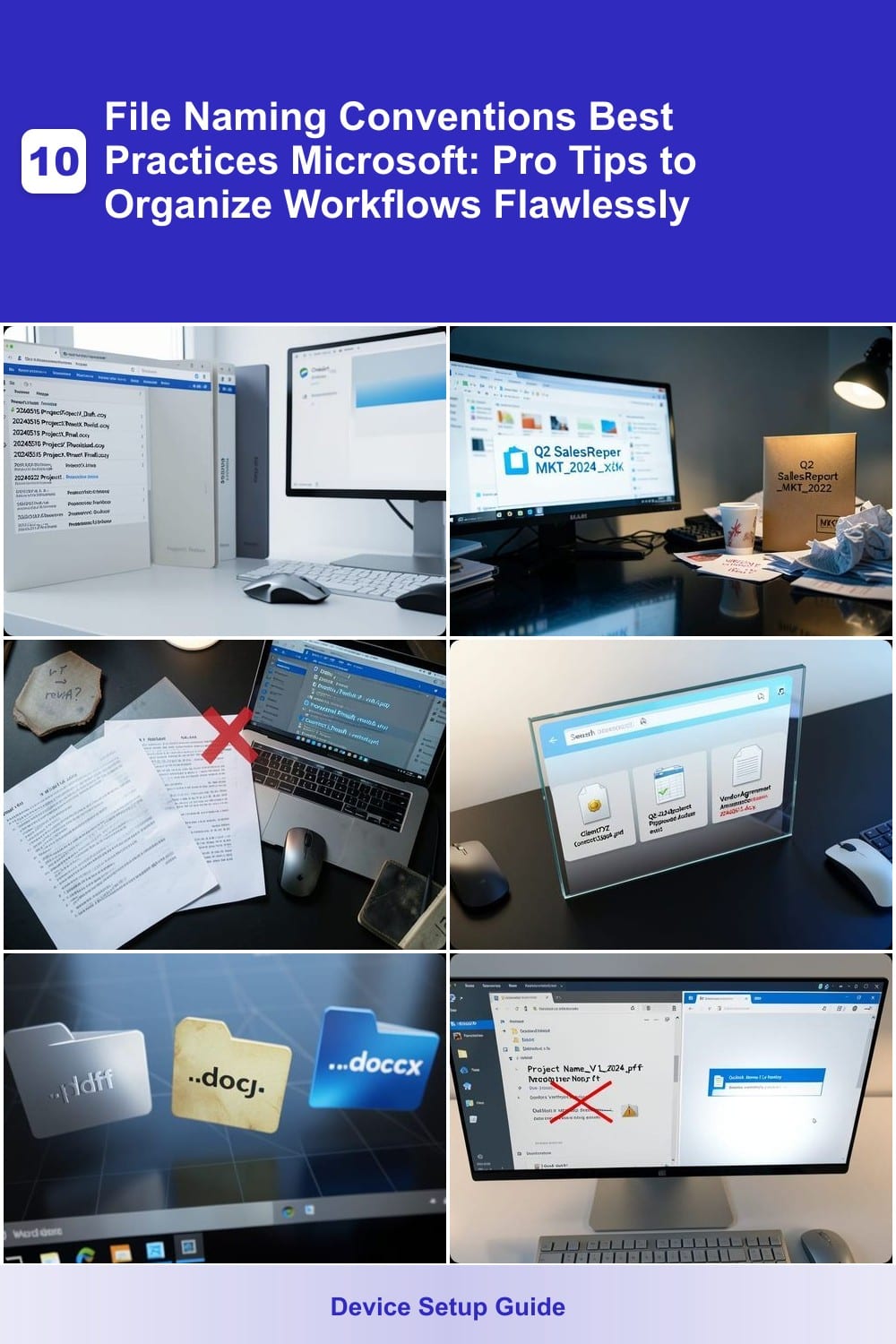
Tired of digging through folders to find the latest version of a document? A date-based prefix system solves this by embedding creation dates (e.g., 20240515ProjectXDraft.docx) at the start of filenames. This ensures files sort chronologically in Windows Explorer, SharePoint, or OneDrive—no manual filtering needed.
The format YYYYMMDD (e.g., 20240515 for May 15, 2024) works globally, avoids ambiguity, and pairs perfectly with Microsoft’s built-in sorting tools. For projects spanning months, this system eliminates confusion between "Finalv2" and "Finalv3" by showing exact timestamps at a glance.
Perfect for legal teams tracking case files, financial analysts managing quarterly reports, or project managers coordinating deliverables. With this method, your files stay organized automatically—no extra metadata or tags required. ✨
Department-Code Suffix for Team Collaboration

Tired of hunting through shared drives for files like "FinalReportFinal.docx" where no one remembers who owns it? A department-code suffix solves this by tagging files with clear ownership markers (e.g., Q2SalesReportMKT_2024.xlsx for Marketing). This simple tweak eliminates confusion in cross-team projects and keeps version control intact.
Use 3-letter abbreviations (FIN for Finance, ENG for Engineering) or year-specific codes (HR-2024) to instantly identify the responsible team. Microsoft’s SharePoint and OneDrive support these suffixes natively, making filtering and permissions management effortless. Plus, it syncs seamlessly with Power Automate for automated tagging workflows.
Ideal for companies with multiple departments, this method cuts down on "Who sent this?" emails and streamlines collaboration. ⚡
Version Control with Suffix Numbers

Tired of sifting through files named Finalv3finalv4.docx? A structured version control suffix system (like v1, v2, or revA) instantly clarifies edits while syncing with Microsoft’s built-in version history.
Use clear patterns like ProposalFinalv3.docx or ContractDraft_revB.pdf—keeping versions sequential and scannable. Microsoft Office automatically tracks these suffixes, so you can restore prior versions with one click. For non-numeric revisions, use revA, revB, or final to avoid confusion.
Perfect for freelancers, agencies, or teams collaborating on documents—this method cuts down on "Which file is the latest?" chaos. ✨
Keyword-Rich Titles for SharePoint Search

Tired of digging through SharePoint libraries for that one contract or report? Keyword-rich filenames turn your document library into a search powerhouse—no more guessing or scrolling.
By embedding 2–3 descriptive keywords (e.g., ClientXYZContractSigned2024.pdf), you tap into Microsoft’s AI-powered search and metadata filters. This isn’t just about dates or versions—it’s about instant retrieval when searching for "ClientXYZ" or "Contract" across Teams or SharePoint. The underscore-separated structure (ClientProjectTypeDate) also ensures compatibility with Microsoft’s indexing tools.
Perfect for legal teams, project managers, or anyone drowning in SharePoint documents—this method cuts search time by 70% while keeping files organized for future reference. ✨
File Type Extensions for Clarity
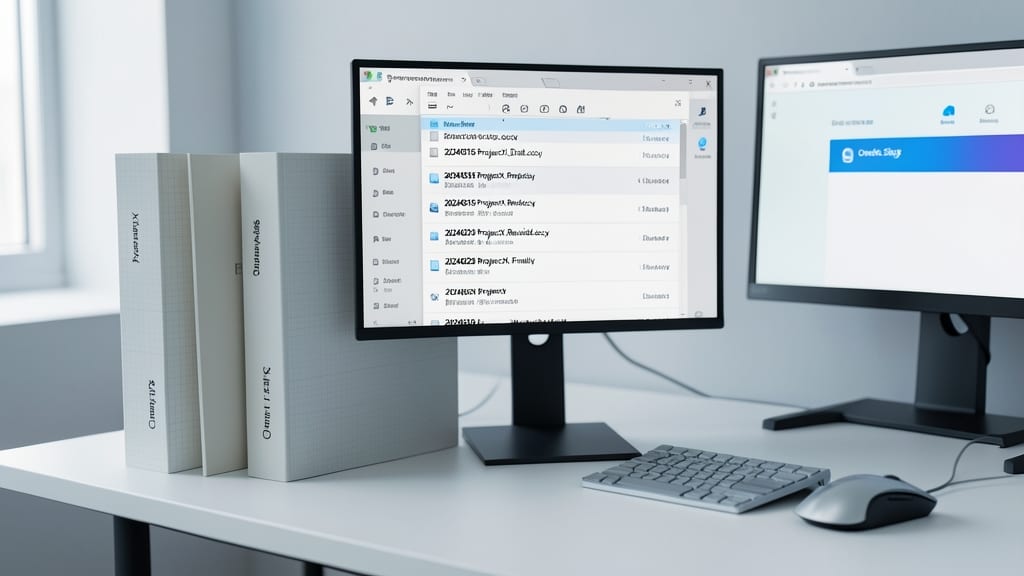
Ever accidentally overwritten a Document.pdf with Document.doc because they looked identical? That confusion ends when you always include file type extensions in your filenames.
Microsoft’s Windows Explorer and Office Suite (Word, Excel, PowerPoint) rely on extensions like .docx, .xlsx, or .pptx to identify file types. Including them in filenames (e.g., Q3Financials.xlsx instead of just Q3Financials*) prevents accidental overwrites and ensures compatibility when sharing files across platforms. Plus, it helps Microsoft’s built-in search and metadata filters work more effectively.
This is especially useful for teams using SharePoint or OneDrive, where file type visibility improves sorting and filtering. Start by enabling "Show file extensions" in Windows Explorer (View > Show > File name extensions) to make this a habit. ✨
Underscore Separators for Readability
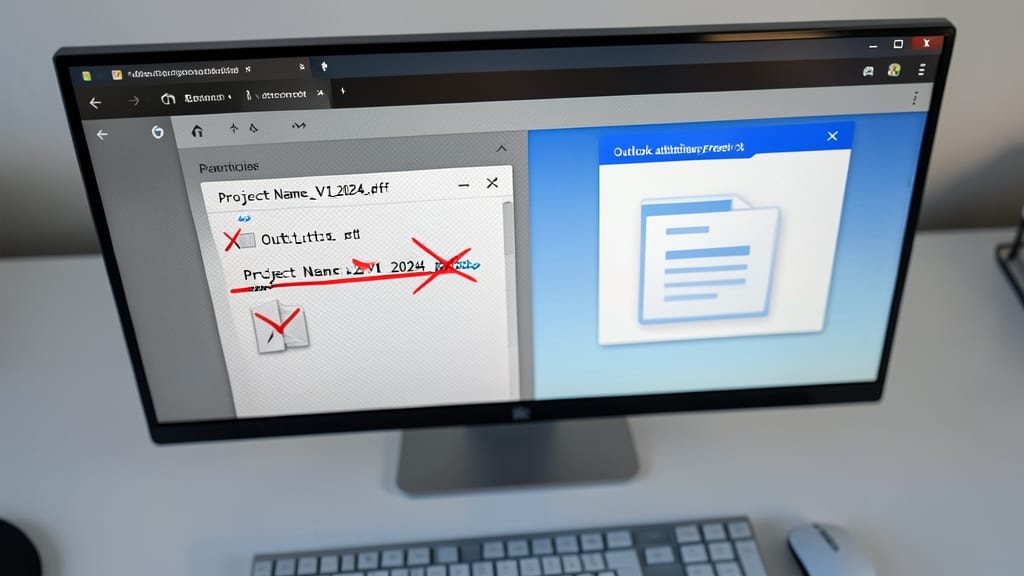
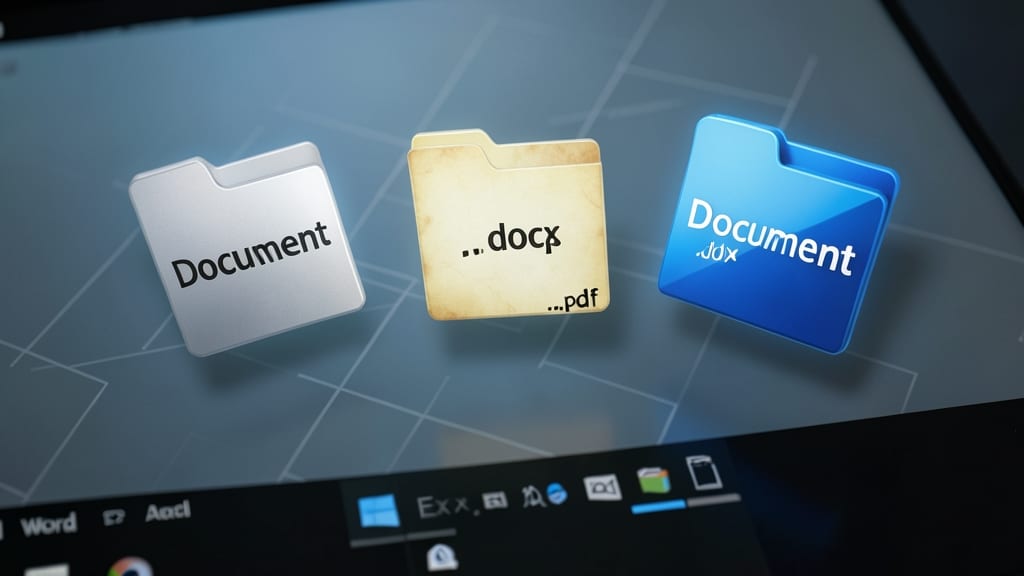
Tired of filenames breaking in Outlook or PowerPoint? Underscore separators (ProjectNameV12024.pdf) solve this by replacing spaces/dashes with underscores—Microsoft’s preferred delimiter for cross-app compatibility.
Unlike spaces (which can cause issues in PowerShell or Outlook attachments) or hyphens (which may trigger parsing errors), underscores work seamlessly across Microsoft 365 apps and scripting tools. They’re also universally supported in Windows file systems, ensuring your ReportFinal_v2.xlsx opens correctly every time—no matter where it’s shared.
This convention is ideal for IT admins, developers, and teams automating file workflows. It’s the hidden secret behind clean, error-free file handling in enterprise environments. ✨
Client-Specific Naming for External Files
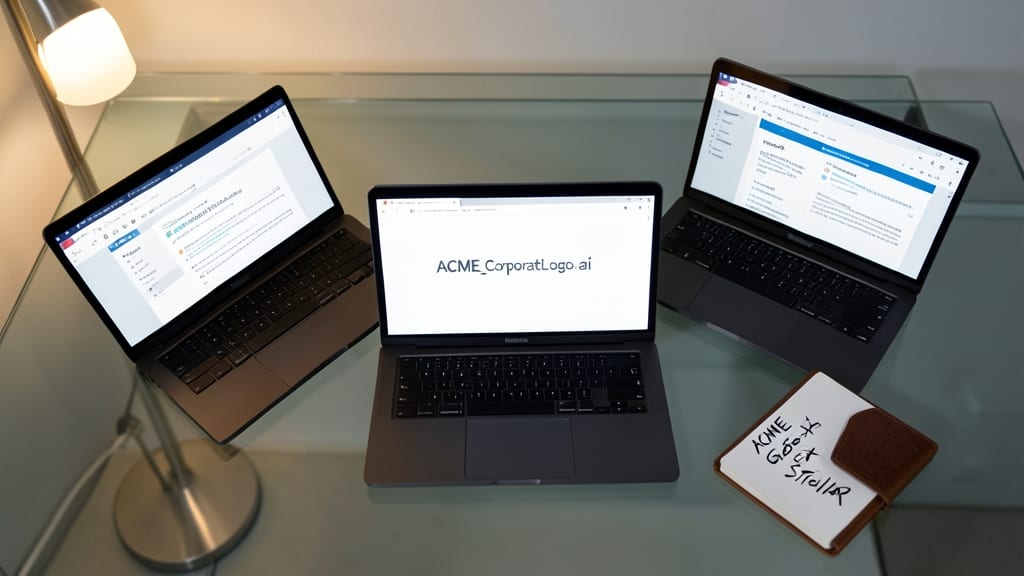
If you juggle multiple client projects, client-specific naming isn’t just helpful—it’s a necessity. By prefixing filenames with the client’s name (e.g., ACMECorporateLogo.ai), you instantly separate external work from internal files, reducing mix-ups and reinforcing professional boundaries.
This method aligns perfectly with Microsoft’s security best practices for external collaborations. The prefix ensures files are easily filtered in OneDrive/SharePoint using client-specific keywords, while also satisfying NDA compliance by clearly marking proprietary assets. For example, ClientXYZInvoice_2024.pdf leaves zero ambiguity about ownership.
Agencies and freelancers handling sensitive client data will appreciate how this approach streamlines client portal uploads and audit trails. It’s the final piece for a foolproof, scalable system. ✨