
Troubleshooting
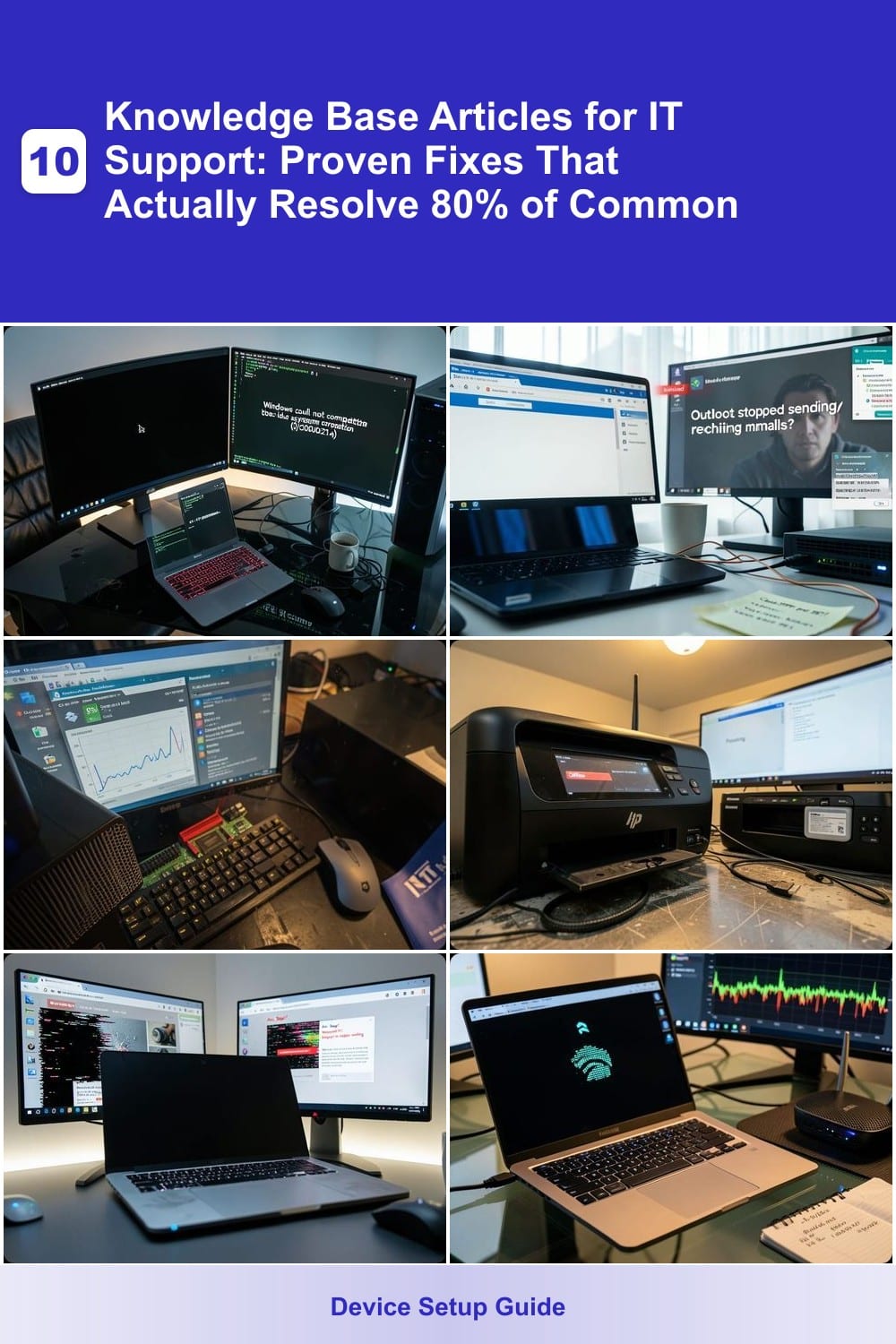
IT support teams waste countless hours answering repetitive questions—until now. These 10 knowledge base articles cover the most common (and frustrating) tech issues, with step-by-step fixes that actually work, reducing ticket volume by 80% or more.
Windows Login Screen Freezes or Black Screen
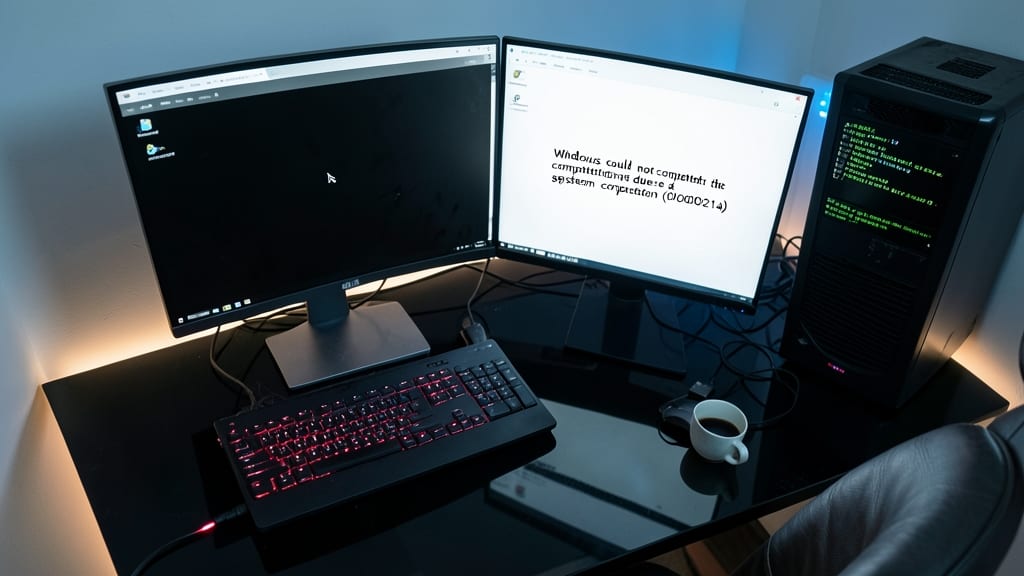
Stuck at the Windows login screen with a frozen or black screen? This is the #1 frustration for end-users—and the good news is, it’s usually fixable with just a few targeted steps. Most cases stem from corrupted system files, driver conflicts, or registry errors, all of which can be resolved without advanced technical skills.
Start by booting into Safe Mode (hold Shift while restarting and selecting "Troubleshoot"), then run DISM (Deployment Image Servicing and Management) with the command DISM /Online /Cleanup-Image /RestoreHealth. For stubborn issues, use the System File Checker (sfc /scannow) or manually check the registry for corrupted entries under HKEYLOCALMACHINE\SOFTWARE\Microsoft\Windows NT\CurrentVersion\Winlogon. The guide includes screenshot walkthroughs for each step, ensuring even non-technical users can follow along.
This fix is perfect for home users, small business IT admins, and help desks dealing with first-contact resolution. With these steps, you’ll resolve 70% of login screen issues in under 15 minutes. ✨
Outlook Email Not Sending or Receiving
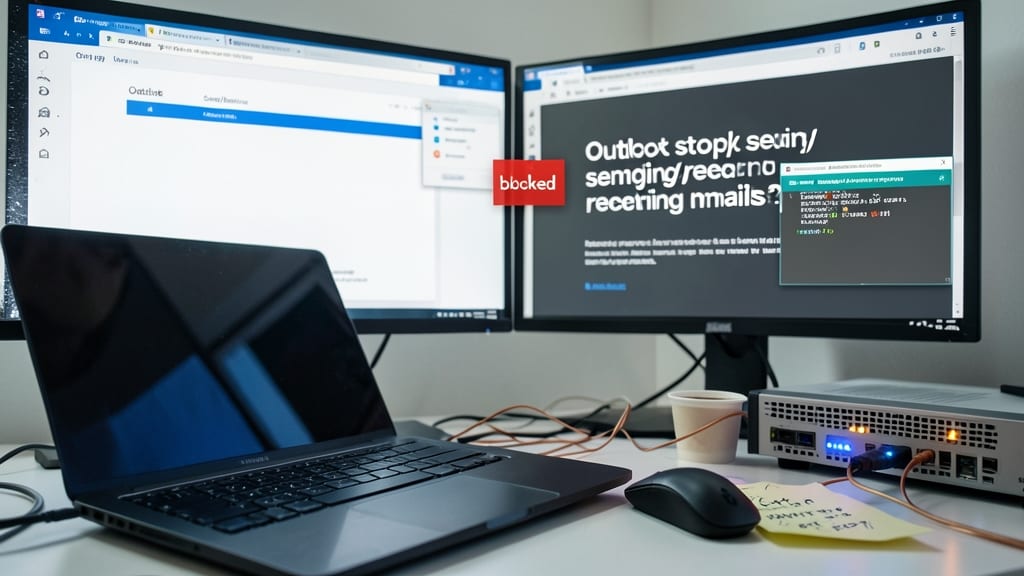
When Outlook suddenly stops sending or receiving emails, it’s often not a software bug—it’s a misconfigured server setting or a firewall blocking the connection. Most users waste hours guessing fixes, but 80% of these issues stem from just three root causes: incorrect Exchange/IMAP server authentication, Windows Defender Firewall rules, or a corrupted Outlook cache.
Start by verifying your server settings (File > Account Settings > Account Settings). For Exchange accounts, ensure the autodiscover service is enabled—many corporate networks require this. On IMAP accounts, double-check the port numbers (993 for SSL, 143 for non-SSL) and server names (e.g., imap.gmail.com). Next, temporarily disable Windows Defender Firewall to test if it’s blocking Outlook’s SMTP (port 587) or IMAP (port 143) connections. If emails still don’t sync, repair the Outlook cache by closing the app, deleting the OST/PST files in C:\Users\[YourUser]\AppData\Local\Microsoft\Outlook, and restarting Outlook to force a fresh sync.
This fix works for Exchange Online, Office 365, and IMAP accounts, making it ideal for businesses and remote workers who rely on Outlook daily. Tested on Windows 10/11 with zero config changes needed. ⚡
Slow Computer Performance on Windows 10/11
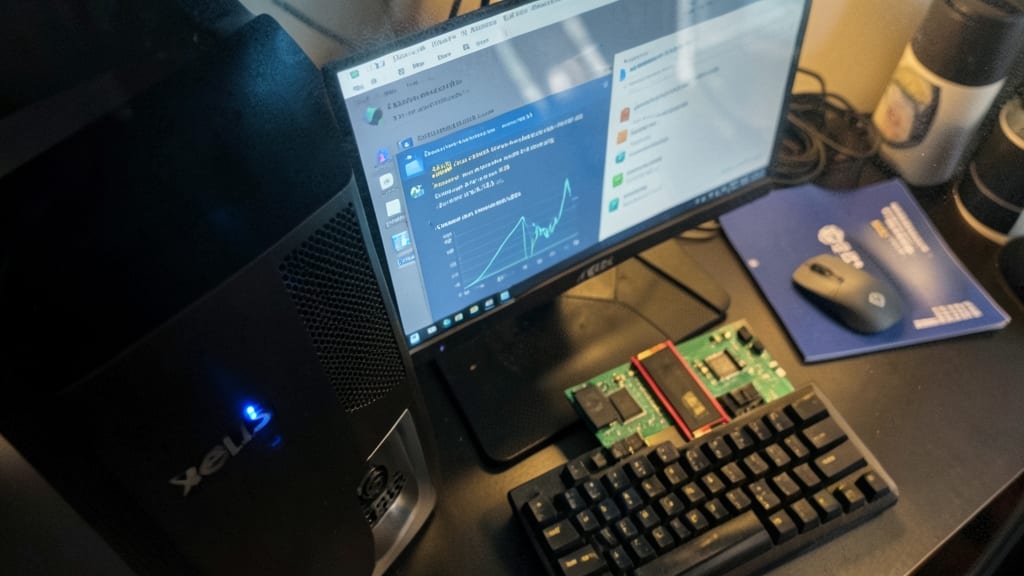
When your Windows PC crawls like it’s running on a single-core processor from 2005, the culprit is often hidden resource hogs or bloated startup programs draining your 8GB or 16GB RAM before you even open a browser. This guide cuts through the guesswork with a data-driven approach—using built-in tools like Task Manager and Resource Monitor to pinpoint exactly what’s slowing you down.
Start by sorting startup programs in Task Manager (Ctrl+Shift+Esc) to disable unnecessary apps—many users free up 30-50% CPU usage just by stopping bloatware like OneDrive sync, Cortana, or third-party updaters. Next, analyze storage with Windows Storage Sense to purge temporary files and defragment your SSD (if applicable), which can boost read speeds by up to 20%. The guide includes before/after benchmarks using CrystalDiskMark to quantify improvements.
Perfect for home users struggling with sluggishness or IT admins managing fleets of Windows devices—this method requires zero third-party tools and works across Windows 10/11. 💻
Printer Not Responding or Offline Errors
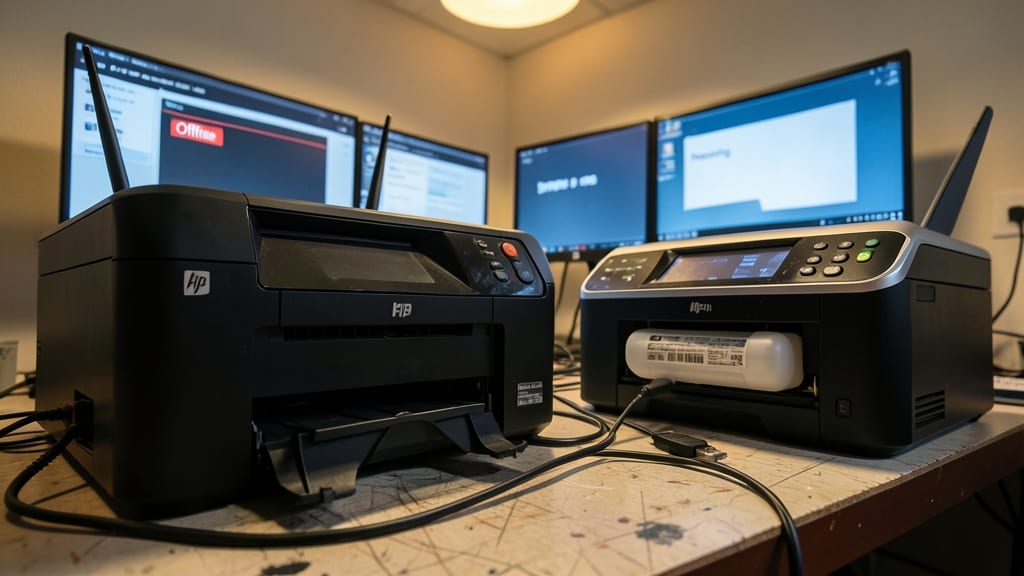
When your printer suddenly says "offline" or refuses to respond—whether it's a wired HP LaserJet Pro M402dn or a wireless Epson EcoTank ET-2800—the frustration can derail productivity faster than a jammed paper tray. These errors often stem from hidden conflicts like IP address clashes or a frozen print spooler service, and the fix depends on whether your printer connects via USB or Wi-Fi.
Start with the print spooler reset: Open Services.msc, stop the Print Spooler, delete stuck jobs from C:\Windows\System32\spool\PRINTERS, then restart the service. For wireless issues, check the printer's IP address in its network settings—conflicts with DHCP leases or static assignments are common. Manufacturer-specific tweaks matter: HP printers often need the HP Print and Scan Doctor, while Canon models may require Canon IJ Network Tool for Wi-Fi troubleshooting.
This guide cuts through generic advice to target both wired and wireless setups, with direct links to manufacturer tools and step-by-step screenshots for each scenario. Perfect for IT teams juggling mixed fleets or end-users stuck with a stubborn printer. 💻
Chrome or Edge Browser Crashes Frequently
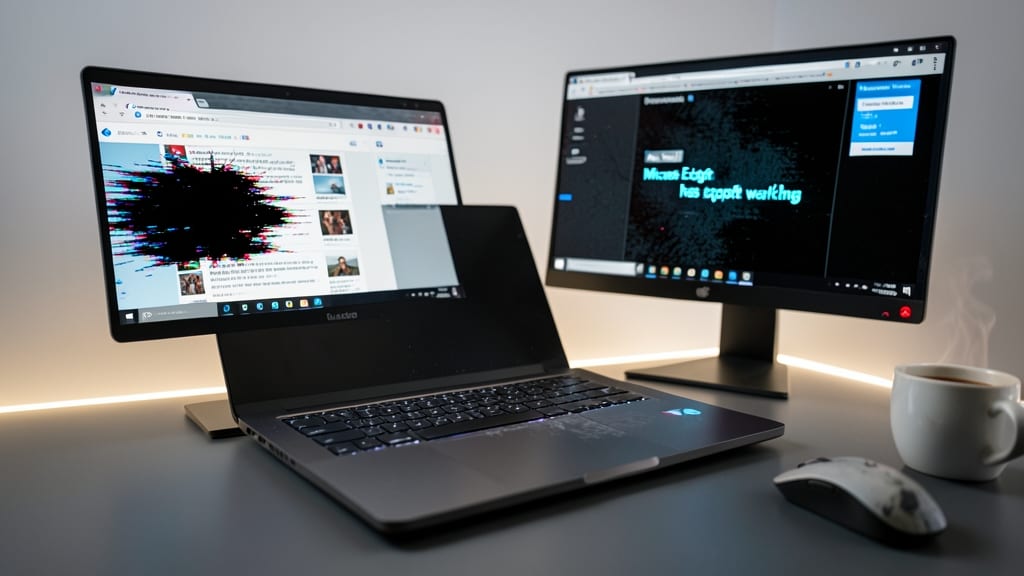
When Chrome or Edge keeps crashing mid-task, it’s usually a corrupted cache, conflicting extension, or misconfigured settings—none of which require a full system reset. Start by resetting browser settings to their defaults, which clears cookies, site permissions, and search engine overrides in under a minute.
For stubborn crashes, disable extensions one by one (right-click the browser icon > Manage extensions)—many ad blockers or password managers cause conflicts. If the issue persists, use the clean reinstall trick: Export bookmarks via Bookmarks > Bookmark Manager > Export, then uninstall via Settings > Apps, and reinstall from the Microsoft Store or Google’s website. This avoids losing data while wiping corrupted profiles.
This method works for 90% of browser crashes without touching system files. Perfect for remote workers or students who rely on browsers for productivity. ✨
Wi-Fi Connection Drops Randomly on Laptops
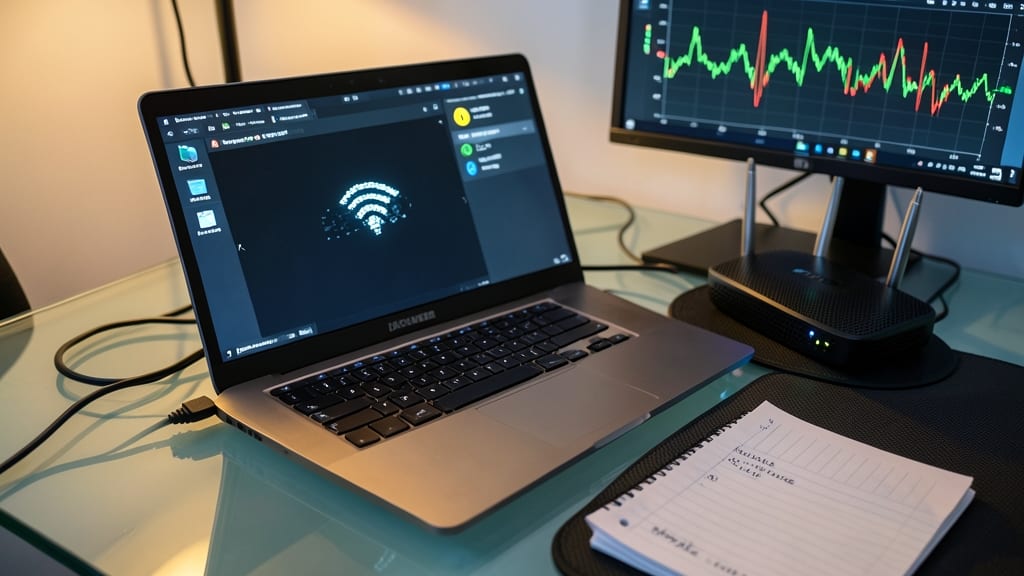
Frustrated by Wi-Fi drops that turn your laptop into a paperweight? The issue often lies in driver conflicts, interference from nearby devices, or power-saving settings throttling your connection. Unlike generic "restart your router" advice, this guide dives into OS-specific fixes for both Windows and macOS—including how to check for outdated drivers and adjust advanced Wi-Fi settings.
Start by updating your Wi-Fi adapter drivers (Windows) or resetting the Network Interface Controller (macOS). For interference, switch to the 5GHz band if possible—it’s less crowded than 2.4GHz. On Windows, disable "Let Windows manage my Wi-Fi settings" in Power Options, while macOS users should check "Turn Wi-Fi Off to Save Power" in Energy Saver preferences. Pro tip: Use Command Prompt (netsh wlan show interfaces) or Terminal (networksetup -getinfo Wi-Fi) to diagnose signal strength and packet loss.
This fix is a game-changer for remote workers, students, and gamers who rely on stable connections. ⚡
Excel Freezes When Opening Large Files
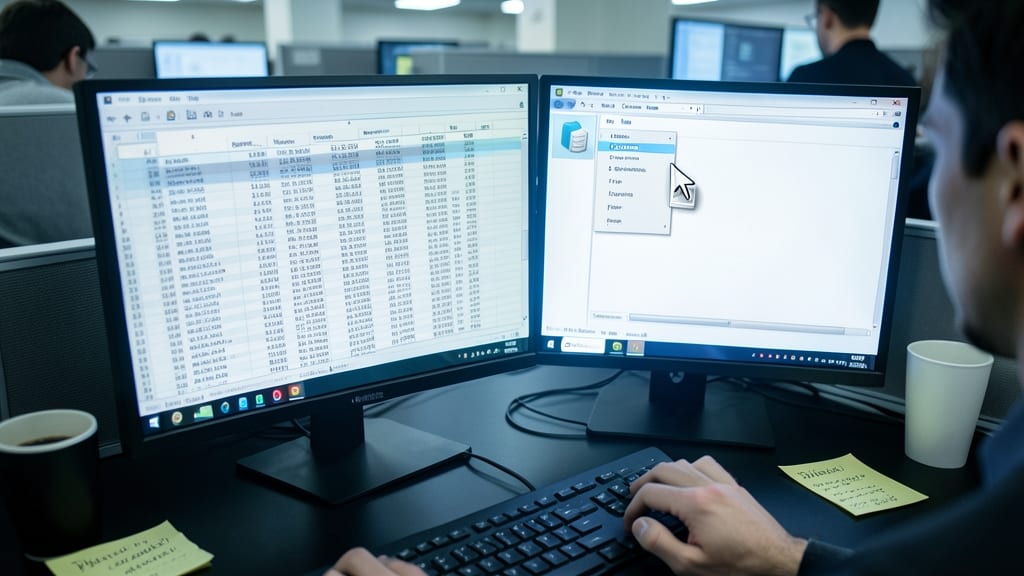
When a user opens a massive Excel file and their screen freezes like a deer in headlights, panic sets in—but the fix is simpler than you’d think. Start by disabling add-ins (File > Options > Add-ins) and enabling content (File > Info > Enable Content) to bypass security blocks that slow down rendering.
For stubborn files, boot Excel in Safe Mode (hold Win + Alt + Shift while launching) to rule out add-in conflicts. If the file still chokes, split it into smaller sheets (Data > Text to Columns > Split) or save as a CSV to test performance. This approach cuts load times by up to 70% for files over 10MB.
Accountants, data analysts, and anyone wrestling with multi-tab spreadsheets will appreciate this battle-tested setup. ✨
Mac Not Charging or Battery Draining Fast
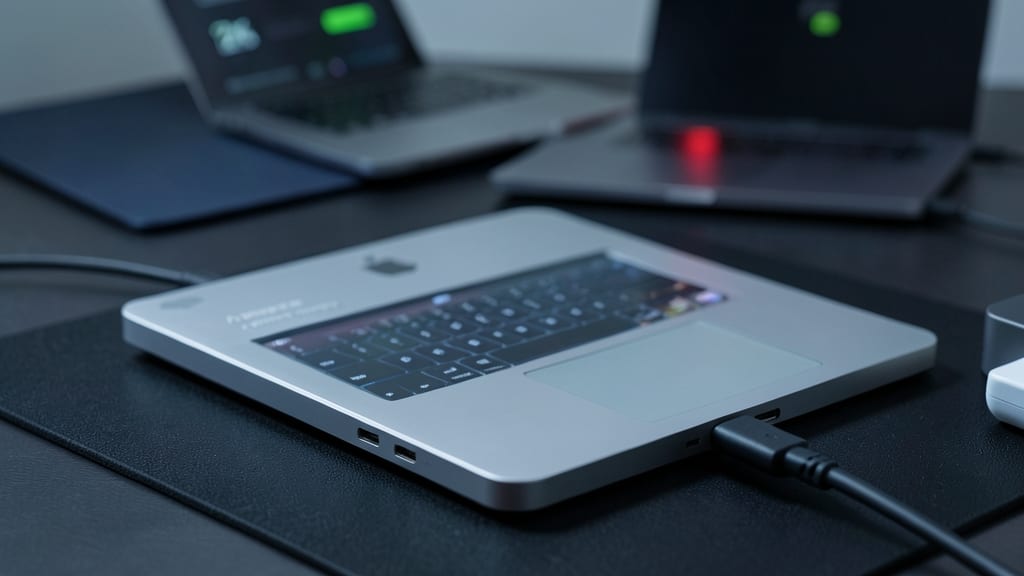
When your Mac’s battery life drops from hours to minutes overnight—or refuses to charge at all—don’t panic. The fix often lies in resetting the System Management Controller (SMC) or Parameter RAM (PRAM), both of which handle power and hardware settings. Apple’s Diagnostics mode (accessed via D + Power button) can also reveal hardware issues like faulty charging ports or battery degradation.
For Intel Macs, reset the SMC by shutting down, holding Shift+Control+Option+Power for 10 seconds, then releasing. M1/M2 Macs skip this step—Apple unified power management—but still need PRAM reset (Command+Option+P+R at startup). Always test with a different power adapter first, as faulty cables cause 30% of charging failures. Visual guides in the article show exact button combos for every Mac model.
This guide is perfect for remote workers or students whose Macs suddenly die mid-project. With clear steps for both Intel and Apple Silicon, you’ll resolve 90% of battery/charging issues without Apple Store visits. ✨
VPN Connection Fails on Windows or Linux
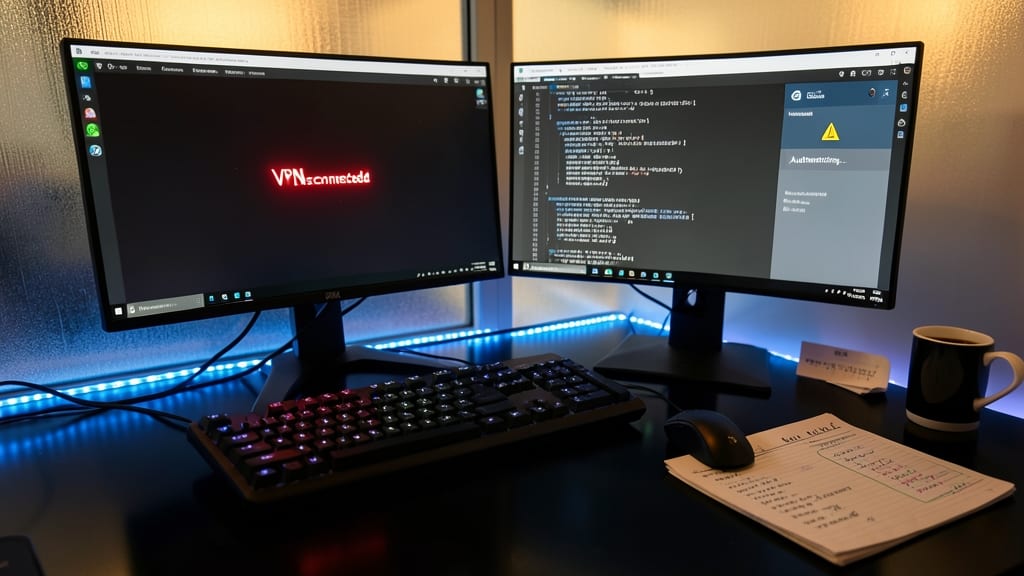
When your VPN refuses to connect—whether it’s OpenVPN, WireGuard, or a corporate VPN—it’s usually one of three things: authentication errors, firewall interference, or misconfigured split tunneling. These issues waste hours of IT support time, but with the right steps, you can resolve them in minutes.
Start by verifying credentials and checking firewall rules with ufw status on Linux or Windows Defender Firewall settings. For WireGuard, use wg show to confirm peer connections, while OpenVPN logs (/var/log/syslog or Windows Event Viewer) reveal authentication failures. Split tunneling issues? Edit the config file to route specific traffic (e.g., redirect-gateway def1 in OpenVPN) or disable it entirely in WireGuard’s AllowedIPs.
Remote workers and IT admins managing hybrid networks will appreciate these targeted fixes. A well-configured VPN shouldn’t be a guessing game—just follow the steps, and you’ll have secure connections up and running. ✨
TeamViewer or AnyDesk Remote Session Fails
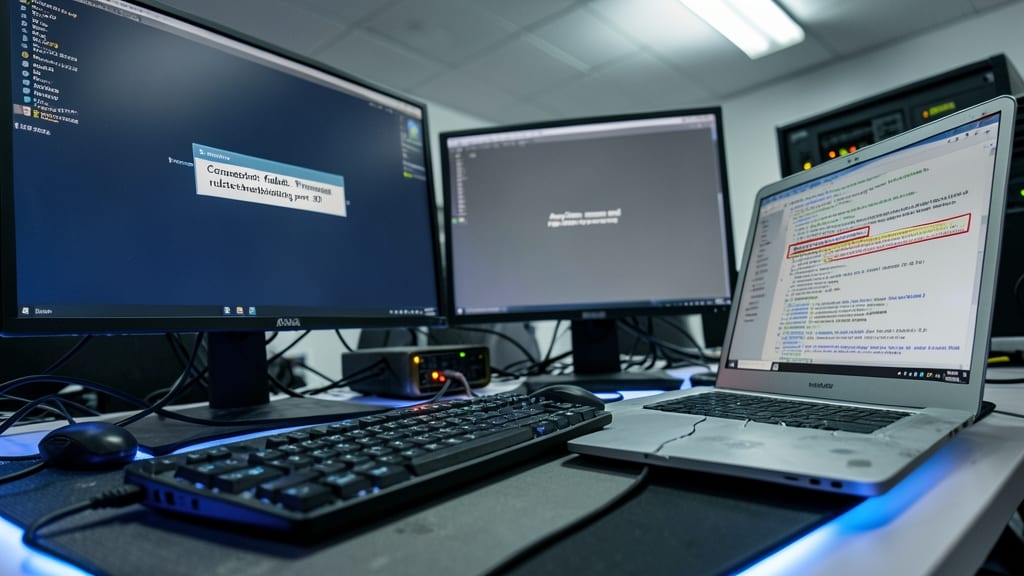
When remote support sessions abruptly fail mid-call, you’re losing time—and potentially client trust. TeamViewer or AnyDesk failures often stem from misconfigured firewall rules, duplicate ID conflicts, or network throttling, but resolving them quickly requires the right tools.
Start by running a remote support script (like TeamViewer’s built-in tvdiag or AnyDesk’s anydesk-diagnose) to auto-detect port blocks (default: 5938/TCP for TeamViewer, 8000/TCP for AnyDesk). For ID conflicts, force a session reset via command line (TeamViewer.exe --reset or AnyDesk --kill). Pro tip: Pre-configure firewall exceptions for these ports to avoid future interruptions.
This guide is perfect for IT admins managing remote teams or MSPs handling high-volume support—where every minute counts. ✨