
PowerPoint
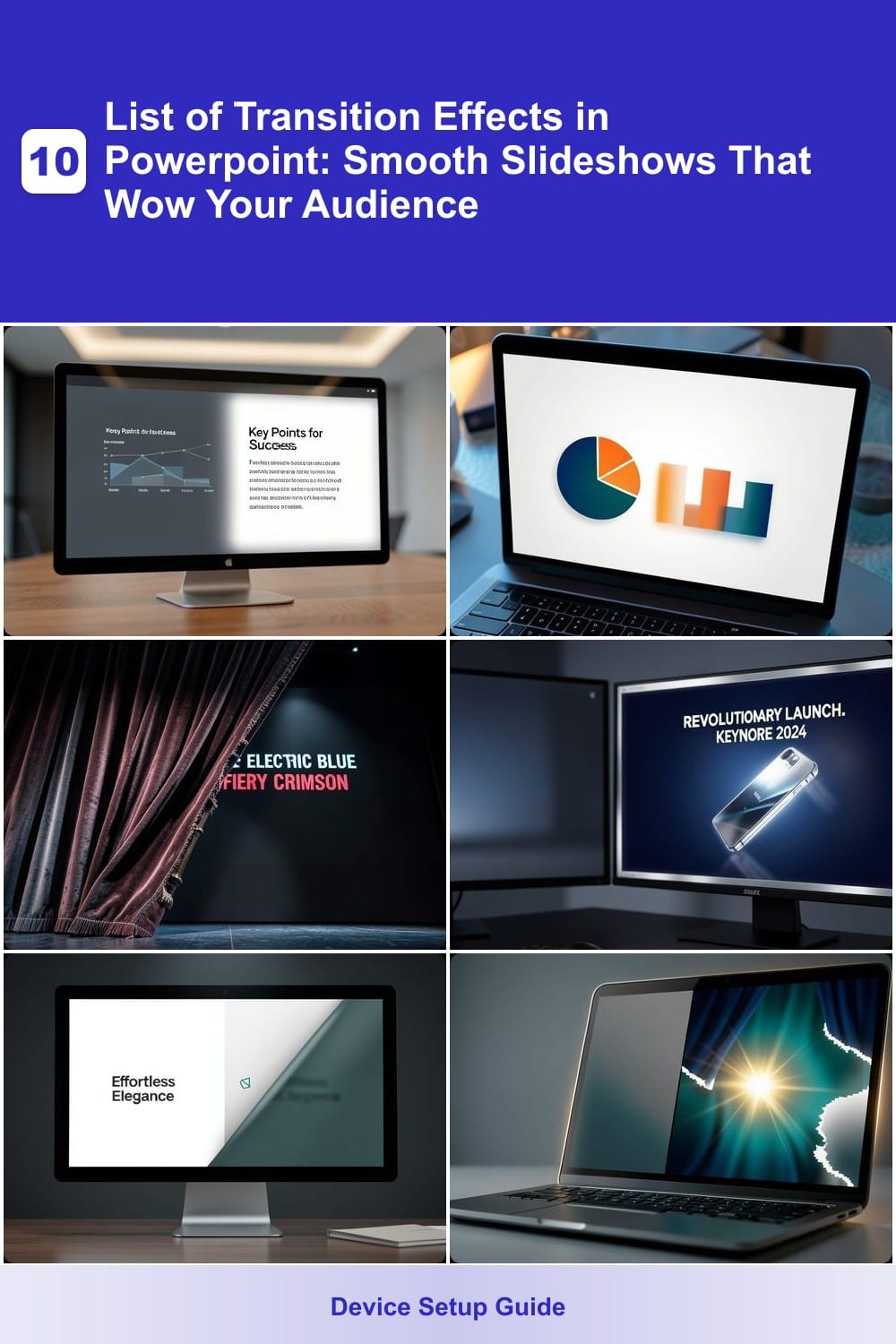
Want to make your PowerPoint presentations more engaging? These seven transition effects will transform your slideshows from boring to breathtaking, helping you hold your audience’s attention and deliver a polished, professional experience.
Fade Slide Transition for Elegant Professionalism
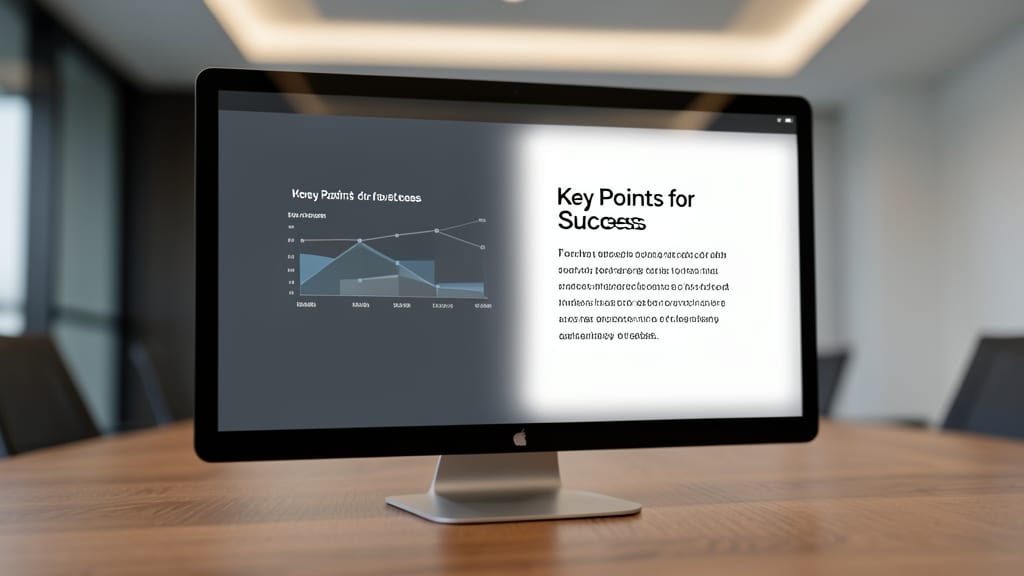
Need a transition that screams "professional" without screaming "over-the-top"? The Fade effect delivers a timeless elegance that subtly shifts focus between slides—no distractions, just polished sophistication. Unlike flashy animations, it works seamlessly in corporate boardrooms or university lectures, ensuring your message stays the star.
This classic transition offers zero motion blur or abrupt cuts, making it ideal for text-heavy slides or data presentations. Adjust the speed (slow, medium, fast) to control pacing, and pair it with a black or white slide background for maximum clarity. Pro tip: Use it consistently across slides to create a cohesive, high-end aesthetic.
Perfect for executives, trainers, and educators who prioritize clarity and professionalism. A fade keeps your audience engaged without overwhelming them—just like a well-crafted argument. ✨
Morph Transition for Dynamic Data Visualization

Struggling to make data-driven slides pop without overwhelming your audience? The Morph transition is your secret weapon for transforming static charts into dynamic storytelling tools. Unlike basic fades or wipes, this effect lets you seamlessly morph one shape into another—think a pie chart fluidly converting into a bar graph—while keeping your audience’s focus locked on the insights, not the animation.
PowerPoint’s Morph works best with shapes, charts, and graphs (even embedded Excel data), and you can control the transition speed (from 1.5 to 3 seconds) to match your pacing. The effect automatically adjusts proportions, so your visuals stay proportional during the shift. Pro tip: Use it to highlight trends over time (e.g., a line graph evolving into a heatmap) or before/after comparisons—like a mockup transforming into a final product. For extra polish, pair it with a dark background to make the morph stand out.
This transition is a game-changer for analysts crunching numbers, marketers showcasing campaign metrics, or trainers breaking down complex data. Just remember: Morph shines when used strategically—save it for slides where the transformation directly enhances your message. ⚡
Push Transition for High-Energy Presentations
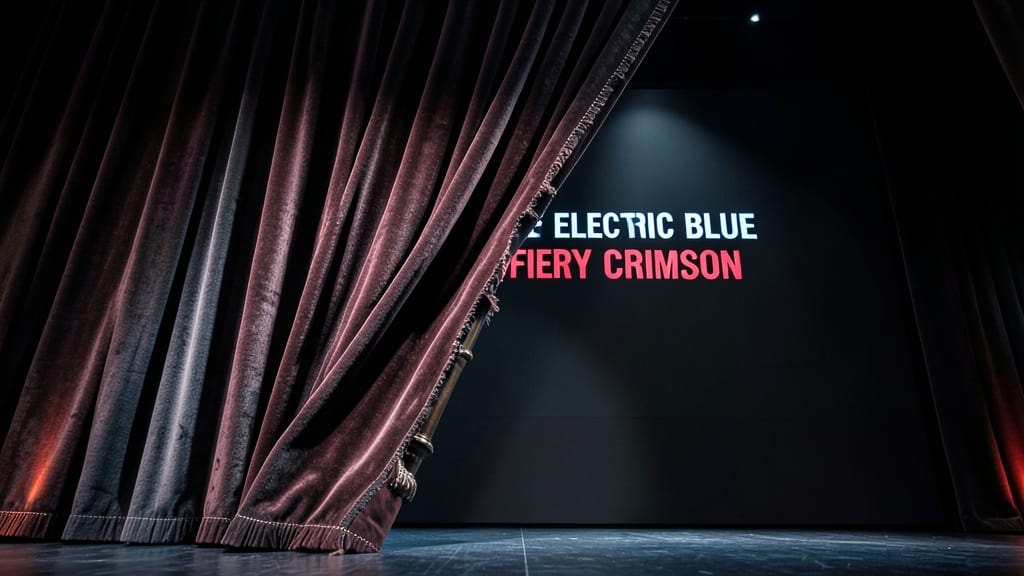
Need to inject energy into your presentation? The Push transition delivers a bold, directional shift—like a stage curtain opening—to signal momentum and urgency. This isn’t just a slide change; it’s a visual cue that your audience will feel, perfect for driving home key points with cinematic flair.
With three directional options (left, right, or center push), you control the flow of attention. Pair it with a 1.5-second duration for a snappy pace or stretch to 3 seconds for dramatic emphasis. The 3D perspective adds depth, making it stand out against flat transitions like Fade or Morph. Pro tip: Use this with bold text overlays or high-contrast visuals to amplify impact.
This transition shines for motivational speakers (think TED Talks), sales teams pitching game-changing ideas, or creative directors launching bold campaigns. When your message needs to move forward, this is your go-to effect. ✨
Zoom Transition for Emphasizing Key Slides
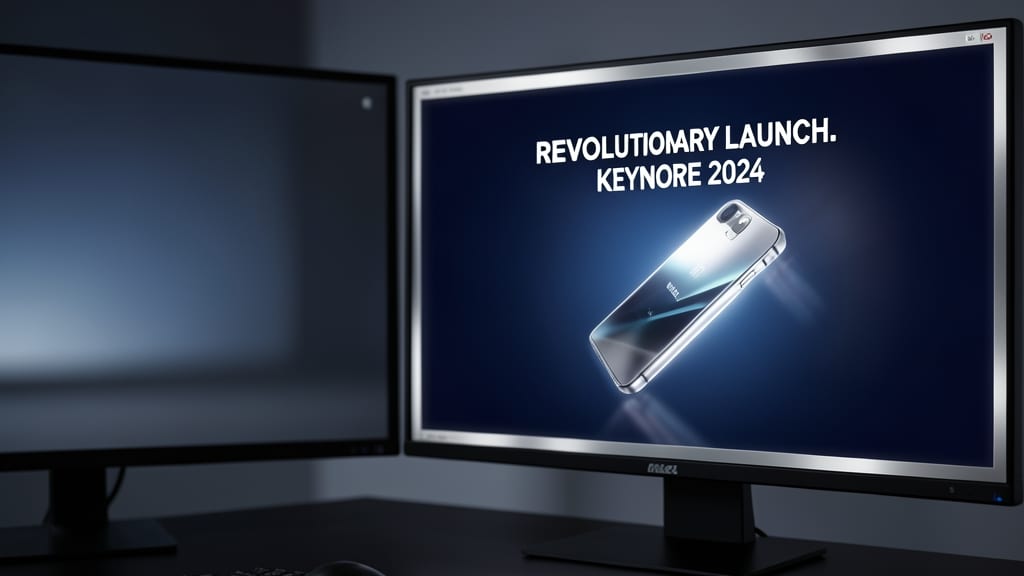
Need to make a single slide the star of your presentation? The Zoom transition delivers a dramatic focal point by smoothly zooming in or out to emphasize your key message—ideal for product launches or keynote speeches where impact matters most.
This effect lets you control the zoom direction (in or out) and speed to match your pacing, while the center point can be adjusted for precise framing. Pair it with a dark background and bold text for maximum contrast, ensuring your audience’s eyes lock onto the critical content. Pro tip: Use it sparingly—once per presentation—to avoid overwhelming your audience.
Perfect for executives, creatives, or trainers who want to command attention without sacrificing professionalism. Just remember: less is more with this high-impact tool. ✨
Wipe Transition for Clean, Minimalist Designs
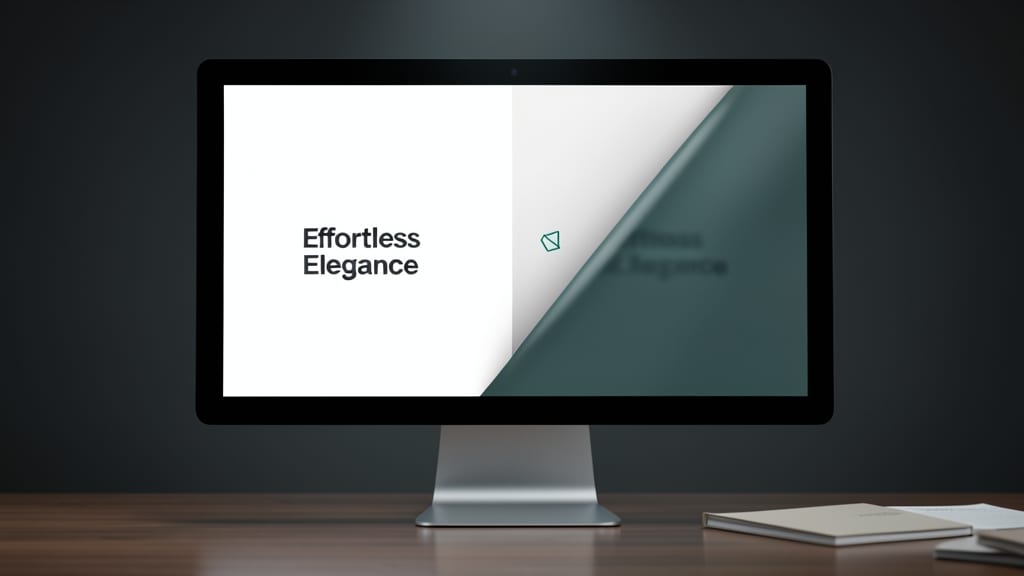
Tired of flashy transitions that distract from your message? The Wipe transition delivers a sleek, modern shift between slides—perfect for minimalist designs where every element serves a purpose. Unlike dramatic zooms or morphs, it uses a clean, directional wipe (left, right, up, or down) to maintain focus on your content.
This transition works seamlessly with white-space-heavy designs, ensuring your audience stays engaged without visual clutter. You can customize the wipe direction and speed to match your brand’s aesthetic, and it pairs beautifully with monochromatic color schemes or geometric layouts. For designers and brands prioritizing clarity, it’s the ultimate tool for a polished, unobtrusive flow. ✨
Slide Transition Gallery for Customized Creativity

Tired of the same old transitions? The Slide Transition Gallery in PowerPoint is your creative playground, letting you combine multiple effects into one seamless flow. Instead of settling for a single transition, you can layer push + fade, morph + zoom, or even wipe + dissolve for a truly unique slideshow that feels tailor-made.
To use it, simply open the Transitions tab, click the More button (⋯) in the gallery, and select Custom Animation. Here, you can assign multiple transitions per slide—like a push effect followed by a fade-out—or sync them with timing controls for perfect pacing. The result? A dynamic, cinematic feel that keeps viewers engaged without looking amateurish.
This feature is a game-changer for artists, designers, and storytellers who want to stand out. Whether you're pitching a creative project or sharing a personal portfolio, the Slide Transition Gallery lets you break the mold and make every presentation uniquely yours. ✨
3D Orbit Transition for Interactive Storytelling
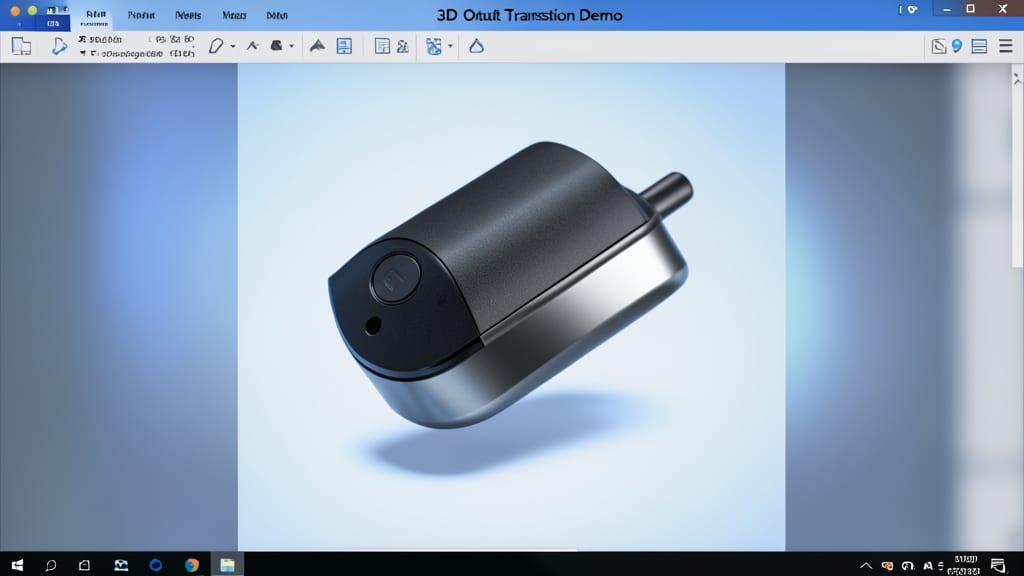
Need to showcase a 3D-rendered product or explain complex spatial concepts in your presentation? The 3D Orbit Transition lets your audience rotate objects seamlessly—like spinning a model in their hands—without leaving PowerPoint. This isn’t just a visual trick; it’s a storytelling tool that turns static slides into interactive experiences.
With this transition, you can highlight multiple angles of a 3D object in one slide (e.g., a drone, architectural model, or molecular structure) while keeping the focus on your narrative. The effect works best with embedded 3D models or high-res images, and you can adjust the rotation speed to match your pacing. Pro tip: Pair it with slide timers to control the orbit duration precisely.
Engineers, designers, and educators will love this for tech demos, but even marketers can use it to make product reveals feel dynamic. Just remember: less is more—use it sparingly to avoid overwhelming your audience. ✨