
Software
Microsoft Edge transforms from a simple browser into a productivity powerhouse with the right optimizations. These seven tips will help you boost speed, enhance security, and streamline daily tasks—whether you're browsing, working, or gaming.
Enable Edge’s Immersive Reader for Focused Reading
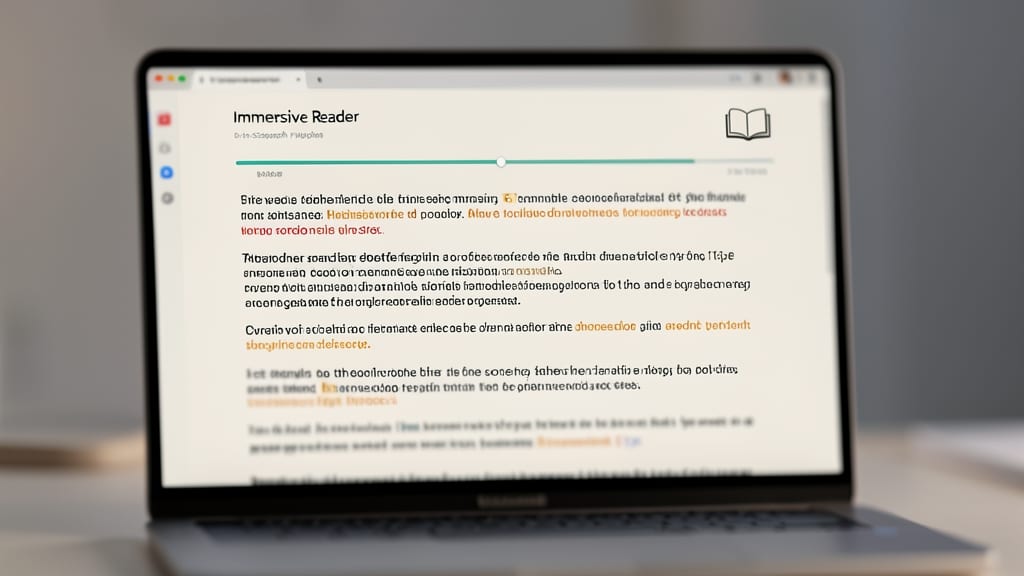
Drowning in dense PDFs or research papers? Microsoft Edge’s Immersive Reader transforms your screen into a distraction-free zone with text-to-speech, adjustable font sizes, and dyslexia-friendly layouts—all built right into the browser.
Simply click the Immersive Reader icon (looks like an open book) in the toolbar to toggle on high-contrast mode, line focus, or even have the text read aloud at customizable speeds. The tool also splits text into chunked paragraphs for easier scanning, while the background color options reduce eye strain during long sessions.
This is a game-changer for students cramming for exams, writers editing manuscripts, or professionals analyzing reports—turning passive reading into an active, engaging experience. Give it a try during your next deep work sprint! ✨
Customize Startup Pages for Instant Productivity
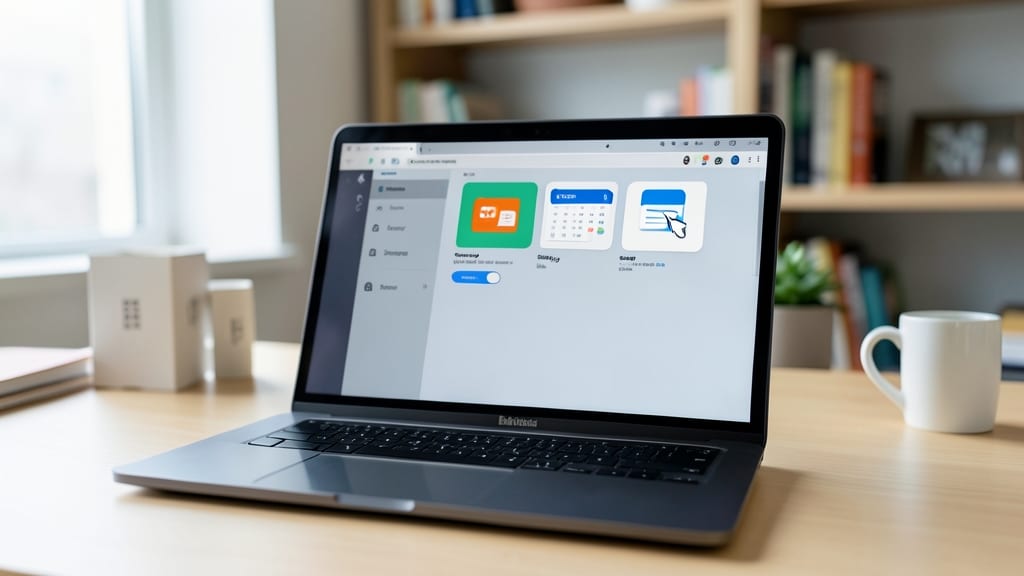
Tired of wasting time opening the same tabs every morning? Microsoft Edge lets you customize your startup page to launch directly with your most-used productivity tools—like OneNote, Trello, or your calendar—so you skip the tab-switching entirely.
Head to Settings > Startup and toggle "Open these pages" to pin your essential apps. You can even drag-and-drop tabs from your current session to save them as defaults. This simple tweak cuts down on 5+ minutes of daily setup time, making it perfect for professionals juggling multiple tools.
Power users who rely on Microsoft 365 apps or project management tools will love this—no more cluttered new tab pages or forgotten tabs. Just launch Edge and dive straight into work. ⚡
Use Collections to Organize Research Like a Pro
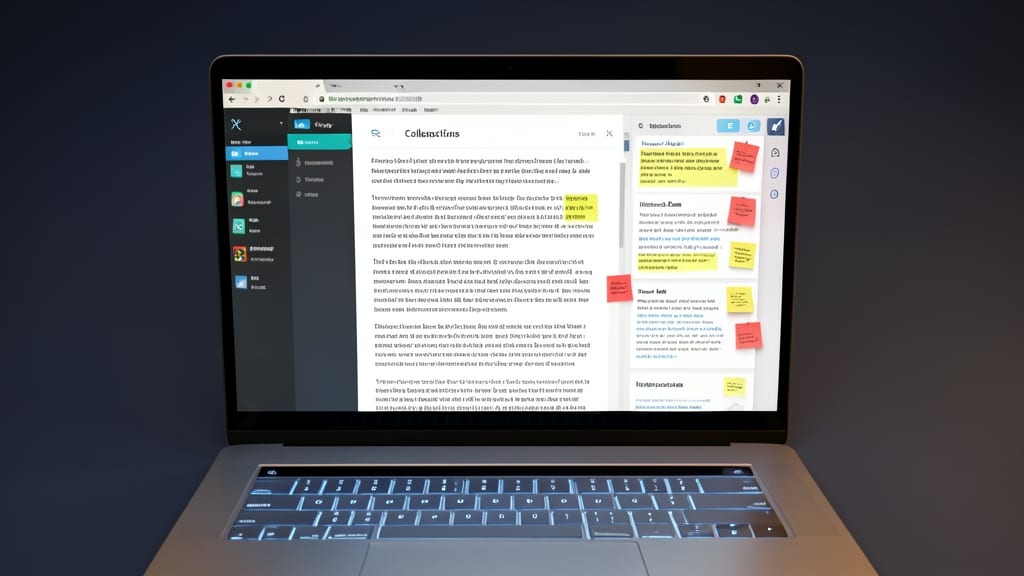
Drowning in tabs while researching? Microsoft Edge’s Collections feature turns your browser into a built-in research hub—no extra apps required. With one click, you can clip articles, highlight key passages, and add sticky notes directly to web pages, then organize everything into searchable folders.
This tool syncs across devices, so your notes stay accessible whether you’re on your laptop, tablet, or phone. The AI-powered search makes finding saved content effortless, while offline access ensures you’re never stuck without your research. Perfect for students writing papers or creators compiling inspiration.
Skip the chaos of bookmark folders—Collections keeps your research structured, annotated, and ready to go. Give it a try today! ✨
Enable Hardware Acceleration for Smoother Performance
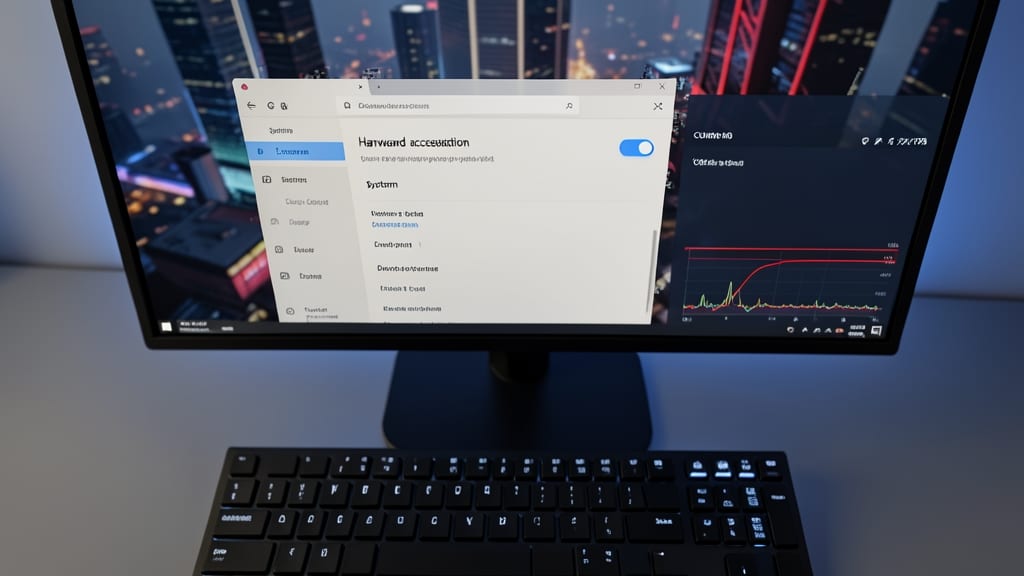
Struggling with choppy video playback or slow rendering in Edge? Hardware acceleration could be your game-changer—literally. This setting taps into your GPU’s power, offloading tasks like video decoding and 3D rendering to free up your CPU for other work.
To enable it, head to Settings > System > Performance and toggle "Use hardware acceleration when available". For gamers, this reduces input lag during streaming, while video editors see faster previews and smoother playback of high-res files. Just ensure your GPU drivers are updated—older versions may cause compatibility hiccups.
This tweak is ideal for users running 4K video editing or high-FPS gaming setups, where every millisecond counts. Give it a try and feel the difference in fluid performance! ⚡
Block Trackers with Privacy Settings
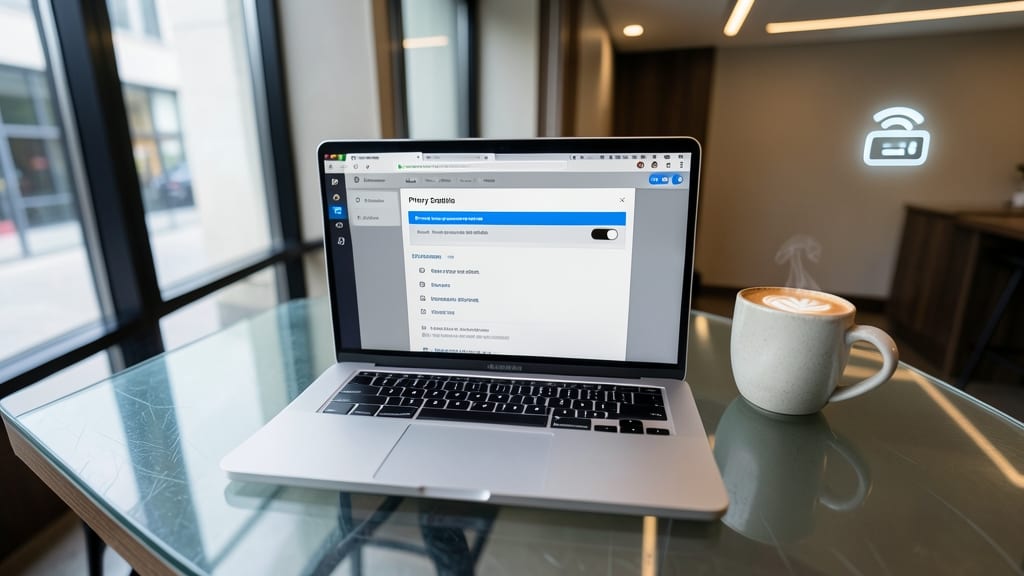
Public Wi-Fi networks and coffee shop browsing sessions don’t need to mean sacrificing privacy. Microsoft Edge’s Privacy Settings let you block third-party cookies and ad trackers with just one toggle—no extensions required. This cuts down on data collection while keeping your browsing experience smooth.
The Enhanced Tracking Prevention feature in Edge blocks over 1,000 known trackers by default, including those from advertisers and analytics firms. You can also customize settings to allow only first-party cookies, ensuring your personal data stays yours. For extra security, enable Microsoft Defender SmartScreen to filter malicious sites before they load.
This setting is a must for anyone who values privacy, especially when using shared networks. Whether you’re working remotely or just browsing on the go, these controls give you peace of mind without sacrificing functionality. 💡
Sync Tabs Across Devices for Seamless Switching
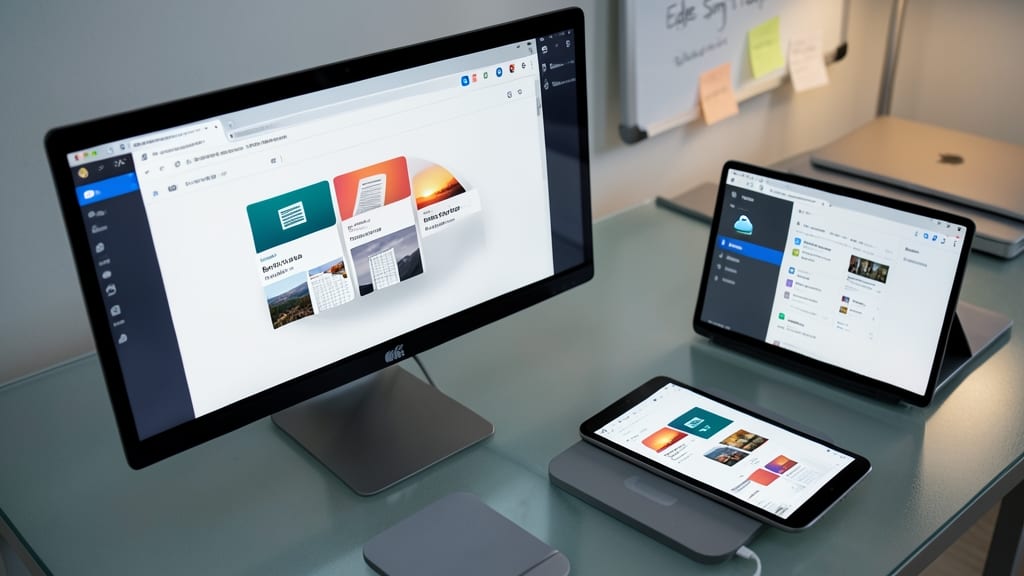
Tired of losing track of your open tabs when switching from your laptop to tablet? Microsoft Edge’s cross-device tab sync solves this by keeping all your tabs—including open documents and research pages—in sync across devices.
With just a few clicks, enable sync in Settings > Profiles > Sync to mirror tabs between your Windows PC, Mac, iOS, or Android devices. The feature even syncs open PDFs and Word docs, so you can pick up right where you left off. Plus, it works seamlessly with your Microsoft account, ensuring no data loss.
This is a game-changer for remote workers juggling meetings and documents or students researching on a tablet but drafting essays on a laptop. No more wasted time reopening tabs! ✨
Automate Repetitive Tasks with Edge Workflows
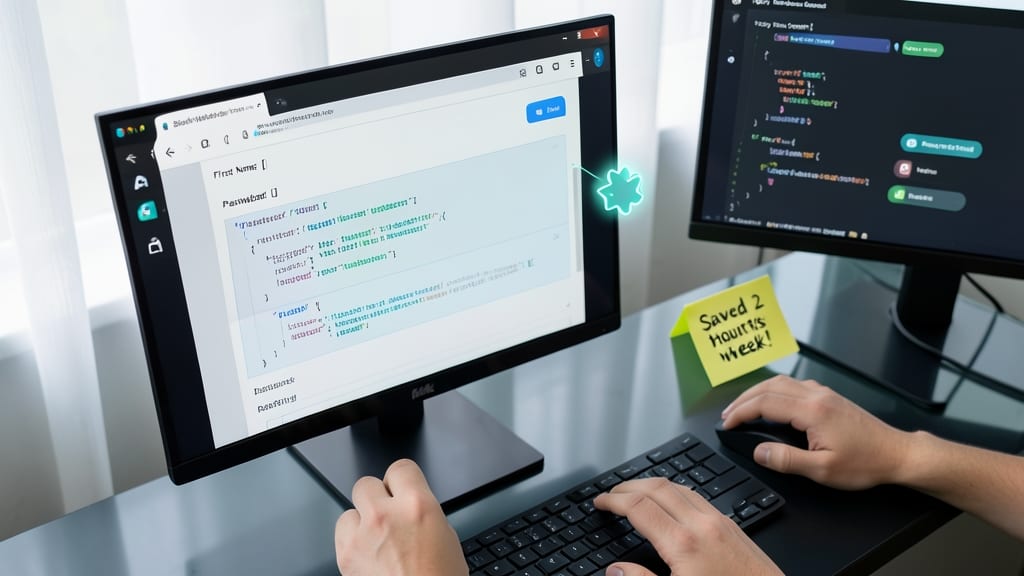
Tired of manually copying data or filling the same forms over and over? Edge Workflows lets you automate these tasks with custom scripts—no coding expertise required. This extension transforms repetitive browser actions into reusable workflows, saving hours weekly for developers, data analysts, or anyone drowning in digital paperwork.
Create workflows that extract structured data from web tables, auto-fill forms with saved templates, or even generate reports by combining multiple web sources. The visual editor makes it easy to chain actions like clicking buttons, typing text, or extracting data—all while keeping your workflows browser-based and shareable. For example, turn a manual price comparison into a one-click report with just a few drag-and-drop steps.
Ideal for power users who juggle multiple tools or developers testing web apps, Edge Workflows turns Edge into a Swiss Army knife for automation—all without leaving your browser. 💻