
Tip & Trick
Microsoft OneNote 2013 is packed with hidden features that can transform how you organize your notes, tasks, and ideas. These 10 underutilized tips and tricks will help you work faster, smarter, and more efficiently—without upgrading to a newer version.
Quick Note Taking with One-Touch Drawing
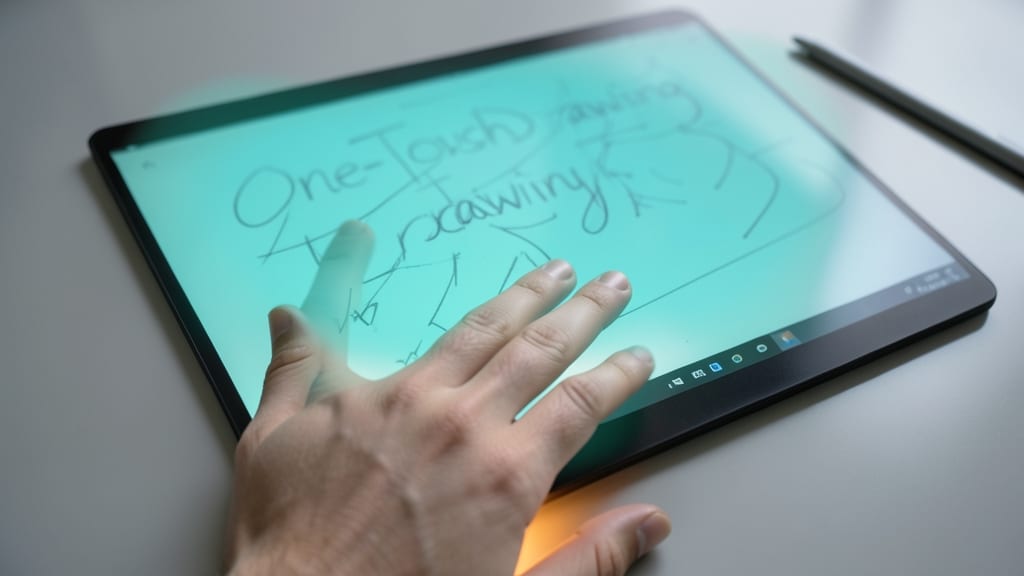
Ever wished you could sketch out ideas or jot down quick notes without even opening OneNote? One-Touch Drawing in OneNote 2013 makes this possible—just press Windows Key + N to activate it instantly. This feature lets you draw anywhere on your screen with your finger, stylus, or even a mouse, turning any blank space into a temporary canvas.
The best part? Your sketches or notes are automatically saved to OneNote’s active page—no need to switch apps or lose your thought flow. It supports handwriting recognition, so you can later convert your doodles into editable text. Perfect for brainstorming sessions, capturing spontaneous ideas, or quickly annotating screenshots without interrupting your workflow.
Ideal for designers, educators, or anyone who needs to sketch ideas on the fly, this trick turns your screen into a dynamic workspace. No more fumbling with apps—just draw, save, and move on. ⚡
Tagging and Searching with Quick Tags
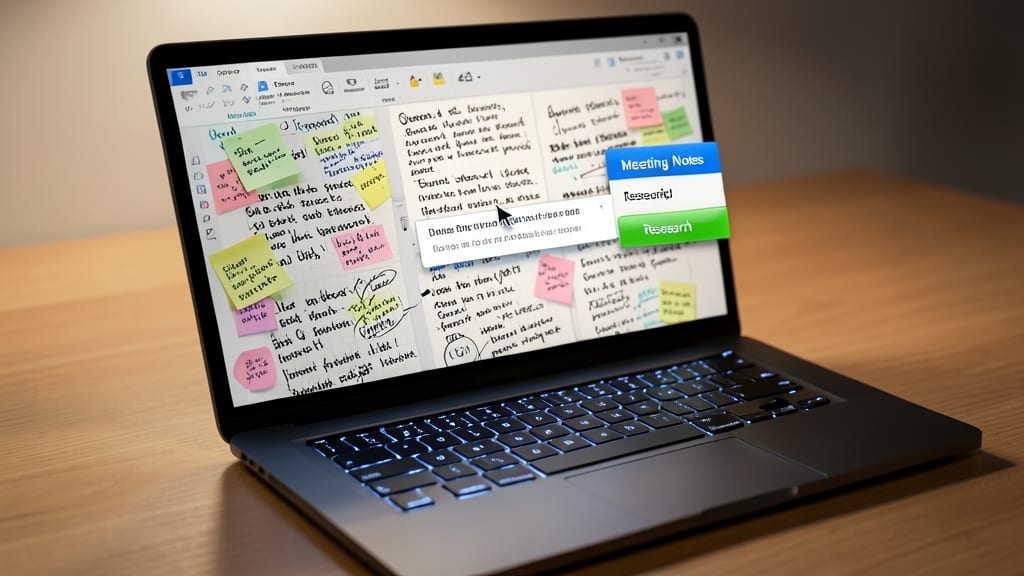
Drowning in a sea of notes but struggling to find what you need? Quick Tags in OneNote 2013 turn chaos into clarity with color-coded labels that let you categorize content in seconds. Simply highlight text, right-click, and assign a tag like “Meeting Notes” (blue) or “Research” (green)—then search by tag to retrieve everything instantly, even across notebooks.
The magic happens when you combine tags with OneNote’s built-in search: type a tag name (e.g., “@Important”) and the system filters results instantly. You can even nest tags (e.g., “Project X > Deadline”) for hierarchical organization. The six default colors cover most use cases, but you can customize them in File > Options to match your workflow.
Perfect for students tagging lecture notes by subject, researchers categorizing sources, or professionals tracking project milestones—this trick turns OneNote into a searchable knowledge base without the hassle. 💡
Inserting Audio and Video Clips Directly
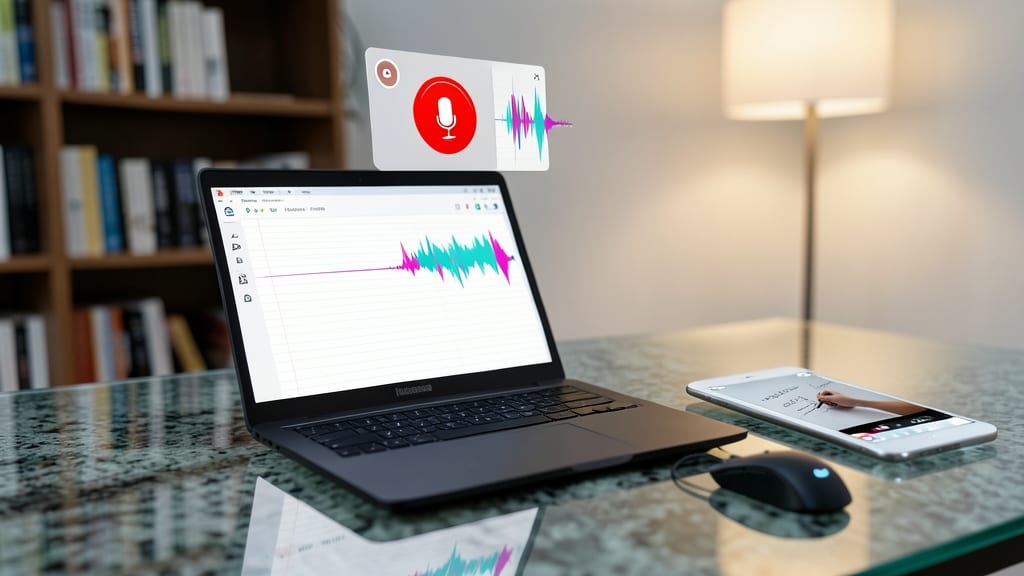
Never miss a key detail again—OneNote 2013 lets you record audio and video clips directly into your notes, turning your notebook into a multimedia hub. Whether you're capturing a lecture, jotting down voice memos, or saving a quick video explanation, this feature keeps everything in one place for easy review.
To start, simply click the Insert tab, select Audio or Video, and choose your recording device. The clips play back inline, so you can add timestamps or notes directly on the waveform. OneNote even supports WAV and MP4 formats, ensuring compatibility with most devices. Perfect for language learners, interviewers, or anyone who needs to preserve spontaneous ideas.
Ideal for professionals who juggle meetings, students reviewing lectures, or creatives brainstorming on the fly—this trick turns passive notes into an interactive experience. ✨
Using Quick Capture for Mobile Notes
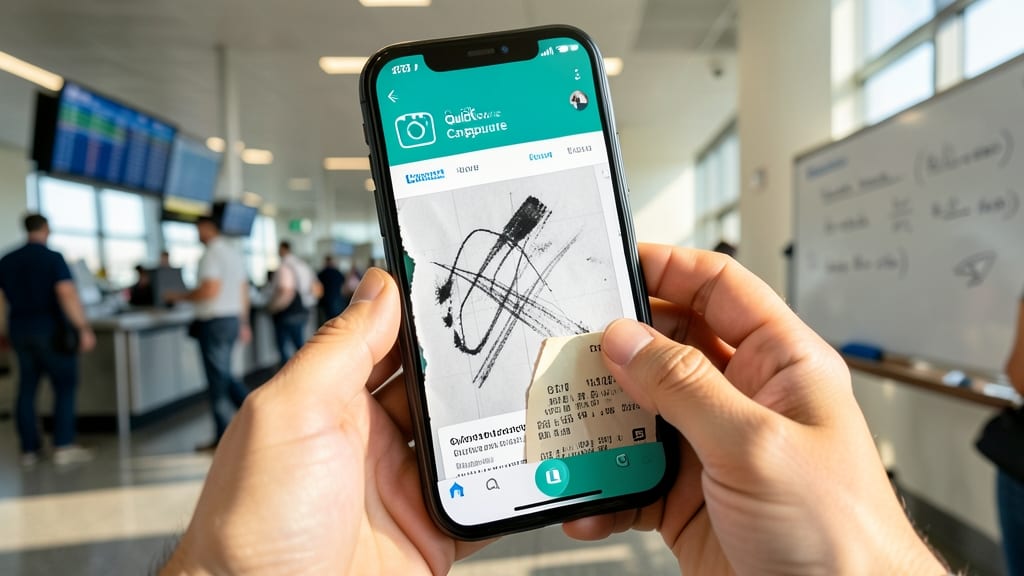
If you’re always on the move—whether in the field, at a conference, or just traveling—Quick Capture turns your phone into a pocket-sized OneNote powerhouse. With just a tap, you can snap photos of whiteboards, receipts, or sketches, or clip entire web pages directly into your notes, all without lifting a finger.
Here’s how it works: Open the OneNote app on your phone, tap the camera icon, and choose between photo capture or web clip. For photos, OneNote’s OCR instantly converts handwritten text into searchable digital notes. Need to save an article? Just tap the web clip option, and the page’s text, images, and links are preserved—no manual copying required. The content syncs automatically to your desktop version, so your notes stay in sync across devices.
This trick is a game-changer for field researchers, travelers, or sales teams who need to document ideas or reference materials instantly. No more fumbling with cameras or typing notes later—just capture, organize, and move on. ✨
Creating Templates for Repeated Tasks
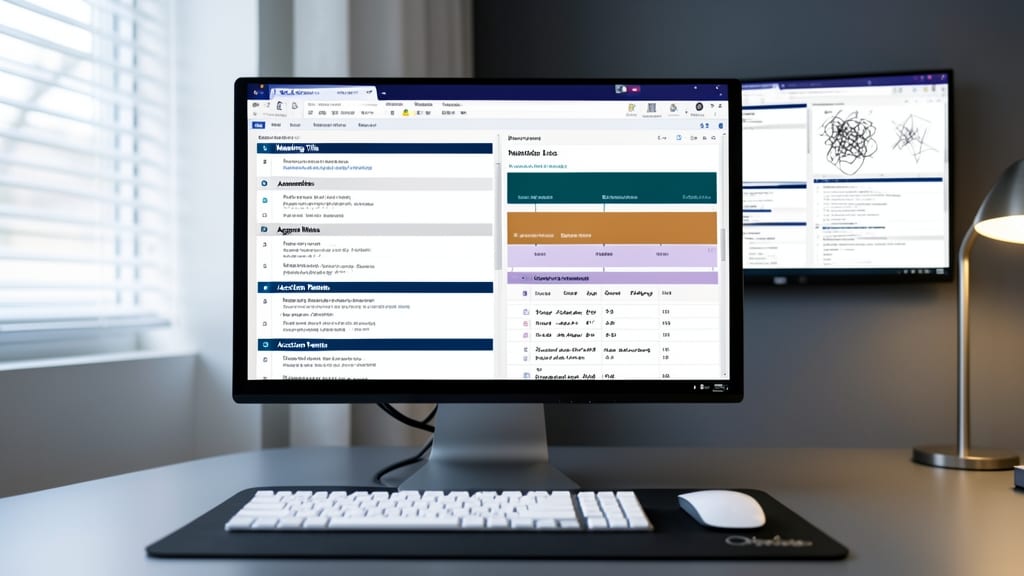
Tired of recreating the same meeting minutes or project outlines from scratch every time? OneNote 2013’s template feature lets you design custom layouts once and reuse them instantly—whether it’s a structured agenda for team meetings, a detailed project timeline, or even a personalized grocery list. The best part? You can save templates directly within your notebooks or share them across devices.
To create a template, start by designing your ideal layout with placeholders for headers, bullet points, or tables. Once finalized, save it as a new section or notebook template under the File > Save As menu. OneNote even supports pre-filled text and images, so you can include your company logo or standard disclaimers. For added efficiency, combine templates with Quick Tags to auto-categorize content.
Perfect for managers, students, or busy professionals—this trick turns repetitive tasks into a five-minute setup. No more wasted time reformatting; just open, fill, and save. 💪
Linking Notes Across Notebooks
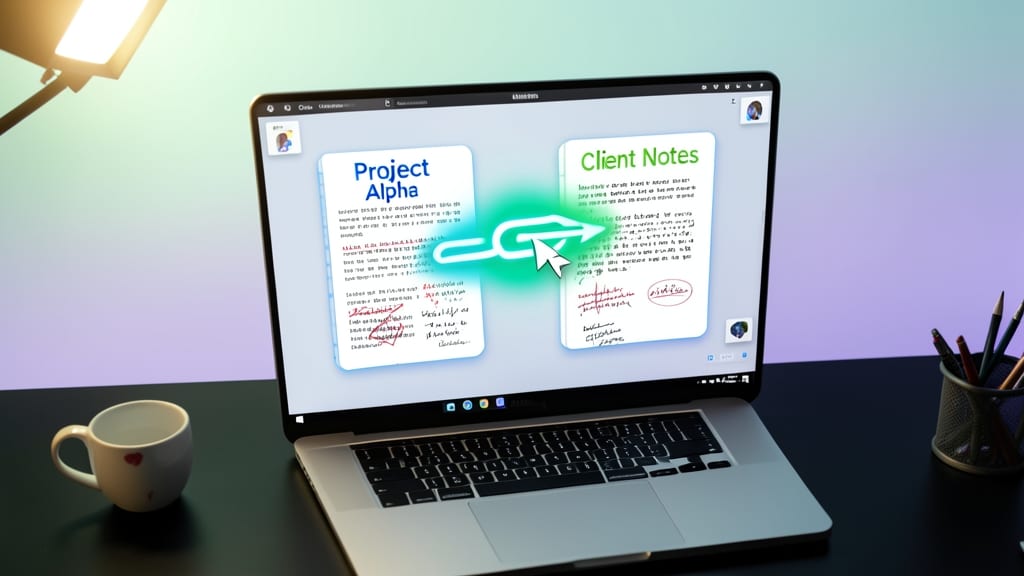
Struggling to keep track of related notes scattered across multiple notebooks? OneNote 2013’s cross-notebook hyperlinking feature bridges the gap effortlessly. Instead of flipping between notebooks, you can now create clickable links that instantly jump to connected notes—whether they’re in your Work Projects notebook or Personal Research section.
To set it up, simply right-click a piece of text or image, select Link to, then choose the target notebook and page. The feature works seamlessly across local files, OneDrive, or SharePoint, ensuring your connections stay intact. This is a game-changer for researchers, project managers, or anyone juggling complex information across different notebooks.
Ideal for students cross-referencing lecture notes with study guides or professionals linking meeting minutes to action items, this trick turns OneNote into a dynamic knowledge hub. 💡
Using Math Equations with Equation Tools
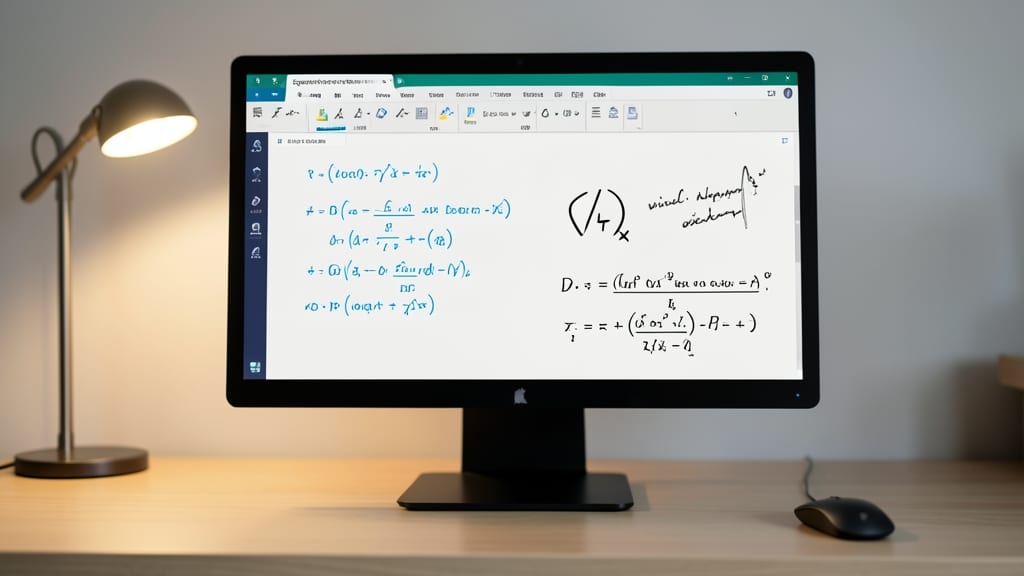
Forget scribbling equations on paper—OneNote 2013’s Equation Tools let you type or handwrite complex math expressions directly into your notes. Whether you're solving calculus problems or documenting engineering formulas, this feature turns your notebook into a digital whiteboard.
The tool supports fraction formatting, integrals, matrices, and Greek symbols—all with just a few clicks. You can even convert handwritten equations to typed text for easy editing, making it perfect for students reviewing notes or engineers documenting calculations. The best part? It integrates seamlessly with other OneNote content.
Ideal for math students, data scientists, or engineers, this tool saves time and keeps your work organized in one place. No more switching between apps—just type, solve, and save. ✨
Setting Up Automatic Page Numbering
Struggling to keep track of pages in lengthy legal briefs, research papers, or project documents? OneNote 2013’s automatic page numbering feature adds sequential numbering with minimal effort, ensuring every page stays organized and easily referenceable.
To enable it, navigate to the Insert tab, then select Page Numbers. Choose your preferred location (header, footer, or page margin) and alignment (left, center, or right). OneNote automatically updates numbering as you add or delete pages, saving hours of manual formatting. The feature works seamlessly with section breaks, so you can restart numbering for different chapters or notebooks.
This trick is a game-changer for legal professionals, academics, and project managers who juggle multi-page documents daily. No more flipping through pages—just scan the footer for instant navigation. ✨
Customizing Shortcuts for Faster Navigation
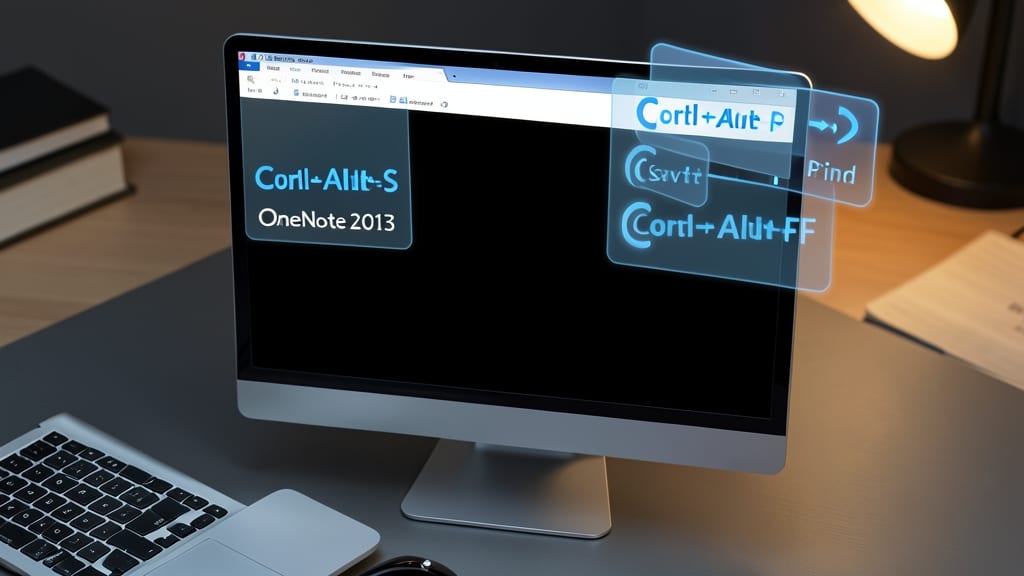
Tired of hunting for commands in OneNote’s menus? Custom keyboard shortcuts can cut your workflow time in half by letting you trigger actions like saving, printing, or searching with a single keystroke.
OneNote 2013 lets you assign shortcuts to 15+ commands (e.g., Ctrl+Alt+S for Save, Ctrl+Alt+P for Print) via the File > Options > Advanced menu. For power users, this means zero mouse clicks during intense note-taking sessions. Pro tip: Combine shortcuts with Quick Tags for even faster organization.
This trick is a game-changer for legal professionals, researchers, or anyone drowning in digital notes. ⚡
Collaborating in Real-Time with Shared Notebooks
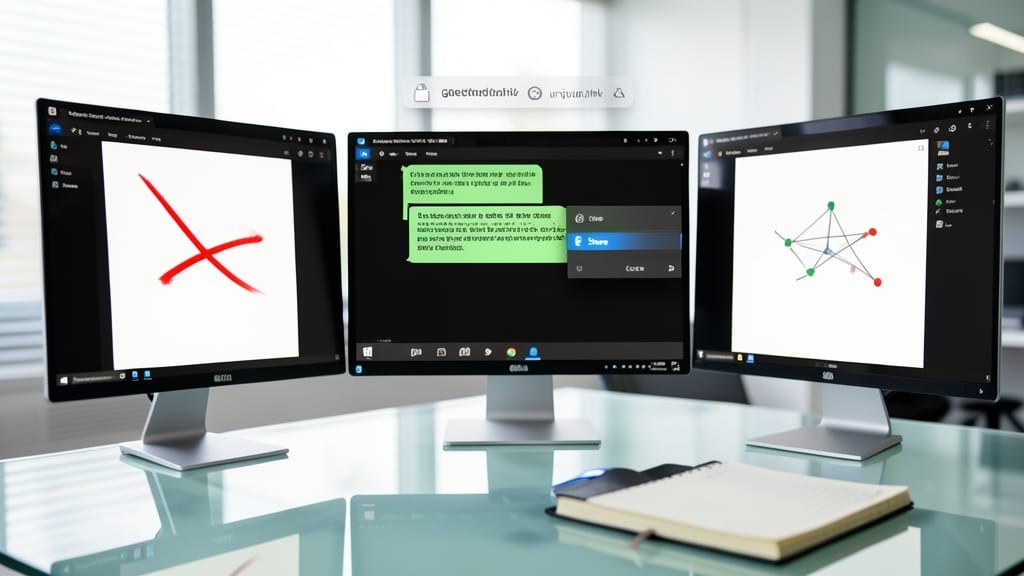
Tired of endless email chains just to align on a project? OneNote 2013’s shared notebooks let teams co-edit in real-time—no version conflicts or lost updates. Simply right-click a notebook, select Share, and generate a unique link to send to collaborators, who can then edit, comment, or annotate simultaneously.
The feature supports live cursors (visible to all participants) and comment threads, so feedback stays organized. Best of all, it works seamlessly with Microsoft accounts, ensuring everyone stays on the same page—literally. No extra plugins or cloud services required; it’s built right into OneNote 2013.
This is a game-changer for remote teams, educators, or anyone managing group projects. Say goodbye to "final version" emails and hello to true collaboration. ✨