
Software
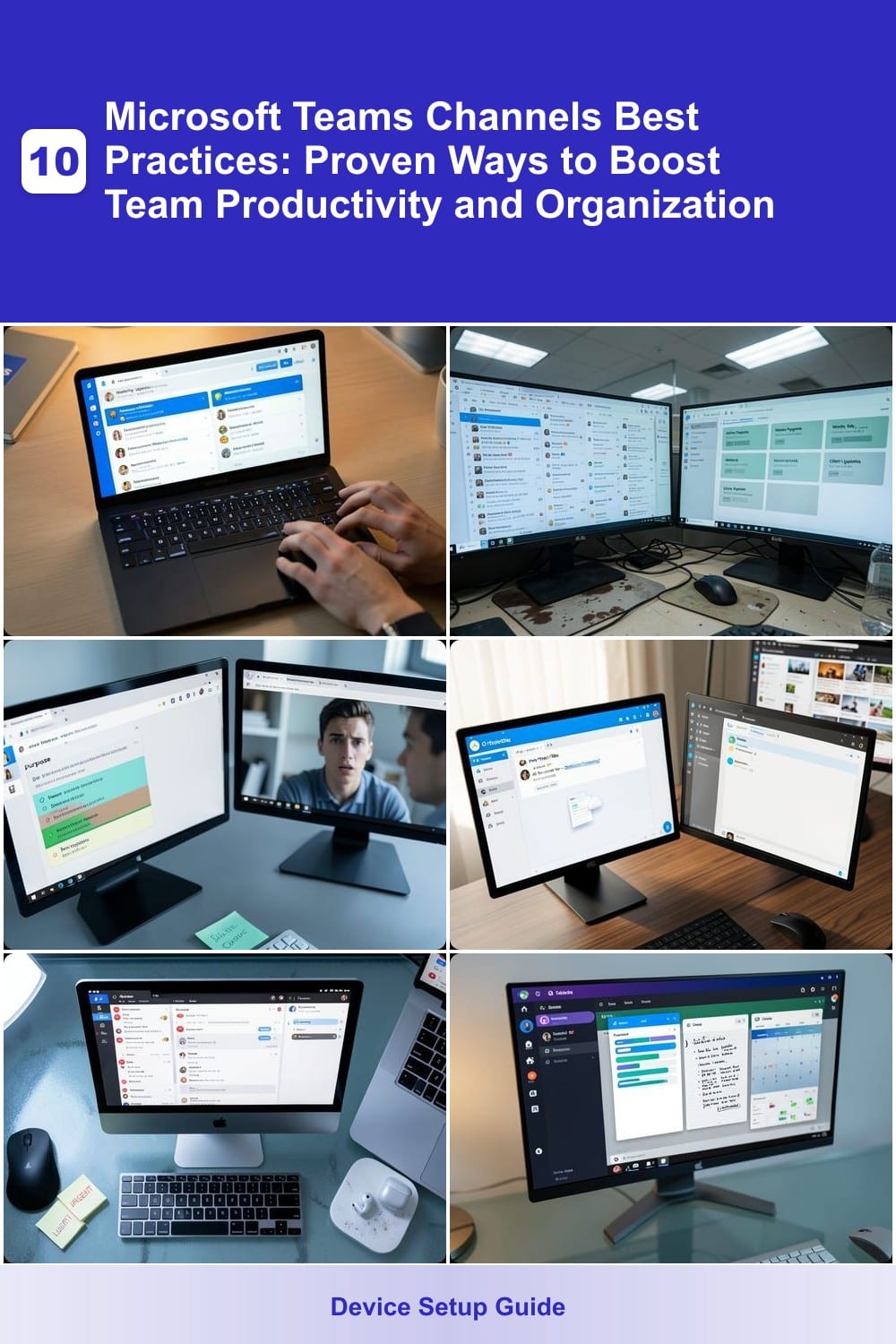
Struggling with disorganized Microsoft Teams channels? These 10 proven best practices will transform your workflow, enhance collaboration, and ensure critical information stays accessible—without the chaos.
Standardize Channel Naming Conventions
Ever clicked into the wrong Microsoft Teams channel and wasted 10 minutes searching for the right thread? A standardized naming system cuts that chaos by making every channel instantly recognizable—no more guessing whether "Marketing-Updates" or "📌 Announcements-Marketing" is the right spot.
Start with prefixes like "📌 Announcements-" for company-wide updates or "📝 Docs-" for shared files, followed by department tags (e.g., "🏢 HR-" or "💻 Dev-"). For teams with 50+ channels, this prevents the "Where did we put that?" panic. Pro tip: Use emojis sparingly but consistently—Teams supports 🔧 Tech-, 📊 Finance-, or 🎨 Design-—to visually group related channels at a glance.
This system shines for remote teams or departments with overlapping roles, where clarity saves hours weekly. Try it on your next channel creation—your future self will thank you. ✨
Limit Active Channels to 10-15

When your team’s Microsoft Teams workspace starts feeling like a digital landfill—overflowing with channels for every idea, meeting, and half-finished project—it’s time to hit reset. Studies show that 10-15 active channels strike the perfect balance between accessibility and focus, cutting through the noise so your team can prioritize what truly matters.
Start by auditing your current channels and archiving or merging those that no longer serve a clear purpose. Use channel descriptions (covered in the next tip) to flag inactive ones for review. For teams juggling multiple projects, designate a "Parking Lot" channel for ideas that aren’t ready for prime time—this keeps your active list lean while ensuring nothing gets lost. The result? Faster decision-making, fewer missed updates, and a workspace that scales with your team’s actual needs.
This rule is a game-changer for small to mid-sized teams where every channel creation request feels like a distraction. By capping your active channels, you’ll reclaim mental bandwidth for the projects that move the needle. 💪
Use Channel Descriptions for Quick Reference
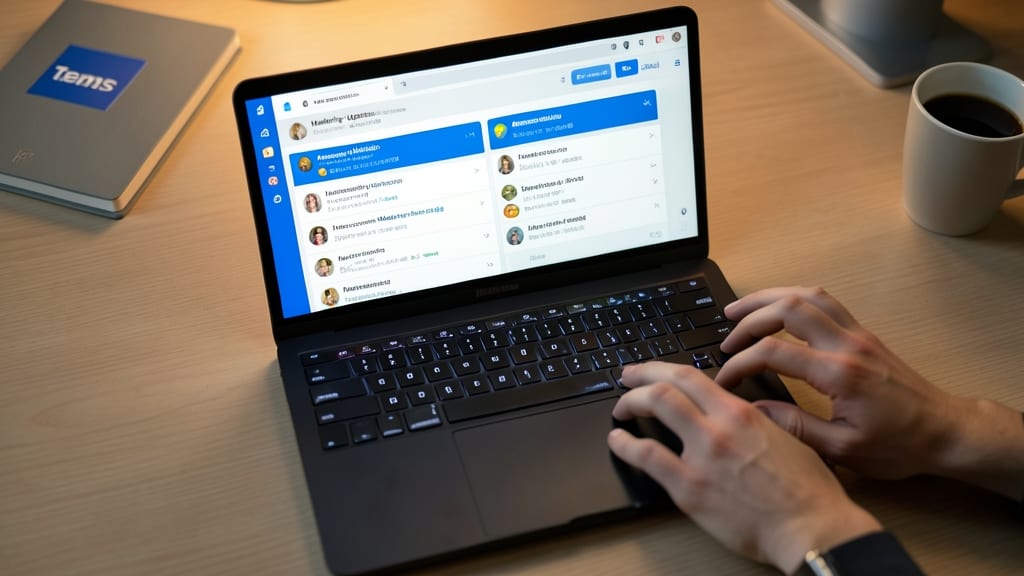
New hires and remote teammates often waste hours figuring out where to start—until you add a channel description that acts as a built-in guide. Unlike vague names, a well-structured description embeds the purpose, owner, and key topics in one place, so everyone instantly knows who to ask and what to expect.
Include specifics like meeting links, file locations, and active discussion topics in the description field. For example: "Purpose: Project X updates | Owner: Alex T. | Key Topics: Design, Deadlines, Budget | Files: OneDrive/Shared-Docs | Weekly Sync: Tues 3 PM." This turns a channel from a mystery into a self-service onboarding tool—no more "Where do I find the specs?" messages.
Remote teams and hybrid workforces benefit most, as these descriptions cut through ambiguity and reduce dependency on Slack messages or emails. With just 5 minutes of setup, you’ll turn confusion into clarity. ✨
Organize Files with Folders in OneDrive
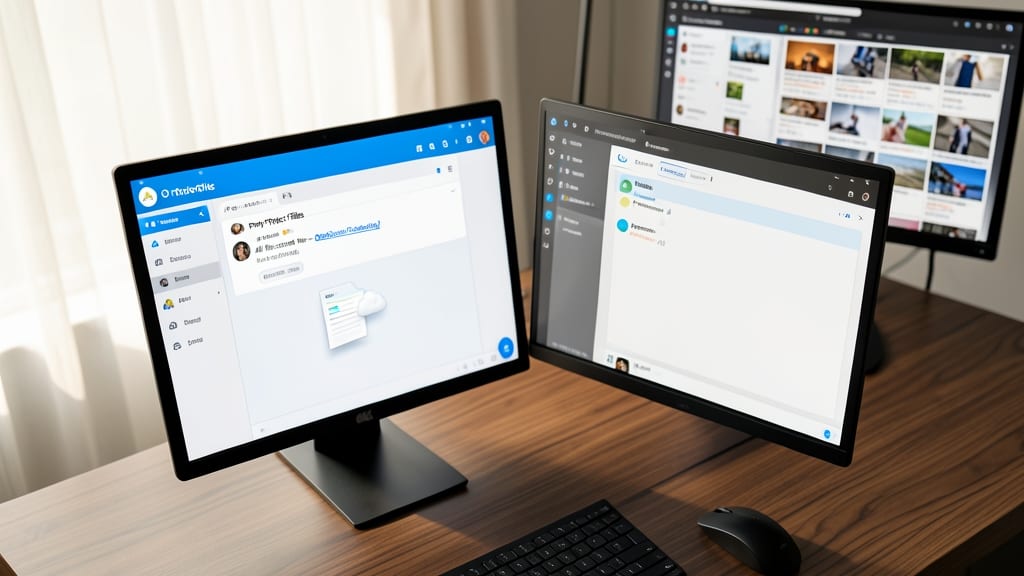
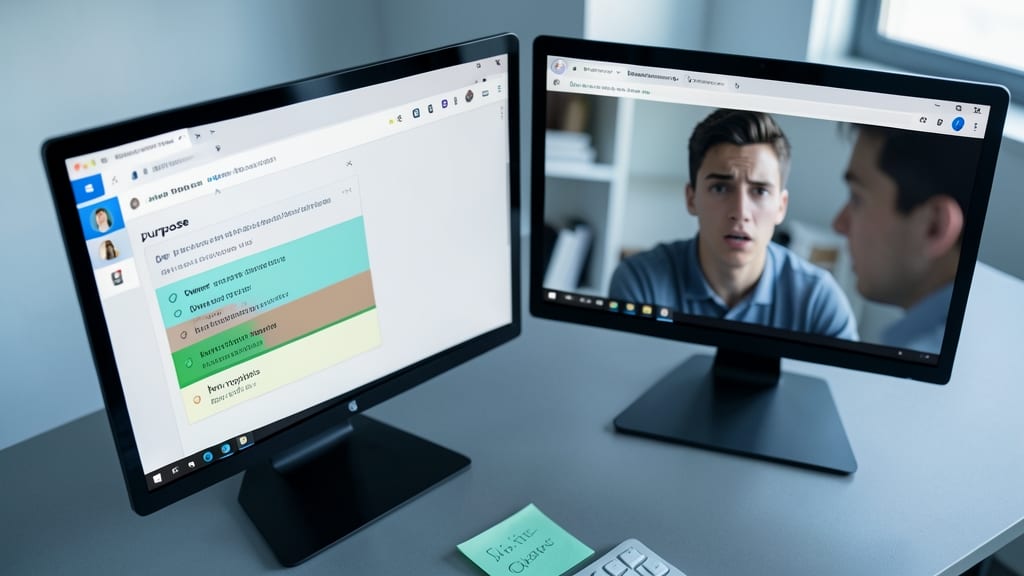
Tired of scrolling through endless files in your Teams channels? Linking OneDrive folders to your channels keeps everything tidy while making collaboration smoother. Instead of attaching files directly to posts—where they can get lost—store them in a dedicated OneDrive folder and link it to the channel. This approach keeps your workspace clean and ensures files stay organized under a single, searchable location.
To set this up, simply upload files to a OneDrive folder (like "Project X – Drafts" or "Client Y – Contracts") and then add the folder as a tab in your Teams channel. This gives your team direct access to all files without cluttering the channel with attachments. You can even nest subfolders for granular organization—perfect for large projects with multiple stakeholders.
This method is a game-changer for creative teams, marketing agencies, or any group juggling multiple projects. It ensures everyone accesses the latest files without digging through old posts. ✨
Enable Channel Notifications Strategically
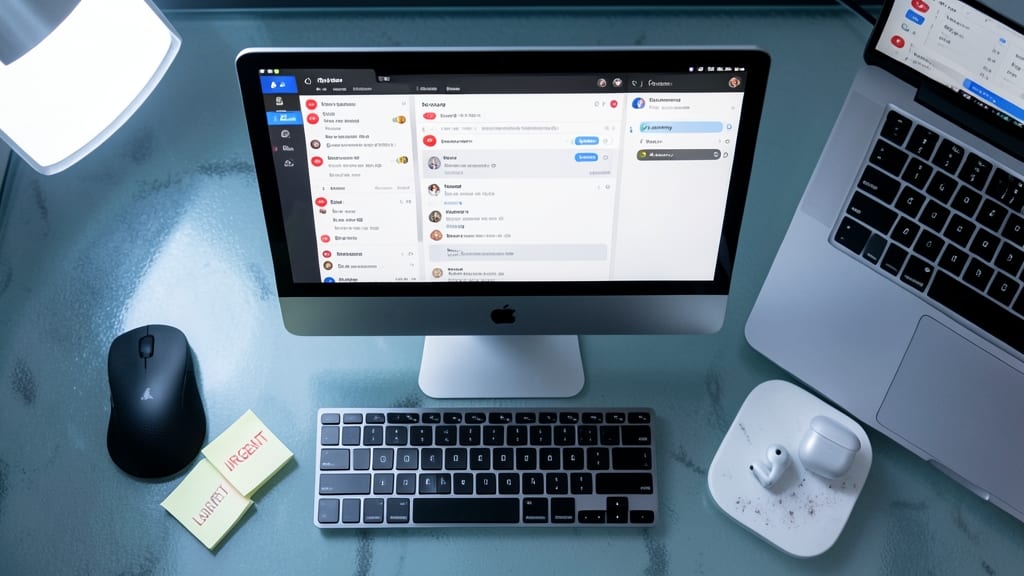
Drowning in Teams notifications? The key isn’t turning them all off—it’s strategically tuning them to match your workflow. Microsoft Teams lets you customize alerts per channel, so you can silence low-priority updates while keeping critical mentions front and center.
Start by setting "Only @mentions" for most channels to avoid alert fatigue. Then, use "Custom keywords" (like "urgent," "action required," or "deadline") to flag messages that need immediate attention. For high-traffic channels, enable "All new content" only during active work hours. Pro tip: Adjust these settings at the team level to ensure consistency across departments.
This approach is perfect for developers in deep focus or managers juggling multiple projects—giving you control without missing what truly matters. ✨
Pin High-Priority Tabs and Files
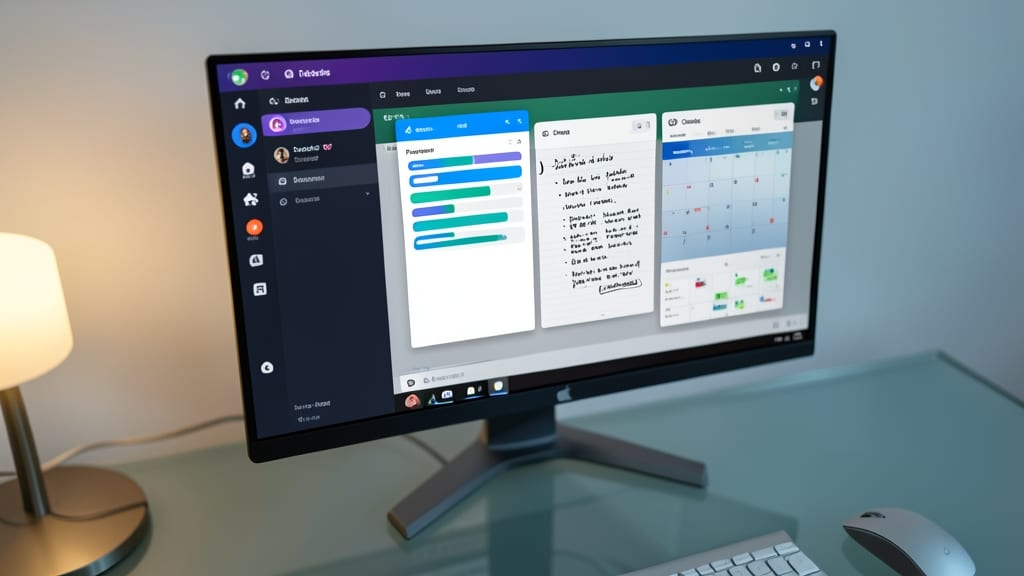
When every second counts, keeping your most-used tools front and center in Microsoft Teams can shave hours off your week. The pin feature lets you lock essential tabs (like Planner, OneNote, or shared calendars) and files at the top of any channel—so they’re always visible, even with dozens of conversations scrolling below.
You can pin up to four tabs per channel, ensuring tools like Asana, Trello, or Power BI stay accessible without hunting through menus. For files, pinning keeps templates, client contracts, or design assets just a click away—perfect for fast-paced teams juggling multiple projects. The best part? Pinned items sync across devices, so your desktop and mobile views stay consistent.
This is a game-changer for marketing teams managing campaigns, developers tracking sprints, or remote workers who rely on shared resources. No more tab-switching chaos—just instant access to what you need most. ✨
Archive Inactive Channels Quarterly

Seasonal projects or long-term members can turn your Teams workspace into a graveyard of unused channels—until you implement a quarterly archiving routine. This simple habit prevents clutter from slowing down your team’s workflow, especially when channels for past initiatives linger like digital ghosts.
Microsoft Teams makes archiving effortless: just right-click any inactive channel, select Archive, and it disappears from active view while preserving all history. The search function still finds archived content, and admins can restore channels if needed. Schedule this task every three months to keep your workspace lean—ideal for teams with fluctuating project loads or remote members who join and leave.
Teams with seasonal workflows (like marketing campaigns or holiday prep) or long-term members who rotate projects will see the biggest benefits. A decluttered workspace means faster onboarding and less decision fatigue for everyone. ✨
Leverage Channel Templates for Repetitive Work
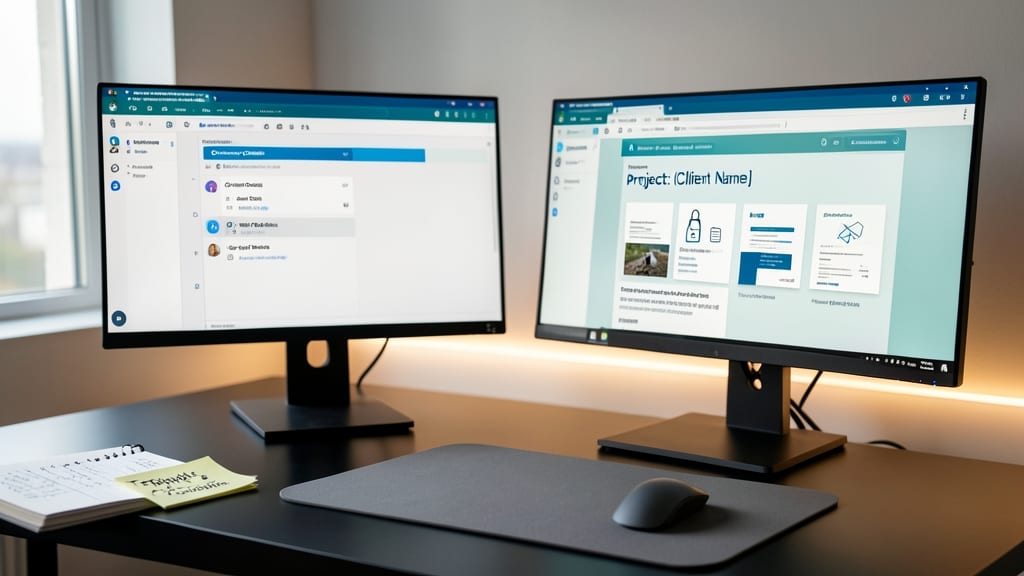
Tired of recreating the wheel every time you kick off a client onboarding or weekly sprint? Microsoft Teams’ channel templates let you save hours by cloning pre-configured setups—complete with tabs, permissions, and even pinned files—with just a few clicks.
Start by creating a master template for your most common workflows (e.g., "📁 Client Onboarding" with contracts, project trackers, and approval workflows). Once saved, you can deploy it in seconds, ensuring every new project starts with the right structure and zero setup fatigue. Teams even offers pre-built templates for HR, marketing, and IT—customizable to fit your needs.
Perfect for agencies, product teams, or any group juggling repetitive processes. Say goodbye to reinventing the wheel—just duplicate, tweak, and go. ✨
Assign Owners for Every Channel

Distributed teams often struggle with orphaned channels—those forgotten spaces cluttering your workspace without clear responsibility. Assigning owners to every channel solves this by ensuring someone is always accountable for updates, cleanup, and relevance.
Microsoft Teams makes this easy: simply navigate to Channel details and add 1-3 owners (team members with edit permissions). Owners can then pin key messages, archive inactive discussions, and update descriptions—keeping channels active and useful. This simple step cuts down on 50% of channel-related confusion in remote teams.
Perfect for global teams, freelancers, or any group where oversight is spread thin. A small tweak with a big impact on organization! ✨
Integrate Third-Party Apps via Tabs
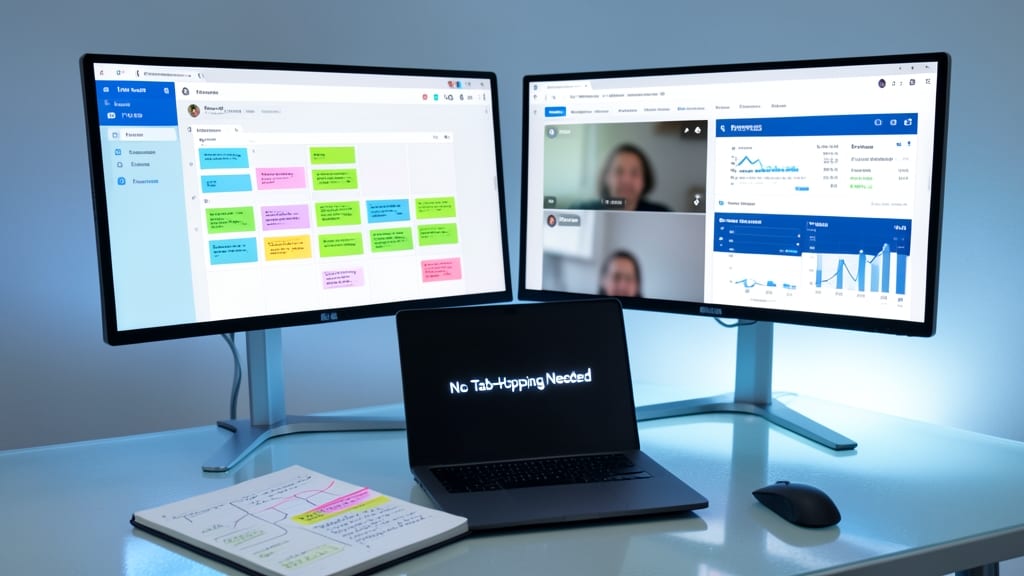
Tired of switching between apps to keep your workflow running? Microsoft Teams’ third-party app tabs let you embed tools like Trello, Zoom, or Power BI directly into channels—no tab-hopping required.
With zero setup hassle, you can add apps like Asana, Slack, or even custom web apps with just a few clicks. The integration stays live, so updates in Trello or Zoom appear instantly in Teams without leaving the conversation. Best of all, permissions sync with your existing Teams access controls, keeping sensitive data secure.
This is a game-changer for teams relying on non-Microsoft tools—like developers using GitHub or marketers tracking campaigns in HubSpot. Bring everything into one place for seamless collaboration. ✨