
Outlook
Microsoft Outlook holds powerful features most users overlook. These 10 Outlook email tips and tricks for 2023 will transform your inbox workflow—from automation shortcuts to advanced organization techniques—so you can reclaim hours weekly.
Quick Steps for Instant Email Automation
Stuck manually flagging, forwarding, or replying to the same types of emails every day? Outlook’s Quick Steps lets you turn repetitive actions into one-click workflows—no coding required. This underrated feature transforms your inbox into a productivity powerhouse by letting you batch-process emails with customizable commands.
Create a Quick Step to flag all emails from clients, forward invoices to your accountant, or auto-reply to meeting requests—all in seconds. Start by clicking the Quick Steps dropdown in your toolbar, then select Create New Quick Step and assign actions like move, reply, flag, or delete. For example, set up a rule to "Move to folder ‘Clients’ + Flag for Follow-Up" for all emails containing "project update." You can even add placeholders like "[Sender Name]" to personalize replies automatically.
Perfect for customer support teams, freelancers, or anyone drowning in repetitive email tasks—this trick cuts processing time by 70% or more. Try it today and reclaim hours weekly without lifting a finger. ✨
Focused Inbox for Zero-Inbox Mastery
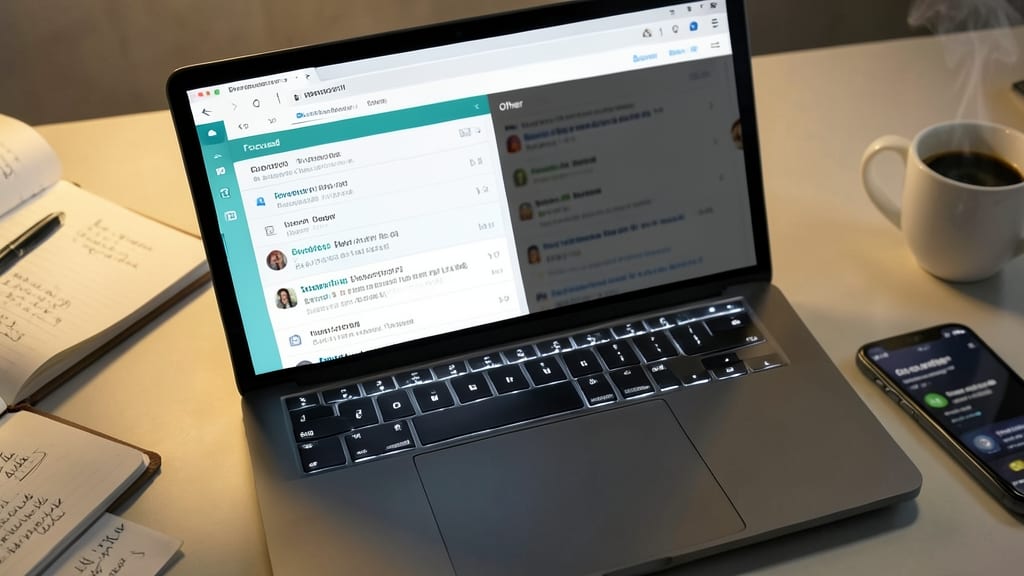
Tired of sifting through promotional spam and team chatter to find what truly matters? Outlook’s Focused Inbox uses built-in AI to automatically sort your emails into two tabs: "Focused" (high-priority) and "Other" (low-priority). Unlike manual filters, this feature learns your habits over time—flagging urgent messages while quietly tucking away newsletters, updates, and less critical correspondence.
To enable it, click the Focused Inbox dropdown in your toolbar and select "Turn on Focused Inbox." The AI analyzes your reading patterns, sender relationships, and email actions to refine its sorting. For example, it’ll prioritize emails from your manager or clients while demoting marketing emails to the "Other" tab. You can even train the AI by right-clicking misclassified emails and selecting "This is important" or "This is not important" to improve accuracy over time.
This trick is a lifesaver for freelancers juggling client emails, remote workers drowning in Slack notifications, or anyone tired of inbox overload. With Focused Inbox, you’ll spend less time scrolling and more time focusing on what actually needs your attention. 💡
Keyboard Shortcuts to Navigate Like a Pro
Tired of reaching for your mouse every time you need to reply or archive an email? Outlook’s 20+ keyboard shortcuts can cut your workflow time in half—no mouse required. These hidden gems are especially useful for power users or anyone looking to reduce repetitive strain injuries.
Start with Ctrl+Y to reply to the last email, Ctrl+Shift+A to toggle the Focused Inbox, and Ctrl+Enter to send emails instantly. For navigation, Ctrl+Shift+I opens the Instant Search bar, while Ctrl+Shift+K jumps to your Sent Items folder. Pro tip: Customize shortcuts in File > Options > Customize Ribbon to match your workflow.
Perfect for developers, writers, or anyone who spends hours typing—these shortcuts turn Outlook into a battle-tested setup. ⚡
Email Templates for Repeated Responses
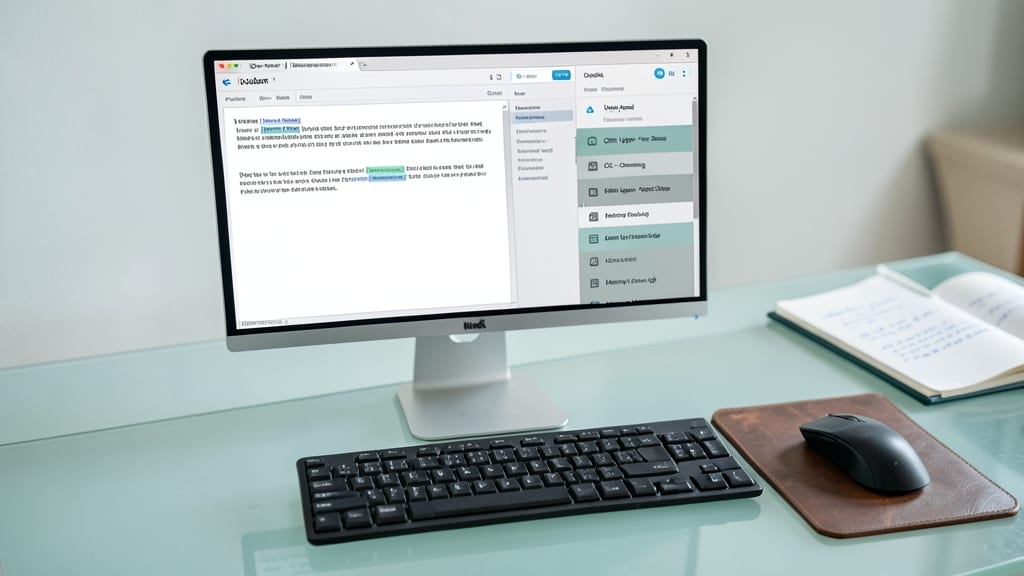
Tired of typing the same responses over and over? Outlook’s email templates let you save time by storing pre-written replies for common messages—like meeting confirmations, client updates, or standard FAQs—so you can send them with just a few clicks.
To get started, open a new email, compose your message, and click File > Save As. Name it (e.g., "Client Follow-Up") and choose a folder in your Templates library. Next time, simply open the New Email dropdown and select your template—no retyping required. You can even insert placeholders (like [Client Name]) for customization. For teams, share templates via Microsoft 365 Groups or OneDrive to ensure consistency.
This trick is a game-changer for sales teams, customer support reps, or anyone drowning in repetitive emails. Spend less time typing and more time focusing on what matters. ✨
Rules to Auto-Organize Incoming Emails
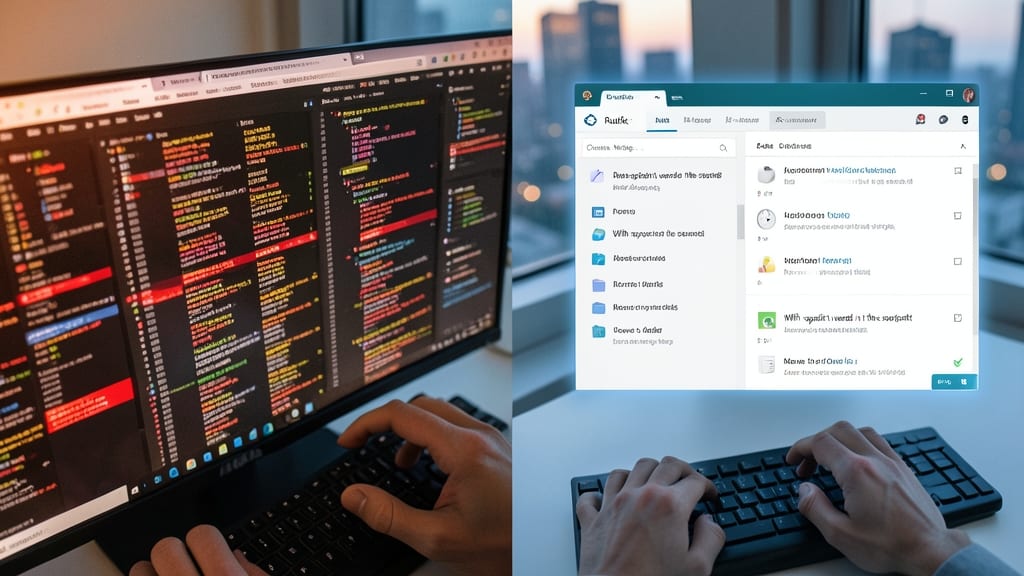
Drowning in a chaotic inbox? Outlook’s Rules feature is your secret weapon—turning manual sorting into zero-effort organization. Unlike Quick Steps (which act on existing emails), Rules preemptively filter incoming messages before they clutter your primary folder, saving you hours weekly.
Create rules based on senders (e.g., "Move emails from clients@yourcompany.com to a ‘Projects’ folder"), keywords (e.g., "Flag emails containing ‘urgent’"), or attachments (e.g., "Save PDFs to a ‘Documents’ folder automatically"). You can even set stop rules to delete spam or newsletters instantly. The best part? Rules sync across devices, so your inbox stays tidy whether you’re at your desk or on the go.
Freelancers tracking client communications or managers juggling multiple projects will love this set-and-forget system. Spend less time filing and more time focusing on what matters. ⚡
Swipe Gestures for Touchscreen Users
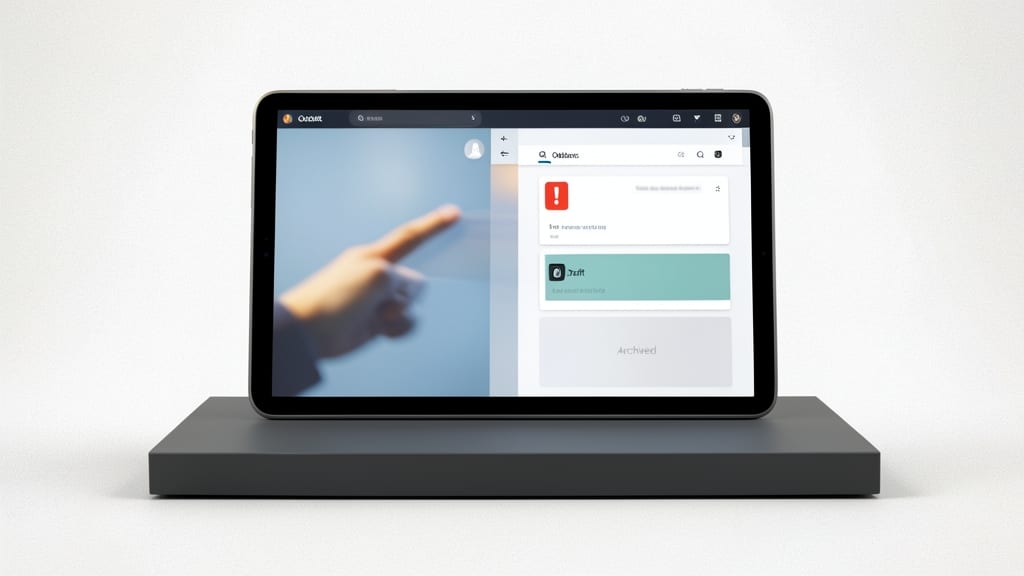
If you’re using Outlook on a Windows tablet or touchscreen device, swipe gestures can turn email management into a seamless, one-handed experience. Instead of tapping buttons, simply flick your finger to archive, delete, or flag emails—no mouse or keyboard required.
Enable gestures in Outlook for Windows 10/11 by right-clicking the title bar of your email list, selecting "Touch," and choosing "Swipe Actions." Left swipes archive, right swipes delete, and a two-finger swipe flags messages. Works perfectly with Surface Pro, Microsoft Surface Laptop Studio, or any touch-enabled PC.
This trick is a game-changer for field workers, remote professionals, or anyone who prefers tactile input over clicking. Just remember to adjust your swipe sensitivity in Windows Settings for smoother control. ✨
Search Operators to Find Emails Instantly
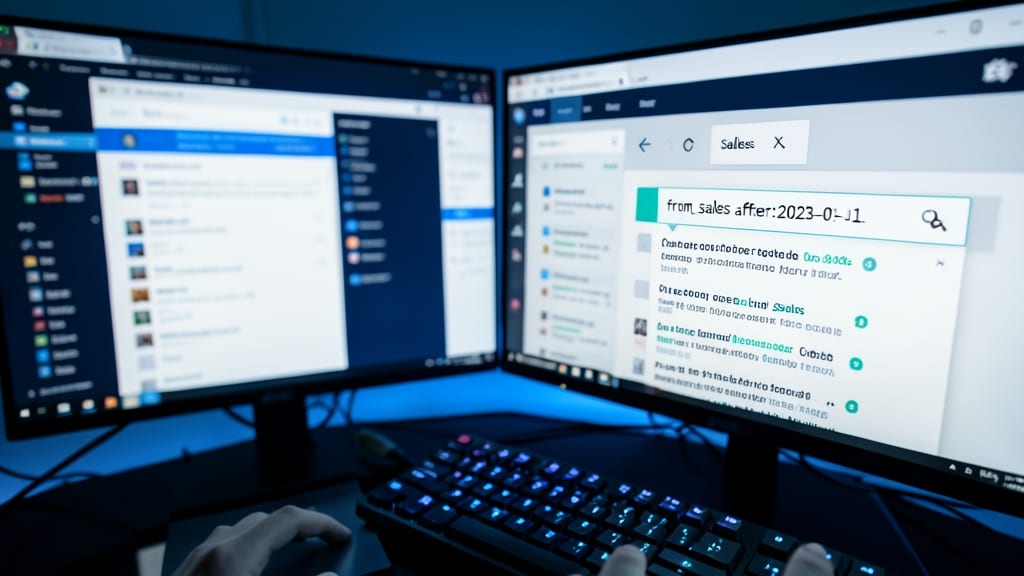
Drowning in a sea of emails but struggling to find that one critical message? Outlook’s advanced search operators act like a Swiss Army knife for your inbox, letting you pinpoint emails with surgical precision in seconds.
Use operators like from:sales to filter by sender, after:2023-01-01 to narrow by date, or has:attachment subject:contract to combine multiple conditions. Need to recover an old email from a specific project? Try from:team@company.com OR cc:client@firm.com before:2022-12-31—Outlook’s search engine handles Boolean logic like a pro. Save these as search folders for instant access to recurring queries.
Legal teams, researchers, or anyone juggling high-volume emails will save hours weekly with this trick. Try it today and turn your inbox from a black hole into a well-organized database. ✨
Delay Send to Schedule Emails Perfectly
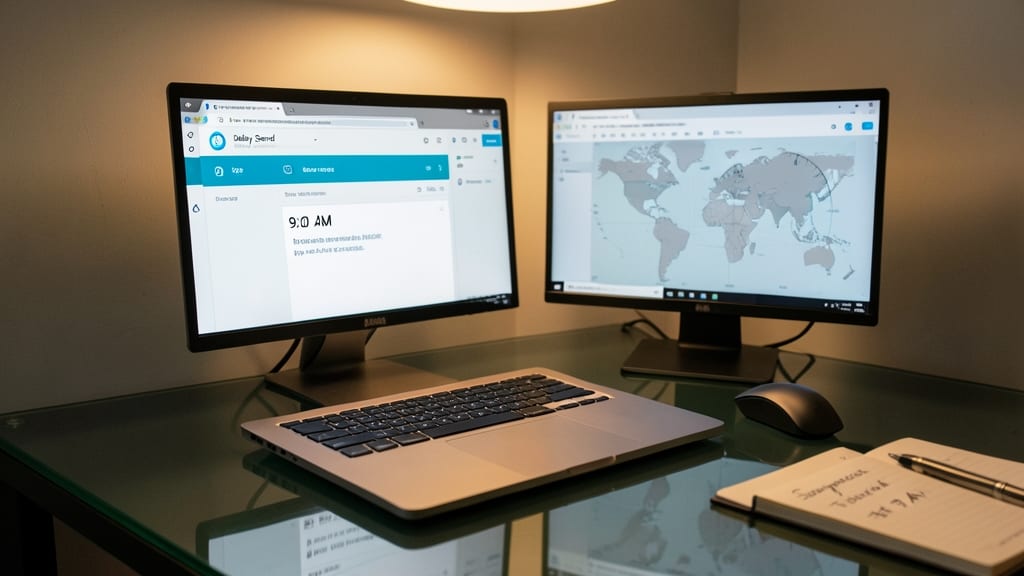
Ever sent an email at midnight only to realize it should’ve gone out at 9 AM? Outlook’s Delay Send feature lets you schedule emails to hit inboxes at the perfect moment—no third-party apps needed. It’s a game-changer for global teams or marketers targeting specific time zones.
To use it, compose your email as usual, then click File > Info > Delay Delivery. Check Do not deliver before and set your preferred time (down to the minute). Outlook will hold the email in your Outbox until the scheduled moment. Pro tip: Test with a test@email.com address first to confirm timing. This works seamlessly across Outlook for Windows, Mac, and mobile—just ensure your device stays connected.
Remote teams coordinating across time zones or marketers running campaigns will love this zero-config solution. No more rushed replies or missed deadlines—just precise, automated delivery. ✨
Focused Inbox vs. Priority Inbox: Which to Use
Stuck choosing between Outlook’s Focused Inbox and Priority Inbox? Both use AI to declutter your inbox, but they’re designed for different needs—and knowing the difference saves you hours of decision fatigue.
Focused Inbox (personal use) learns your habits to separate from promotional clutter, using a simple two-tab system (Focused vs. Other). It’s ideal for filtering newsletters, ads, and low-priority messages while keeping personal emails front and center. Meanwhile, Priority Inbox (business-focused) surfaces high-priority items first, including follow-ups, meeting requests, and urgent tasks, with a "Follow Up" tab for actionable items. It’s perfect for professionals juggling deadlines and team communications.
Use Focused Inbox if you’re overwhelmed by subscriptions and want a cleaner personal inbox. Opt for Priority Inbox if your work relies on tracking follow-ups and deadlines. Both sync seamlessly with Outlook’s AI—just pick the one that matches your workflow. ✨
Clean Up Conversation Threads Efficiently
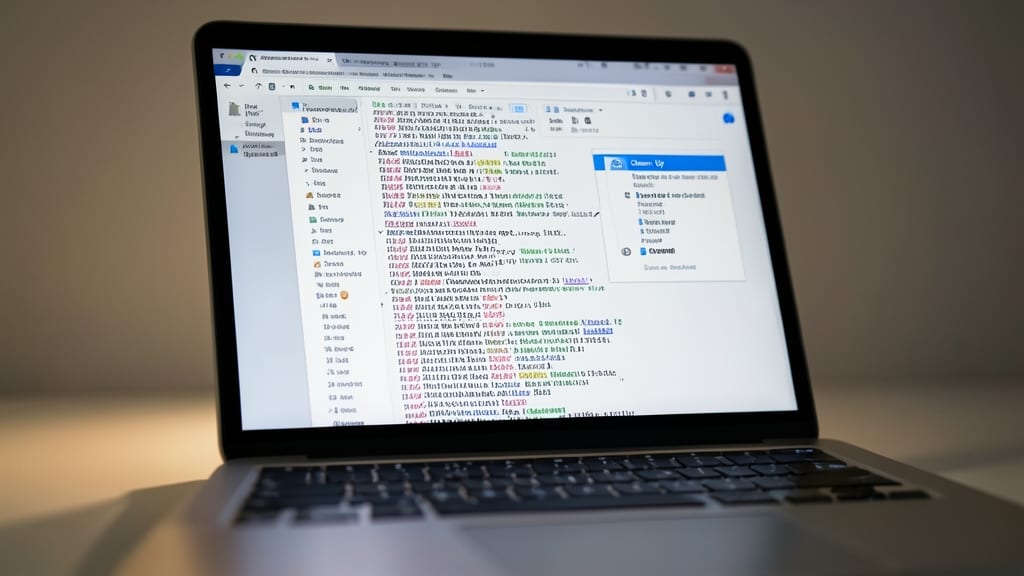
Drowning in endless email threads that feel like reading a novel? Outlook’s Clean Up tool lets you trim the fat—literally. With a single click, you can collapse redundant messages in a thread while preserving the most recent replies and key details, instantly decluttering your inbox without losing context.
Right-click any conversation thread and select Clean Up to instantly remove all but the latest email and its replies. For even more control, use Clean Up Conversation from the Home tab to target specific threads. This feature works seamlessly with Focused Inbox or Priority Inbox to keep your inbox lean, especially when dealing with long meeting summaries or client discussions.
Perfect for project managers, team leads, or anyone juggling complex email chains—this trick keeps your inbox organized while ensuring you never miss a critical update. ⚡