
Software
Microsoft Word 2010’s interface remains a powerhouse for productivity, but mastering its key components can unlock efficiency. This guide breaks down the essential ribbon panels, toolbars, and hidden features that transform Word from a basic editor into a professional toolkit.
Home Tab: Formatting and Editing Essentials
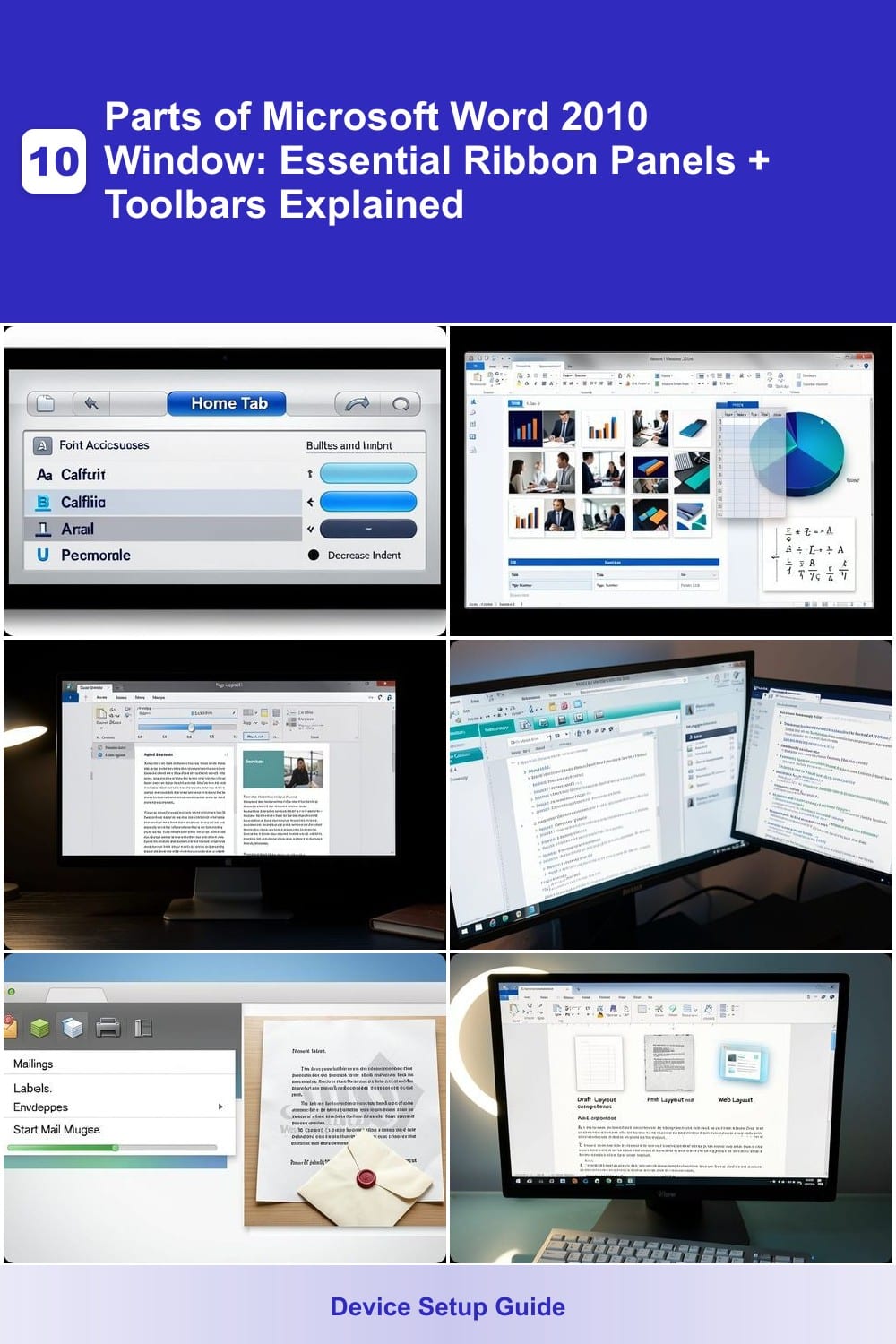
Forget hunting through menus—Word 2010’s Home Tab is your go-to for 90% of daily formatting tasks, from bold headlines to perfect paragraph alignment. This is where you’ll spend most of your time adjusting fonts, styles, and basic edits without ever leaving the ribbon.
Here’s what makes it indispensable: the Font group lets you switch between Calibri (11pt) and other styles with one click, while the Paragraph group handles indentation, spacing, and bullet points. The Styles gallery (top-right) applies pre-formatted layouts for headings, titles, and captions in seconds—no manual tweaking required. For quick edits, the Clipboard panel (up to 24 items) lets you paste multiple selections with formatting intact.
Ideal for students, business professionals, and casual users, this tab turns messy drafts into polished documents in minutes. Whether you’re formatting a resume, report, or email, mastering the Home Tab cuts editing time by half. ✨
Insert Tab: Adding Media and Objects
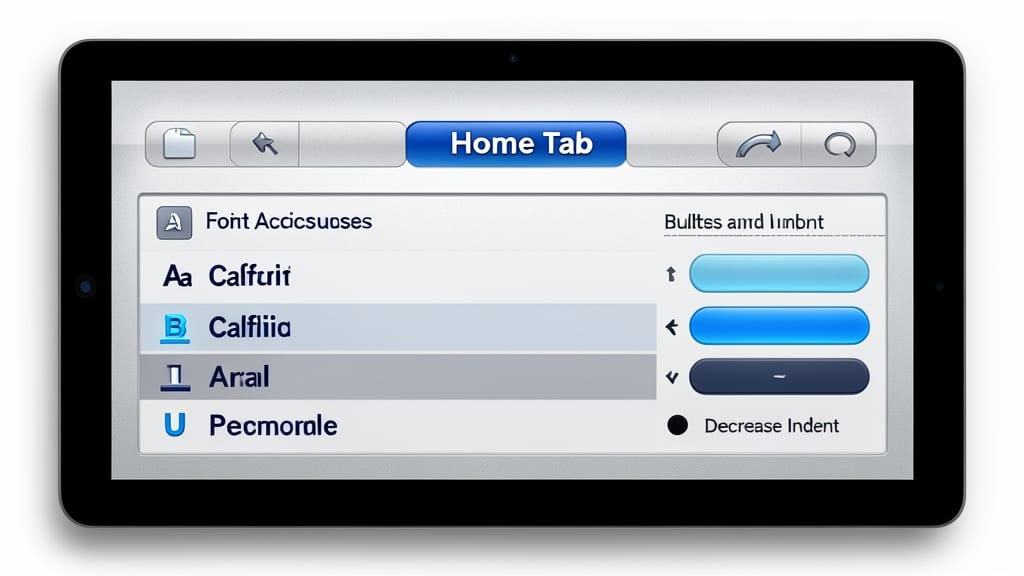
Need to turn a plain text document into a visually compelling report or presentation? The Insert Tab in Word 2010 is your creative hub, packed with tools to embed images, tables, charts, headers, footers, and even equations—all without leaving the ribbon.
Here’s what makes it indispensable: the Pictures group lets you insert images from files or online sources, while the Tables tool generates professional grids in seconds. For data visualization, the Charts option creates dynamic graphs from Excel data, and the Shapes panel adds arrows, flowcharts, or callouts. Don’t overlook the Headers & Footers feature for consistent page numbering or the Equation tool for complex math notation—no manual drawing required.
Perfect for students, marketers, and designers, this tab transforms basic documents into polished, professional outputs—whether you’re crafting a business proposal, academic paper, or creative portfolio. 💡
Page Layout Tab: Document Structure Controls
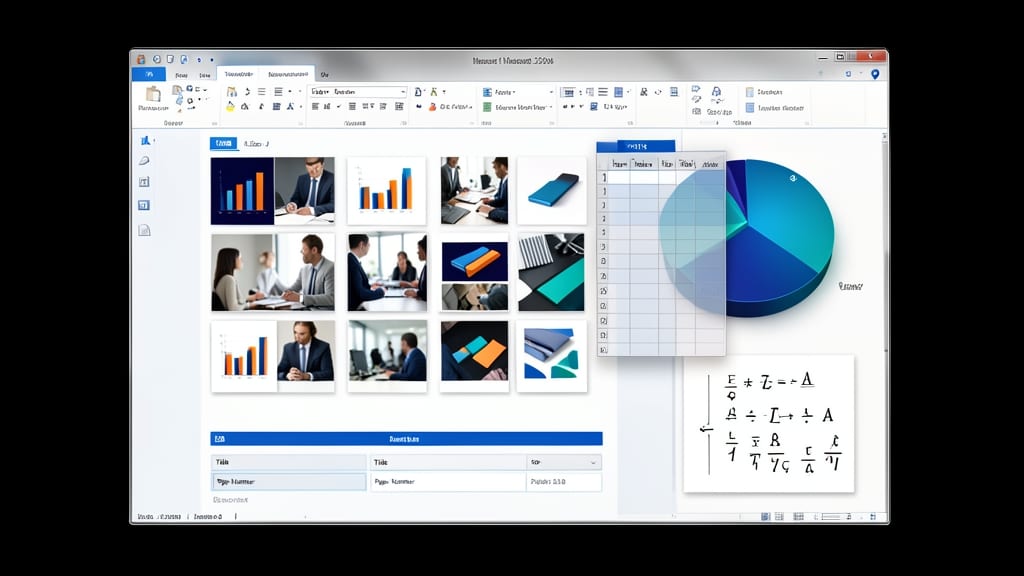
Need to make your resume stand out or design a polished brochure? The Page Layout Tab in Word 2010 is your secret weapon for perfecting document structure without manual tweaks.
Here, you control margins (narrow for resumes, wide for reports), columns (split text into newsletters or side-by-side comparisons), page orientation (landscape for infographics, portrait for standard docs), and document themes (pre-set color schemes and fonts). The Size group even lets you adjust paper dimensions—critical for custom business cards or oversized posters.
Perfect for professionals who need pixel-perfect layouts—whether you're formatting a one-page resume or a multi-section report. ✨
References Tab: Citations and Table of Contents
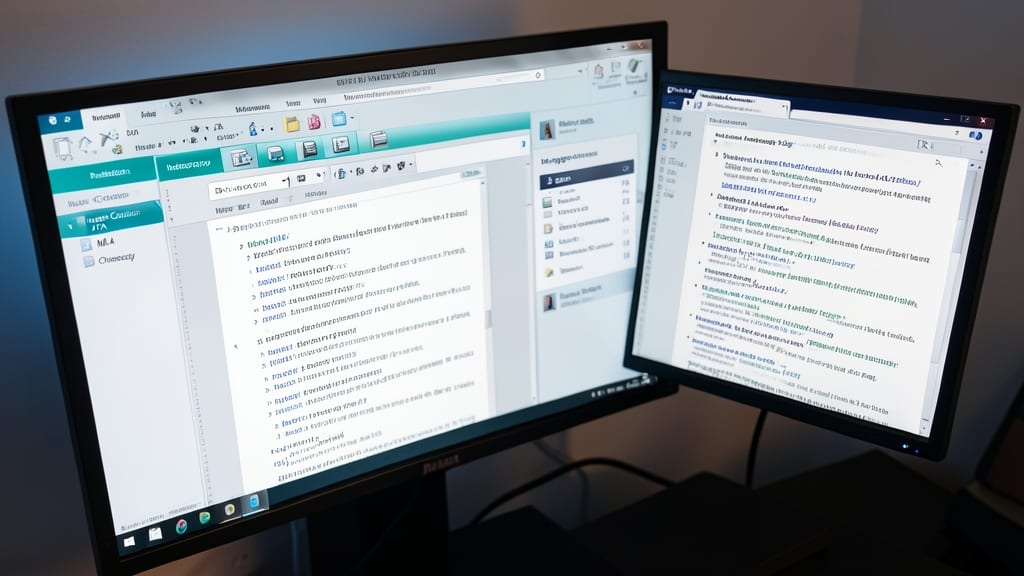
Struggling with citations and footnotes in your research paper? The References tab in Word 2010 is your secret weapon, offering automated tools to handle citations, bibliographies, and even a dynamic table of contents—no manual formatting required.
Here, you’ll find footnote/endnote insertion, citation styles (APA, MLA, Chicago), and the Table of Contents generator that updates automatically when you edit headings. The Bibliography tool pulls sources from your document’s references, while cross-references keep page numbers and section links accurate. Perfect for students, researchers, or anyone citing sources professionally.
This tab is a game-changer for academic writers and legal professionals who need polished, error-free documents. ⚡
Mailings Tab: Envelopes and Mail Merge
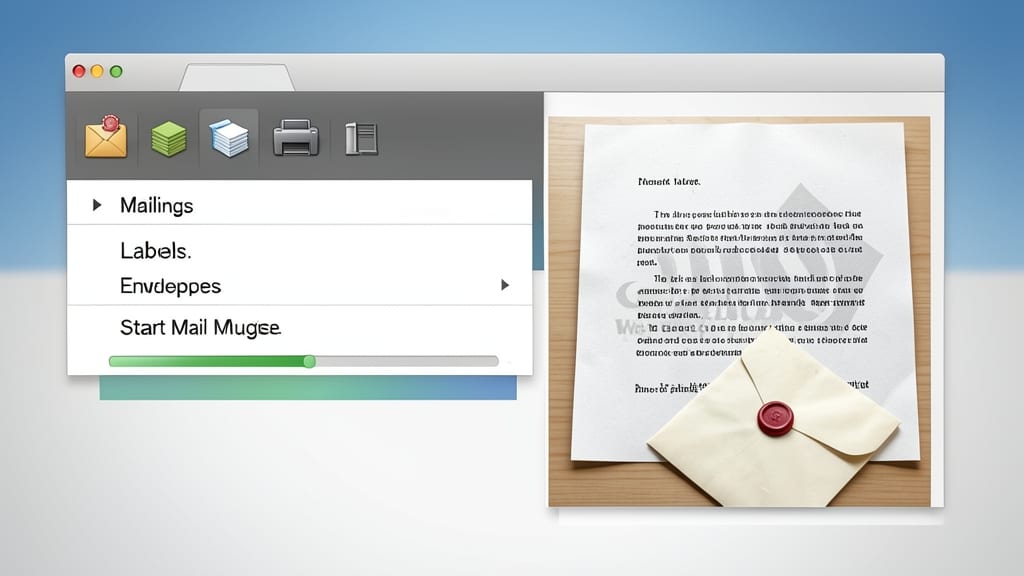
Need to send personalized letters or address envelopes without the hassle? The Mailings tab in Word 2010 is your secret weapon for bulk correspondence. Whether you're managing client mailings, holiday cards, or membership letters, this tab simplifies the process with built-in tools for labels, envelopes, and mail merge.
Start by selecting Start Mail Merge to choose between letters, emails, labels, or envelopes. Use the Address Block or Labels options to insert recipient details from an Excel spreadsheet or database. Word 2010 even includes pre-designed envelope templates and label formats for common sizes like A6 or US Letter. For extra polish, preview your mailings before printing to catch errors.
Marketers and small business owners will love how this tab cuts hours off bulk mailing tasks. Even casual users can create personalized holiday cards in minutes—no manual typing required! ✨
View Tab: Document Navigation Tools
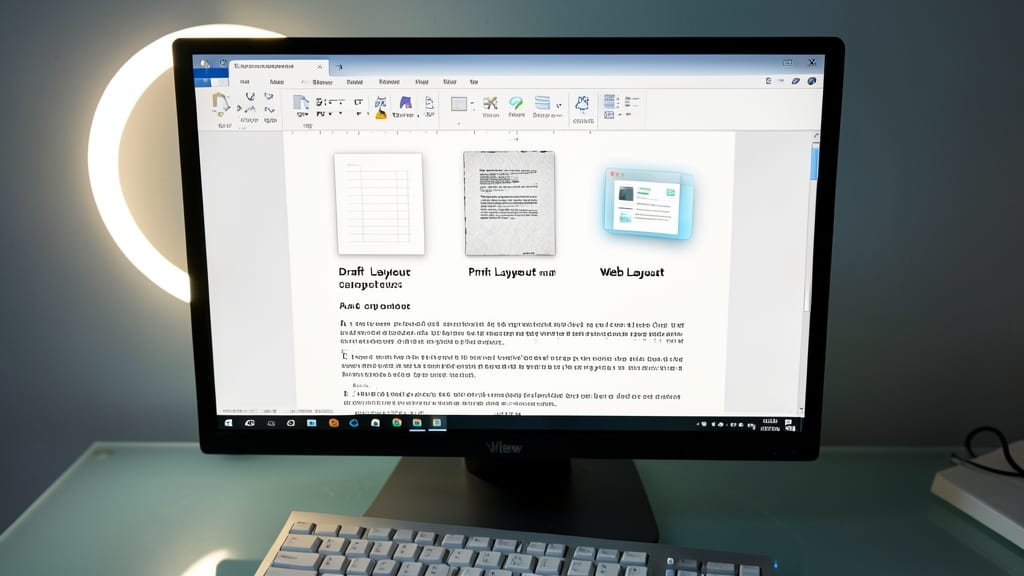
Stuck troubleshooting a formatting glitch or reviewing a document for print? The View Tab in Word 2010 is your command center for document navigation, offering three distinct layouts—Draft, Print Layout, and Web Layout—each tailored to specific workflows.
Switch between Draft (clean, distraction-free typing), Print Layout (shows margins, headers, and page breaks exactly as they’ll print), and Web Layout (continuous scrolling like a webpage). The zoom slider lets you adjust from 10% to 400% for spotting typos or fine-tuning designs, while the Ruler and Gridlines options help align elements precisely. ⚡
Quick Access Toolbar: Customizable Shortcuts
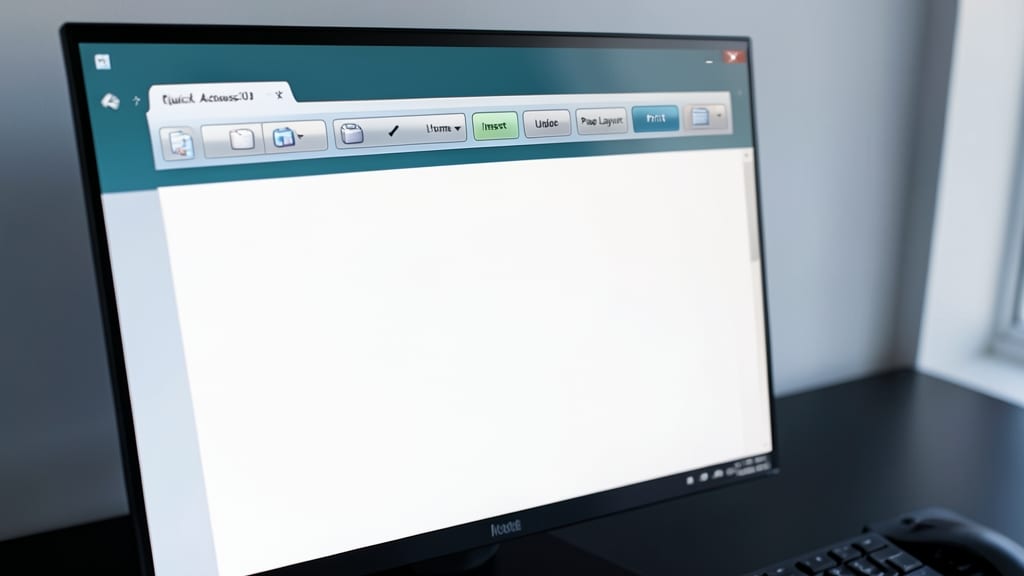
Tired of hunting through the ribbon for your most-used commands every time you type? The Quick Access Toolbar in Word 2010 solves that problem by letting you pin commands like Save, Undo, or Print to a floating toolbar above the ribbon.
This tiny but mighty feature supports up to 9 customizable buttons (expandable to 15 via dropdown) and syncs across Word documents. You can even add lesser-known commands like "Quick Print" or "Spelling & Grammar" for a truly personalized workflow. The best part? It stays visible no matter which tab you’re on.
Perfect for freelancers, legal professionals, or anyone drowning in documents—this toolbar cuts down on repetitive clicks and keeps your workspace clean. ⚡
Status Bar: Real-Time Document Info
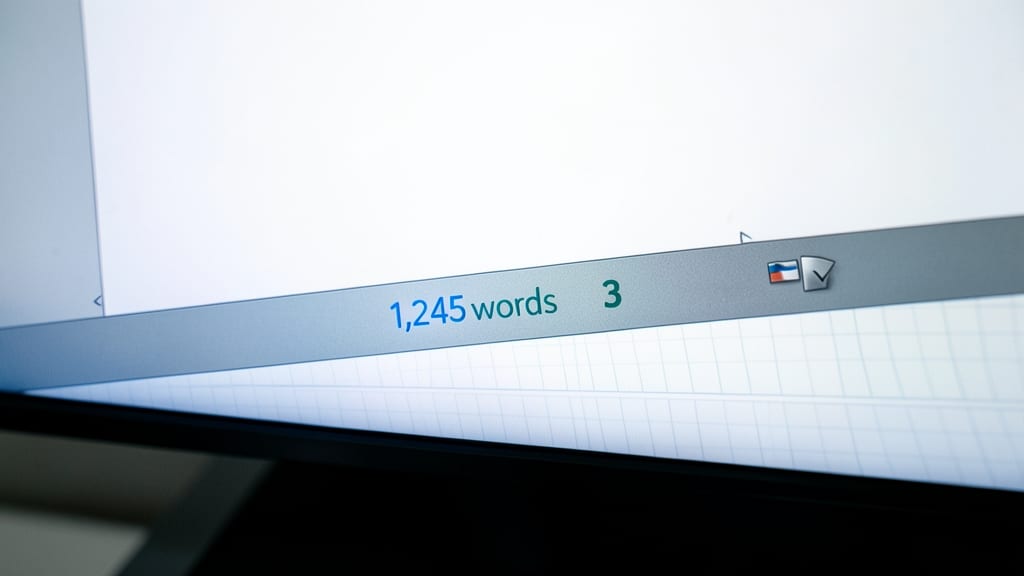
Tucked away at the bottom of your Word 2010 window, the Status Bar is the unsung hero of document editing—offering real-time stats without ever leaving your workflow. This slim but powerful strip displays word count, page numbers, and language settings (like proofing tools for English vs. Spanish), so you can track progress instantly while typing.
Click the tiny arrow in the lower-right corner to reveal even more details: line/column numbers, view options, or zoom controls, all in one place. Need to hit a 500-word limit for a resume? The live word counter updates as you type, eliminating guesswork. For multilingual documents, the language indicator helps ensure consistency.
Students, professionals, and content creators will love this feature for its zero-config convenience—no extra windows or plugins needed. ⚡
Navigation Pane: Large Document Search
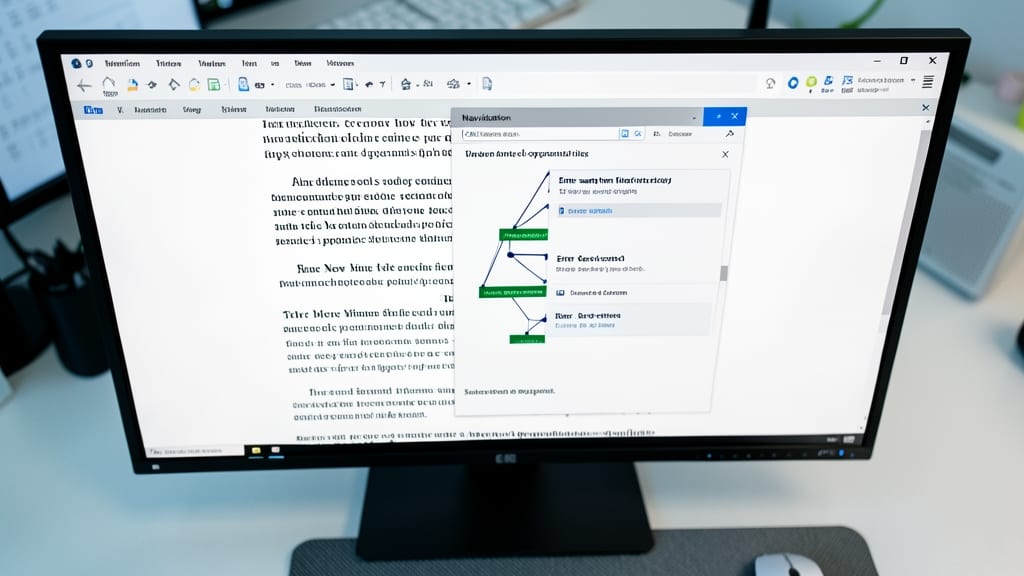
Struggling to find a specific section in a 50-page legal brief or 100-page research paper? The Navigation Pane in Word 2010 is your lifeline, turning chaotic documents into organized, searchable outlines with just a few clicks.
Located on the View tab (under Show), this pane displays all headings (Level 1, 2, 3) as a collapsible tree structure. Type a keyword in the search bar to jump instantly to relevant sections—no more scrolling for hours. It also highlights matching text, making edits or reviews a breeze. Best of all, it syncs with your document’s table of contents, so updates flow seamlessly.
Perfect for lawyers, academics, or anyone drowning in dense documents, this tool cuts review time by 70%—ideal when deadlines loom and clarity is critical. ✨
Developer Tab: Advanced XML and Macros
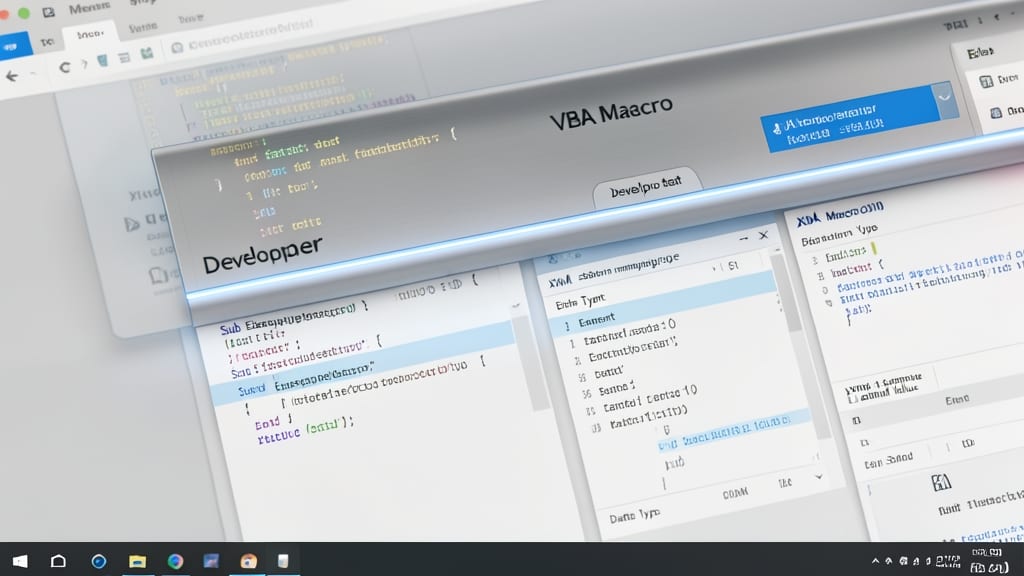
If you’ve ever wished Word could do more than basic formatting—like automate workflows or handle structured data—the Developer tab is your secret weapon. Hidden behind a simple toggle, it unlocks VBA macros and XML schema mapping, turning Word into a customizable power tool for developers and power users.
Here, you’ll find Macros to record and run automated tasks (e.g., batch formatting or data extraction), plus XML tools to import/export structured documents—critical for legal, technical, or data-heavy workflows. The Document Panel also lets you inspect underlying XML code, while Add-ins extend functionality further. For those comfortable with scripting, this tab bridges Word’s simplicity with enterprise-grade automation.
Perfect for IT admins, developers, or legal teams managing templates or repetitive tasks, the Developer tab transforms Word from a static editor into a programmable workspace. ✨