
Software
Managing SharePoint document library permissions can be tricky—grant too much access and security suffers, too little and productivity grinds to a halt. These 10 best practices help balance security with collaboration, ensuring your team stays efficient while protecting sensitive data.
Use SharePoint Permission Levels for Granular Control

Tired of giving users more access than they need—or less—just to keep work flowing? SharePoint’s permission levels let you fine-tune access without overhauling your entire security setup. Instead of defaulting to "Edit" for everyone, customize levels like "Contribute" (add/edit files) or "View Only" (read-only) to match exact job functions.
Start by modifying built-in levels in Site Settings > Site Permissions > Permission Levels. For example, create a "Review Only" level that combines View Items with View Versions—perfect for external stakeholders who need to see drafts but shouldn’t edit. You can also restrict Delete Items for teams that shouldn’t remove files, even if they can edit them. This reduces risks like accidental deletions while keeping workflows smooth.
This approach shines for project-based teams (like marketing or legal) where roles shift frequently. Instead of granting broad "Full Control," align permissions with tasks—like "Approver" (view + approve) or "Archivist" (view + delete old files). Less guesswork, more security. 💡
Apply Least Privilege Principle to Document Libraries
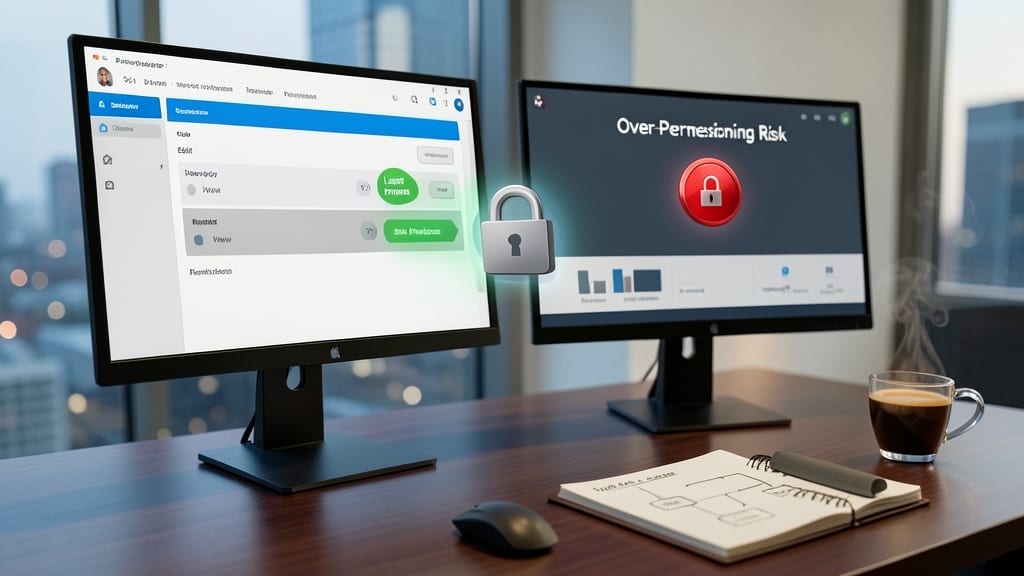
Worried about accidental data leaks or over-permissioning in your SharePoint libraries? The least privilege principle is your secret weapon—granting users only the access they absolutely need to perform their jobs. Unlike broad permission levels, this approach minimizes attack surfaces by default, making it ideal for departments like HR, finance, or legal where sensitive documents demand extra protection.
Start by identifying the minimum permissions required for each role (e.g., "View Only" for external auditors or "Edit + Approve" for managers). Use Limited Access for temporary needs—like contractors reviewing a single file—then revoke it once the task is complete. SharePoint’s Access Request feature lets users justify their needs, ensuring no one gets blanket access. For high-risk libraries, enable audit logs to track who accessed what, when.
This method shines in compliance-heavy environments where breaches aren’t just embarrassing—they’re expensive. By defaulting to "deny all" and granting only what’s necessary, you’ll sleep better knowing your data is locked down while still keeping workflows running smoothly. 🔧
Leverage SharePoint Groups for Role-Based Access

Tired of manually assigning permissions to every team member? SharePoint Groups let you batch-assign access by role—no more repetitive clicks. Instead of granting "Edit" to 20 individual users in the "Marketing Team," create a single group and apply permissions once.
You can nest groups (e.g., "Marketing Team" under "Creative Department") for hierarchical control, and SharePoint automatically updates permissions when members join or leave. This approach also simplifies audits—just check the group’s permissions to see who has access to what. Perfect for departments with frequent turnover or project-based teams.
Ideal for cross-functional teams or enterprise environments, this method cuts permission management time by 70% while keeping access consistent. 💻
Enable Versioning and Require Check-Out for Critical Files

Ever lost hours recovering a document after someone accidentally overwrote the latest version? SharePoint’s versioning and check-out features act like a digital safety net for critical files—ensuring contracts, financial reports, or legal documents stay intact while edits are tracked and approved.
Enable versioning to retain up to 50,000 versions (configurable) of a document, while requiring check-out forces users to "reserve" a file before editing—preventing simultaneous conflicts. For example, legal teams can enforce this for NDAs, while finance can protect quarterly reports. The version history lets you restore any prior version with a single click, complete with timestamps and editor details.
This setup is ideal for compliance-heavy teams (HR, legal, finance) where audit trails matter most. It’s also perfect for collaborative environments where multiple stakeholders need to review changes before finalizing. ✨
Restrict External User Access with Guest Links
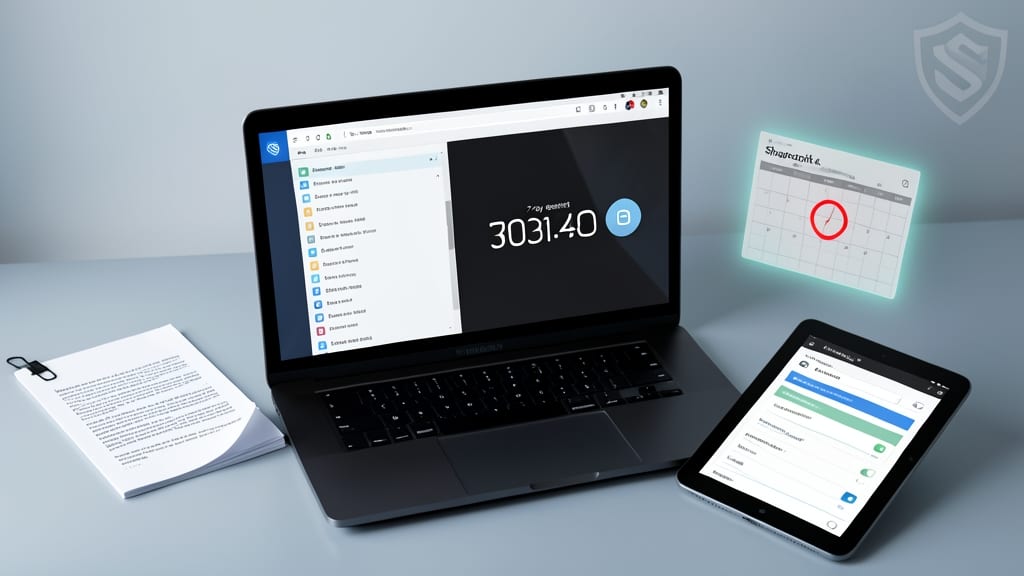
Need to share files with vendors or clients without risking permanent access? SharePoint’s guest links let you grant temporary, time-limited access—ideal for one-off collaborations like contract reviews or project feedback.
Create a link with expiry dates (e.g., 7 or 30 days) or view-only permissions to restrict edits. You can even revoke access instantly if needed, unlike permanent guest accounts that linger in your system. For added security, require Microsoft account sign-in to prevent unauthorized sharing.
Perfect for legal teams sharing NDAs, marketing agencies reviewing drafts, or IT vendors troubleshooting systems—any scenario where external parties need access but shouldn’t stay in your environment long-term. ✨
Audit Permission Changes with SharePoint Audit Logs

Ever wondered who changed permissions on that sensitive HR document at 3 AM? SharePoint Audit Logs act as your digital detective, recording every permission modification—who made changes, what was altered, and when—down to the minute.
To access these logs, navigate to the SharePoint Admin Center, then Reports > Audit Log Reports. Filter by permission changes to spot anomalies like unauthorized access grants or suspicious edits. For compliance-heavy industries (e.g., healthcare or finance), this is a must-have for meeting regulatory requirements like HIPAA or GDPR.
Ideal for IT admins or security teams post-incidents, these logs help you reconstruct events and enforce accountability. 💡
Use Folder-Level Permissions Sparingly

When you dive into SharePoint’s folder permissions, it’s easy to get tangled in a web of inherited restrictions—especially when nesting permissions deeper than one level. Each subfolder inherits its parent’s settings by default, creating a hidden layer of complexity that can turn simple access requests into a permissions puzzle.
Instead of applying folder-level permissions recursively, stick to library-wide permissions unless you have a specific, documented need for granularity. For example, if only the "Executive_Reports" folder requires stricter access, break inheritance once at that level—don’t cascade it down to subfolders. This avoids the "permission inheritance chaos" where a single change at the top level unexpectedly locks out users in nested folders.
This approach is ideal for teams managing large document libraries (like legal or finance departments) where auditing changes becomes critical. Fewer nested permissions mean faster troubleshooting and cleaner access reviews. ✨
Implement Retention Policies for Sensitive Documents
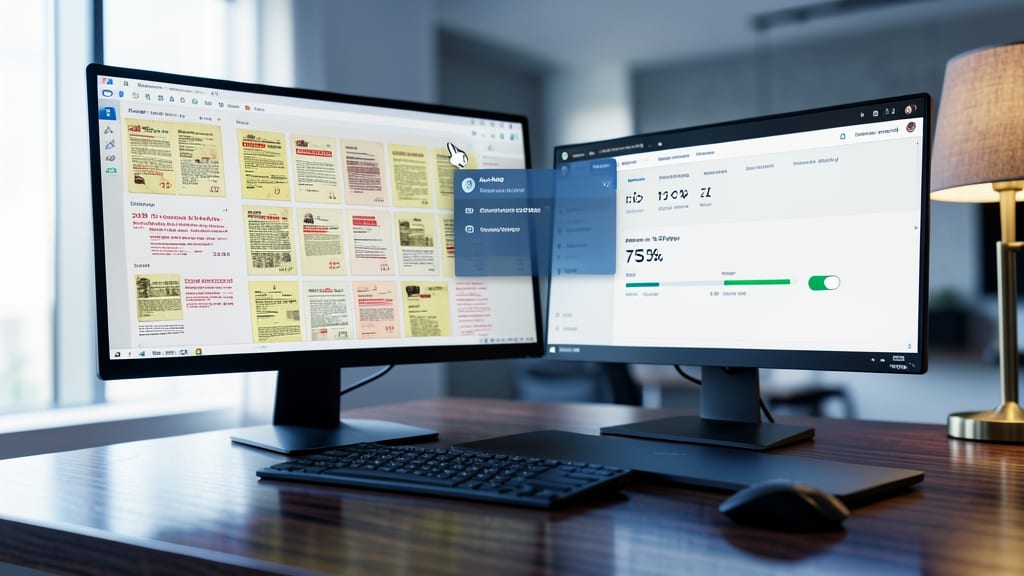
Tired of digging through years of outdated project proposals or compliance-heavy documents? SharePoint’s retention policies let you automate cleanup—setting expiration dates or archiving files after a set period without manual intervention.
Configure policies to delete or archive files after a specified time (e.g., 2 years for HR documentation or 6 months for client proposals). You can even apply labels like "Confidential" or "Project Archive" to trigger actions automatically. This cuts storage costs and reduces the risk of accidental leaks from forgotten files.
Perfect for legal, finance, or project management teams dealing with time-sensitive documents. Set it once, and SharePoint handles the rest—no more permission clutter or compliance headaches. ✨
Train Teams on Permission Best Practices

Even the best permission settings fail if your team doesn’t understand how to use them. Human error—like granting unnecessary access or bypassing approvals—is the #1 cause of security gaps in SharePoint. A structured training program ensures everyone follows the need-to-know principle and knows how to request changes through the proper channels.
Start with a permission request workflow (e.g., a SharePoint form or IT ticket system) so users can justify why they need access. Use interactive modules to teach concepts like inheritance, least privilege, and the risks of over-sharing. For visual learners, include flowcharts showing how permissions cascade through libraries and folders. Role-playing scenarios—like handling a "denied access" error—help teams troubleshoot without escalating to IT.
This approach works best for mid-sized teams transitioning to SharePoint or industries with strict compliance (like healthcare or finance). A 30-minute training session every quarter keeps best practices top of mind and reduces the "help desk noise" from permission-related issues. 💡
Regularly Review and Clean Up Permissions

Ever found a SharePoint document library cluttered with orphaned permissions—access granted to former employees or automated accounts no longer in use? These "zombie permissions" create security blind spots that hackers exploit. A quarterly audit is your best defense against this silent risk.
Start by using SharePoint’s Access Request Settings to identify unused accounts, then clean up via the Site Permissions page. For larger environments, leverage PowerShell scripts to automate permission reviews across libraries. Focus on removing inactive users (last login >90 days) and outdated group memberships tied to old projects.
This practice is a must for compliance-heavy teams (like legal or finance) or organizations with high employee turnover. A little maintenance now prevents costly breaches later. ✨