
Tip & Trick
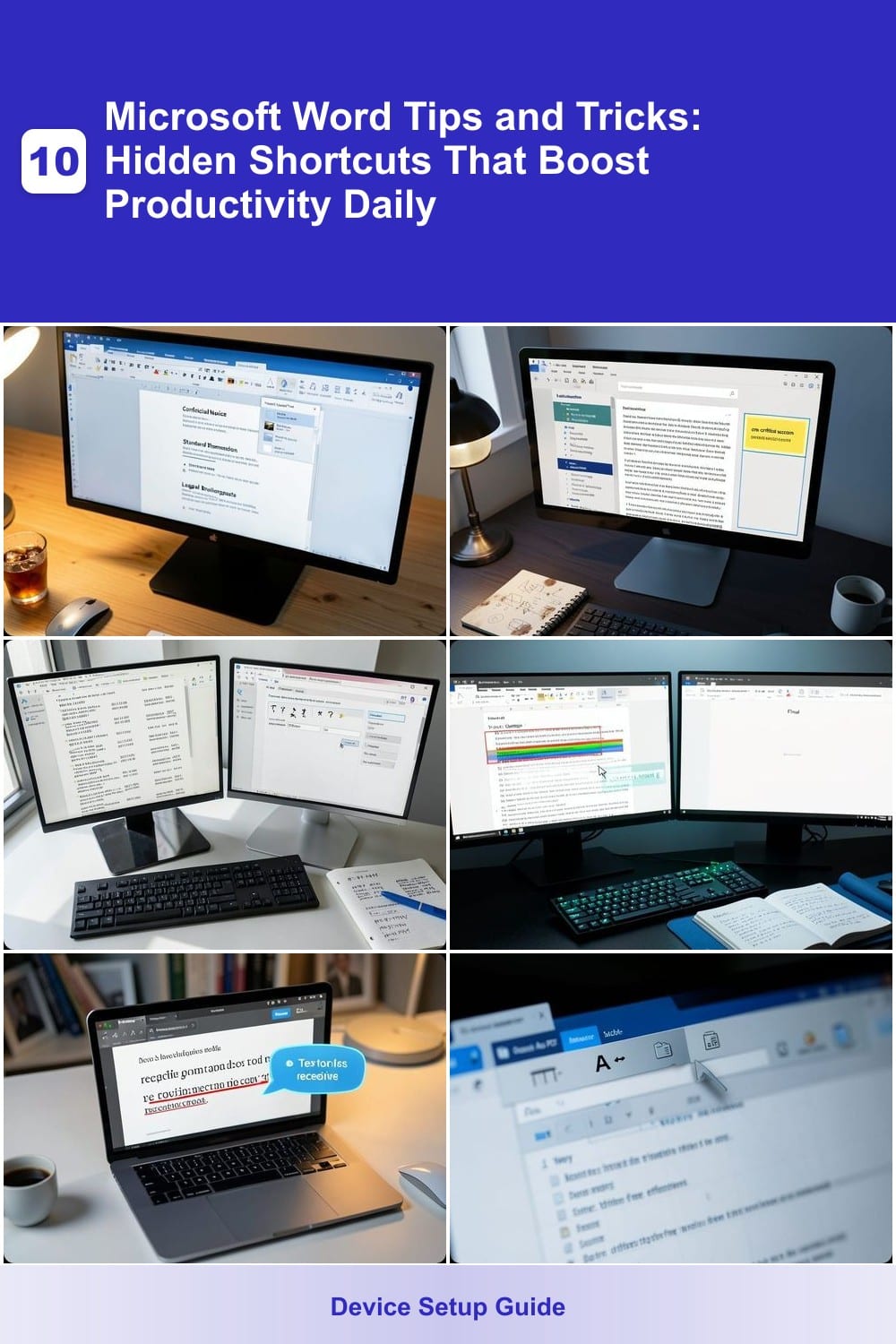
Microsoft Word is packed with hidden features that can save you hours every week. These 10 game-changing tips and tricks will transform how you work, from formatting to collaboration, making you a Word power user in minutes.
Quick Parts Gallery for Reusable Text Blocks
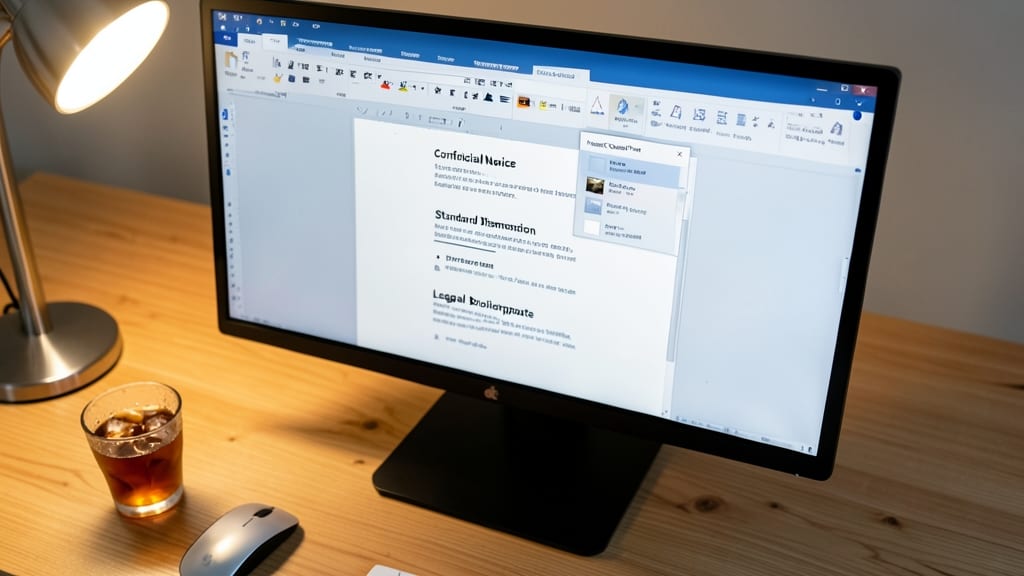
Fed up with typing the same disclaimers, signatures, or legal boilerplate over and over? Microsoft Word’s Quick Parts Gallery turns repetitive text into a one-click solution—like having a personal assistant for your most-used phrases.
Start by typing your reusable text (e.g., a confidential notice or standard signature), then right-click and select "Save Selection to Quick Parts Gallery." Next time, just press Alt+F3, browse your saved blocks, and insert them instantly. Pro tip: Organize entries into folders (like "Legal" or "Email Signatures") for a clutter-free experience. This feature even supports fields and auto-text, so dates or dynamic content update automatically.
Perfect for lawyers drafting contracts, businesses sending invoices, or students citing sources—anyone who repeats the same text blocks daily. Your fingers (and sanity) will thank you. ✨
Navigation Pane for Large Documents
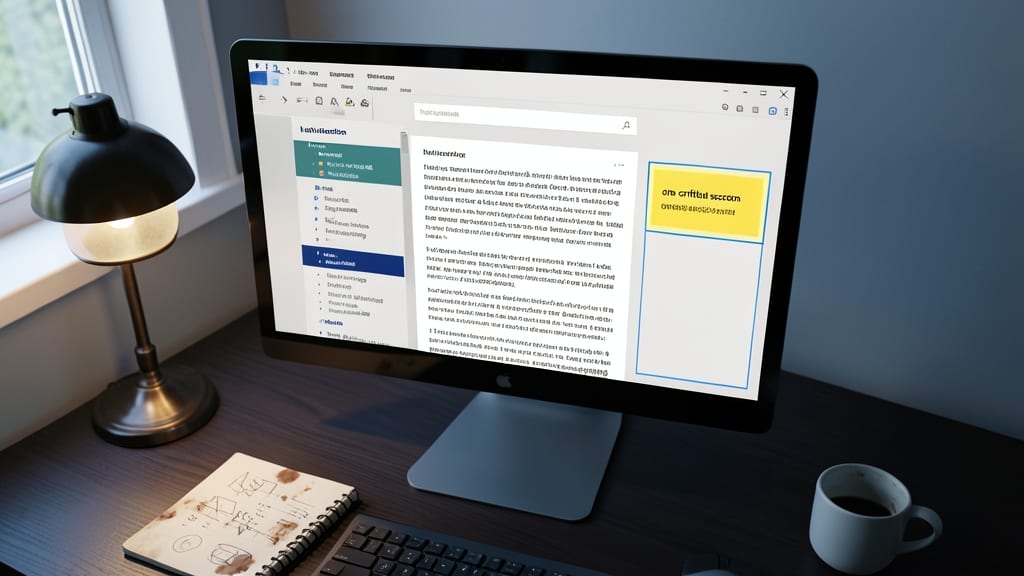
Drowning in a 50-page research paper or struggling to find that one critical section in a lengthy report? Microsoft Word’s Navigation Pane is your lifeline—transforming chaotic documents into an organized, searchable outline with just one click.
Enable it via View > Navigation Pane (or press Ctrl+F for a shortcut), and watch headings, pages, and even results from your last search appear in a collapsible sidebar. Click any heading to jump instantly, or use the search bar to pinpoint specific terms. For writers, this means no more endless scrolling—just direct access to your Introduction, Methodology, or Conclusion in seconds. Researchers can even filter by headings to focus on data tables or citations.
This feature is a game-changer for academics, grant writers, and project managers who juggle dense documents. Spend less time searching and more time analyzing—your future self will thank you. 💻
Find and Replace with Wildcards
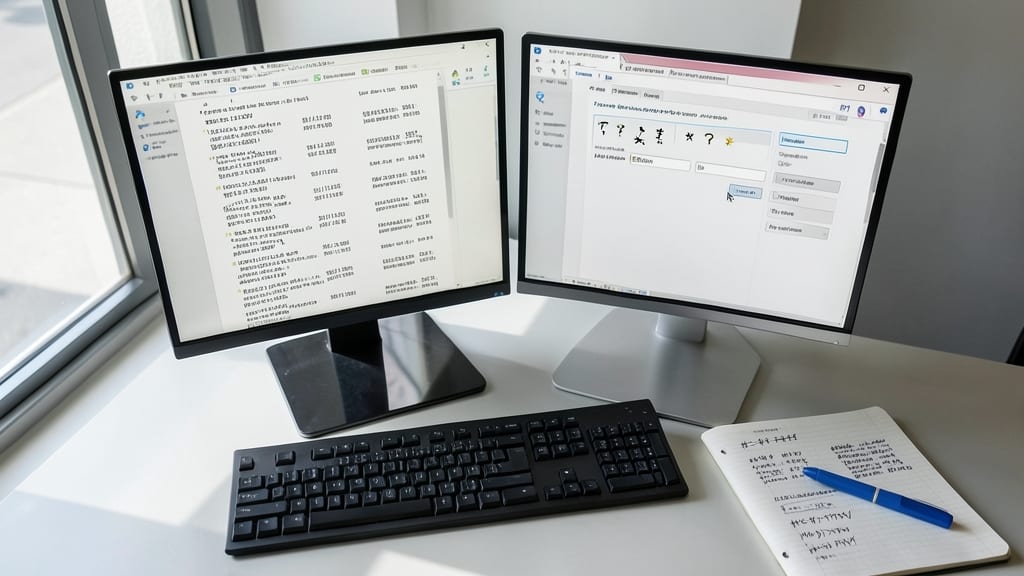
Tired of manually fixing messy data or inconsistent formatting in your documents? Microsoft Word’s Find and Replace with Wildcards lets you search for complex patterns—like dates (e.g., 01/01/20), phone numbers (e.g., ###-###-####), or mixed formatting—using special symbols (e.g., ? for single characters, for wildcards).
Enable it by pressing Ctrl+H, clicking More >>, and checking Use Wildcards. For example, search for @*.com to find all email addresses or ??.????.???? to catch US-style dates. This is a lifesaver for cleaning up spreadsheets, contact lists, or documents with inconsistent formatting—no manual edits required.
Perfect for data analysts, HR professionals, or anyone managing large datasets. Say goodbye to tedious manual fixes and hello to automated precision. 💡
Track Changes for Collaborative Editing
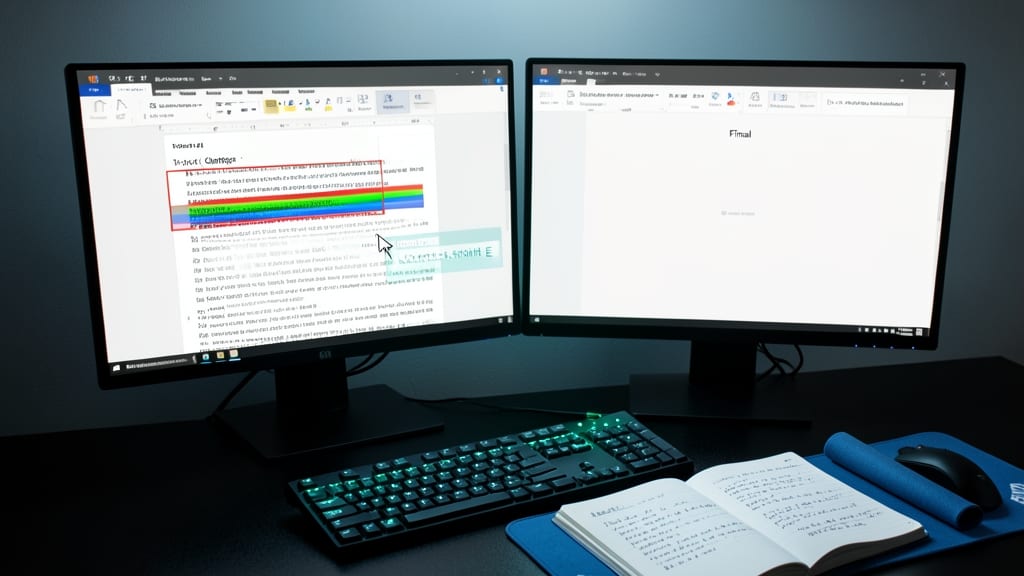
Ever struggled to merge edits from multiple team members without losing the original content? Track Changes in Microsoft Word solves this by letting you review, accept, or reject edits in real time—all while preserving the document’s history.
Enable it via Review > Track Changes (or press Ctrl+Shift+E), and watch inserted text appear in green, deletions in red, and formatting changes in blue. You can even use the Final mode to clean up edits while keeping a log of changes for audit trails. Perfect for legal teams, academic collaborations, or any project requiring version control.
Lawyers, editors, and project managers will love this feature for its non-destructive workflow—no more lost revisions or messy email chains. ✨
Text to Speech for Proofreading
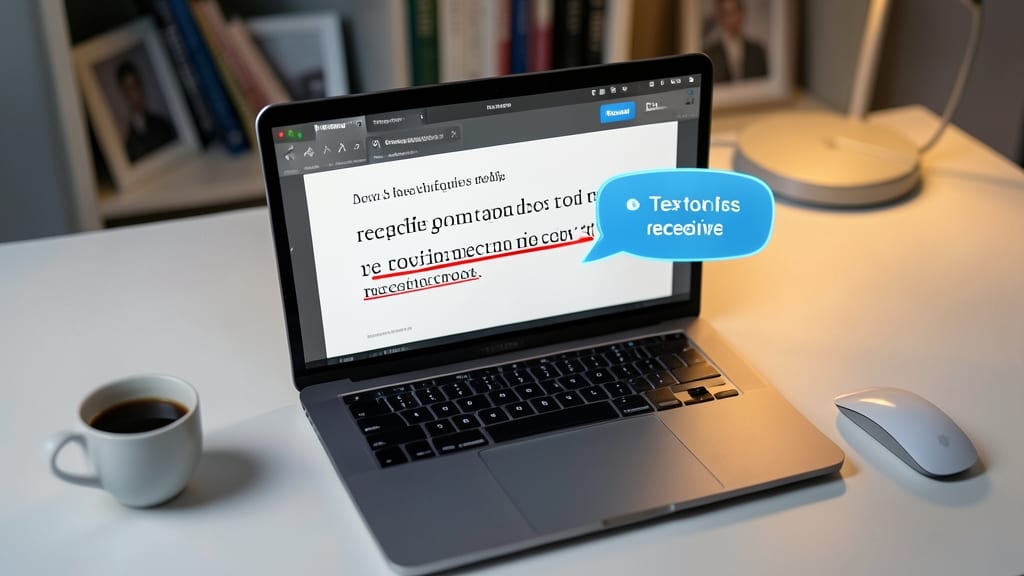
Ever stare at the same sentence for minutes, certain it’s correct—only to miss a glaring typo? Microsoft Word’s built-in Text to Speech feature flips the script by reading your document aloud, forcing your brain to hear (and catch) errors your eyes skipped over.
Enable it via Review > Read Aloud (or Alt+Ctrl+Space for Windows). Choose from 12 natural-sounding voices, adjust speed, and even pause/resume. This isn’t just for grammar—it’s a game-changer for non-native speakers or when you’re mentally fatigued. The Microsoft David voice (male) or Microsoft Zira (female) sound so polished, you’ll forget it’s AI.
Perfect for students, professionals drafting reports, or anyone who’s ever sent an email with a misplaced comma. Give your eyes a break and let tech do the heavy lifting. ✨
Customizable Quick Access Toolbar
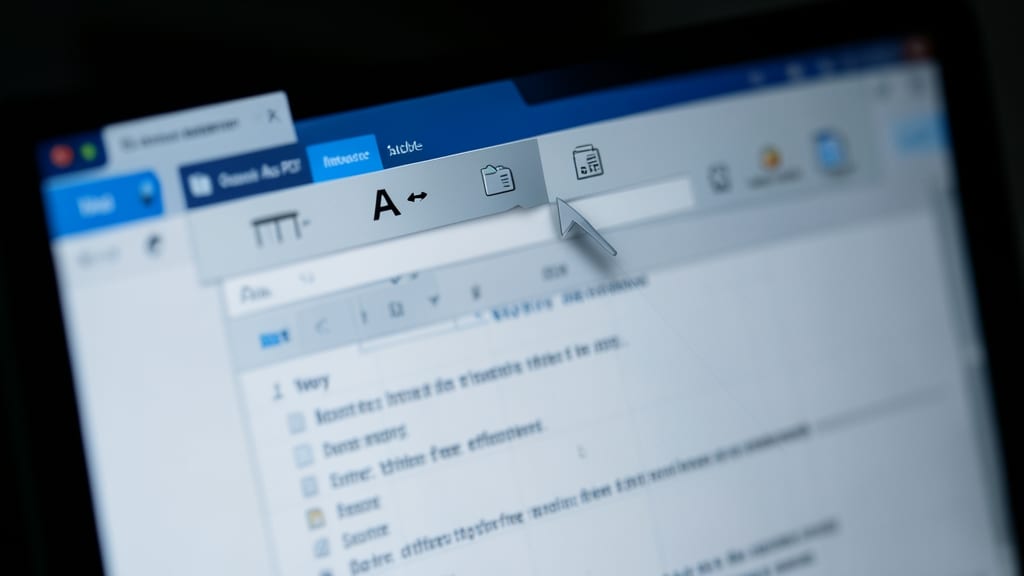
Tired of hunting through menus for the same commands every time? The Quick Access Toolbar lets you drag-and-drop your most-used actions—like Insert Table, Change Case, or Save As PDF—right to the top of the screen. No more digging through ribbons or memorizing shortcuts.
To customize, right-click the toolbar and select "Customize Quick Access Toolbar." Add commands from the dropdown menus or search for specific functions. You can even pin frequently used shortcuts like Ctrl+B (Bold) or Ctrl+I (Italic) for instant formatting. The toolbar syncs across devices if you’re using OneDrive, so your setup travels with you.
Perfect for freelance writers, legal professionals, or anyone who repeats the same formatting tasks daily. Spend less time clicking and more time creating. ✨
Compare Documents for Revisions
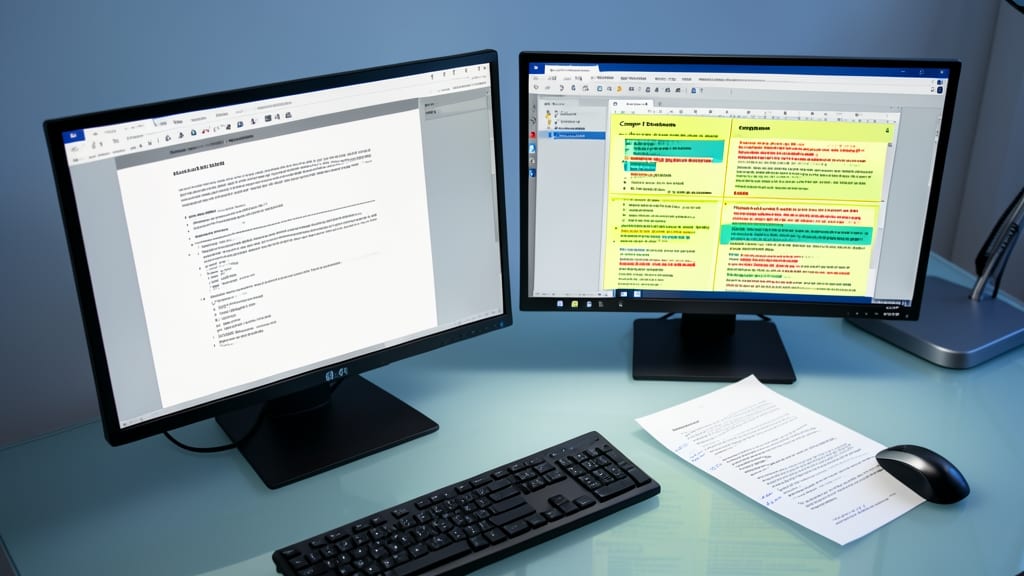
Struggling to reconcile two versions of a contract or grant proposal? Word’s Compare Documents feature lets you merge files and instantly see side-by-side changes—no manual highlighting required.
Open the tool via Review > Compare > Compare, then select your original and revised files. Word highlights additions in green, deletions in red, and formatting changes in blue, while the Move Between Changes button lets you jump through edits like a pro. For extra clarity, use View Side by Side mode to compare sections simultaneously.
This is a game-changer for legal teams, grant writers, and editors who juggle multiple drafts. Spend less time guessing what changed and more time refining the final version. ✨
Keyboard Shortcuts for Formatting
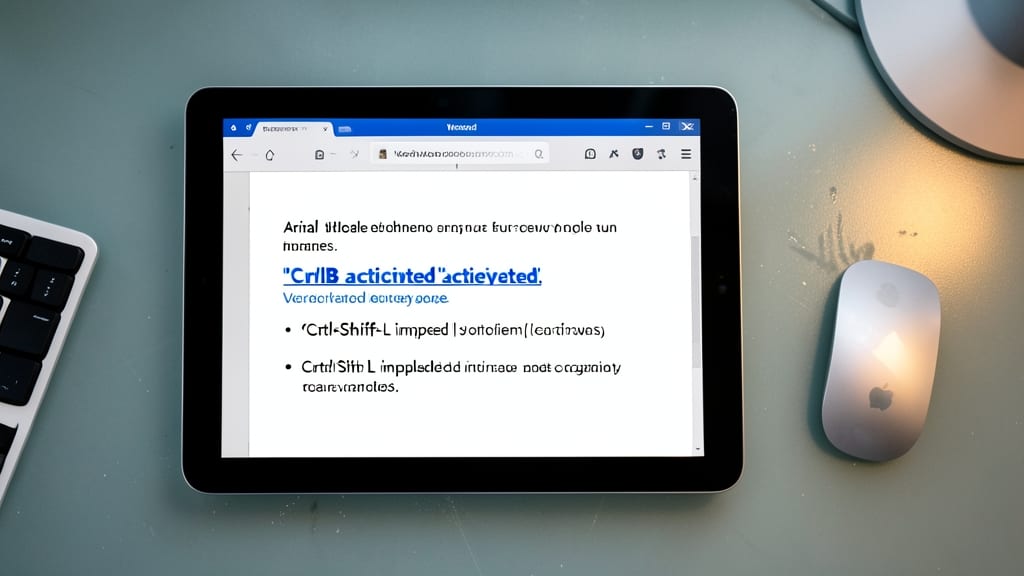
Tired of hunting through menus to format text? Keyboard shortcuts turn formatting into muscle memory—no mouse required. These power moves let you bold text in a blink, create bullet points effortlessly, and structure outlines without breaking your typing rhythm.
Memorize Ctrl+B for bold, Ctrl+Shift+L for bullet points, and Ctrl+5 to demote text to outline level 5. Pro tip: Use Ctrl+Shift+> to increase font size and Ctrl+[ to decrease it—perfect for quick adjustments. For lists, Ctrl+Shift+N inserts a numbered list instantly, while Shift+Tab moves items up and Tab moves them down. These shortcuts shave minutes off every document.
Speed typists, legal professionals, and content creators will love these shortcuts for their instant formatting power. Once mastered, you’ll wonder how you ever worked without them. ⚡
Insert Screenshot Directly from Screen
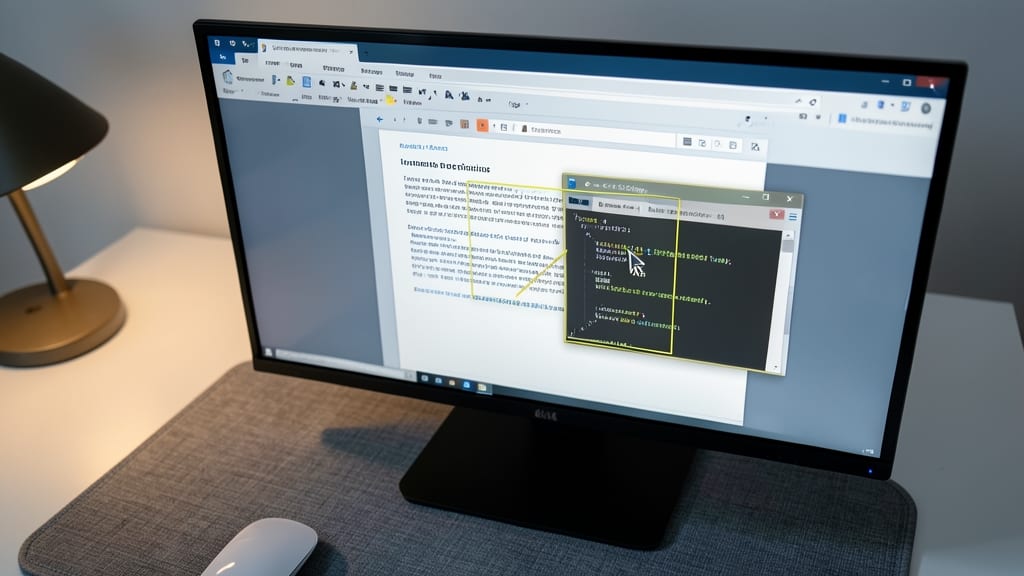
Need to document a troubleshooting step or add visuals to a guide? Word’s Screen Clipping tool lets you capture any part of your screen directly from the app—no third-party tools required. Simply press Alt+PrtScn, select your region, and paste it into your document with perfect resolution.
The result is a high-fidelity screenshot that maintains all text and formatting, making it ideal for annotating error messages or embedding code snippets. You can even crop or resize after insertion, and the feature works seamlessly across Windows and Mac versions of Word.
This trick is a lifesaver for tech writers, support agents, or anyone who needs to combine visuals with text—all without leaving your document. ⚡
Mail Merge for Personalized Letters
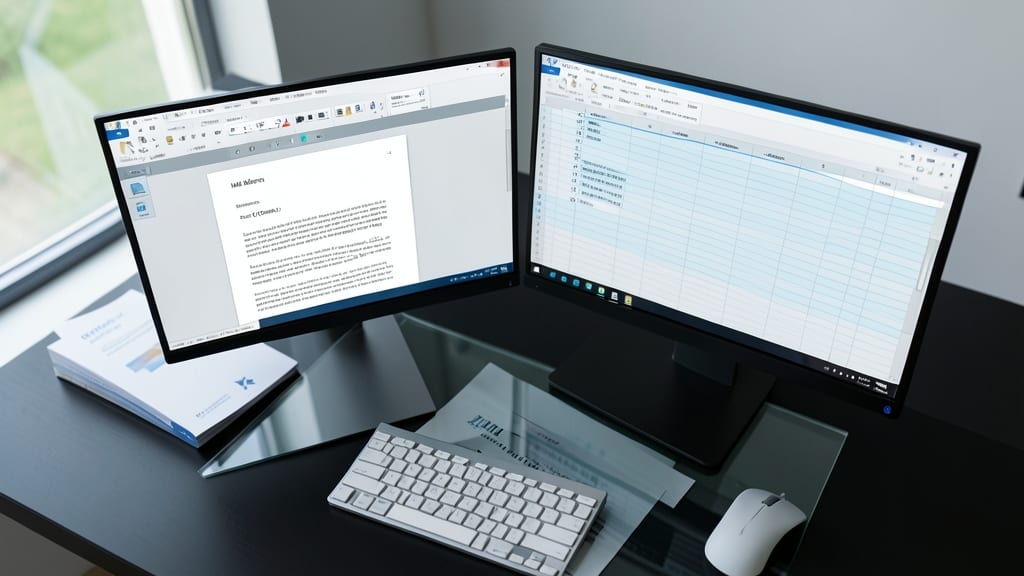
Tired of manually typing the same letter to dozens of clients or customers? Mail Merge in Microsoft Word automates personalized letters, labels, or even emails using data from Excel or Outlook—saving you hours of repetitive work.
Start by creating a template letter with placeholders like <
This trick is a game-changer for marketers sending promotions, HR teams handling onboarding, or small business owners managing invoices. No coding required—just point, click, and merge. ✨