
Software
Microsoft Teams has revolutionized classroom collaboration, making remote and hybrid learning seamless. Discover 10 key benefits schools use to enhance engagement, streamline communication, and improve student outcomes—transforming education in the digital age.
Seamless classroom communication platform
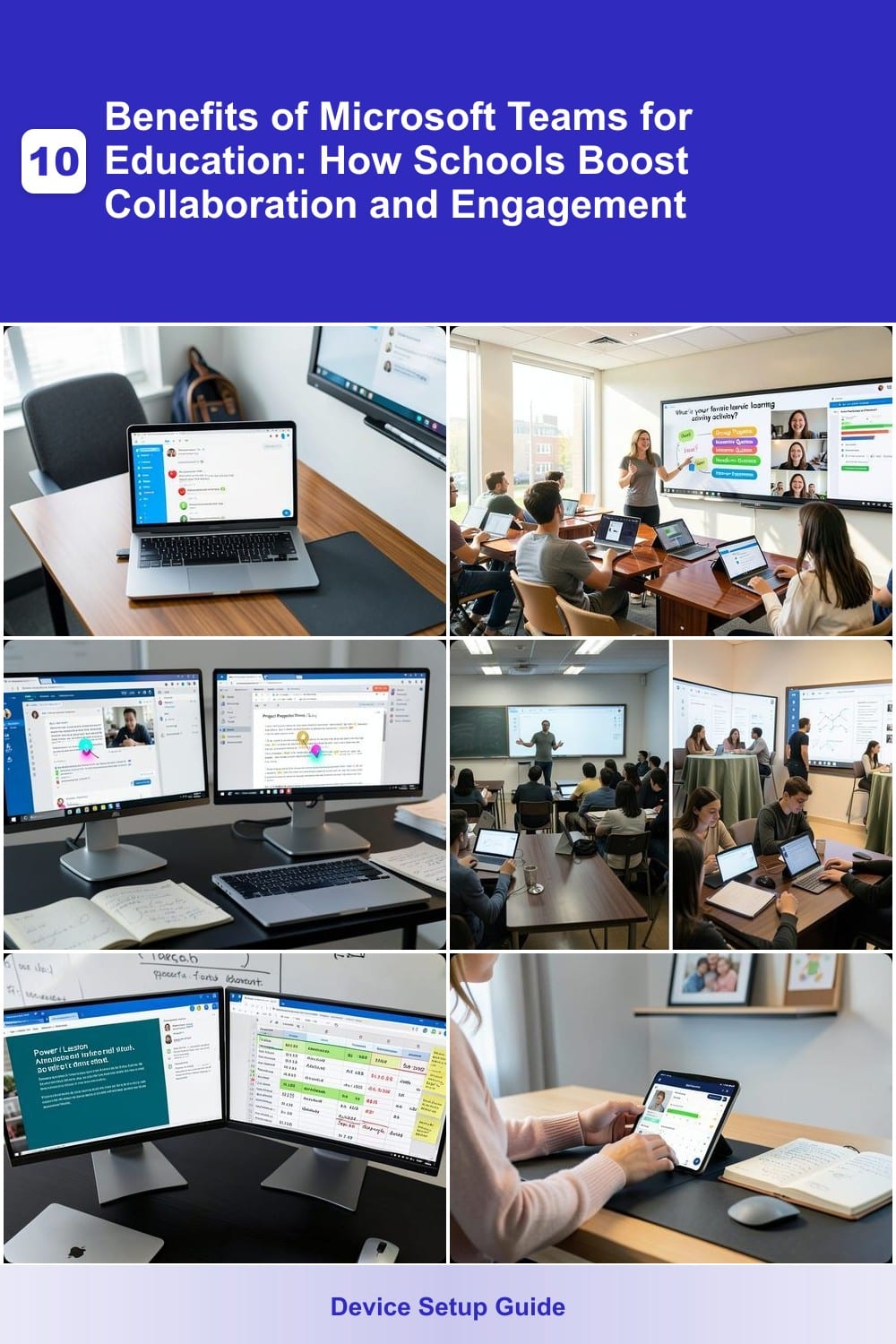
Tired of chasing down missed emails or sifting through endless reply threads? Microsoft Teams replaces the chaos of scattered communication with a single, organized hub where teachers post announcements, students ask questions, and entire classes collaborate—all in one place.
The platform’s class channels let educators create dedicated spaces for each subject, while persistent chat history ensures no question or assignment gets lost in the shuffle. With @mentions, you can tag specific students or staff, and threaded discussions keep conversations focused. Plus, the mobile app syncs notifications so parents and students stay updated—whether they’re at home or on the go.
Perfect for K-12 schools managing multiple grade levels or higher education departments with complex workflows, Teams turns communication from a headache into a streamlined, engaging experience. 💻
Virtual classroom integration with lessons
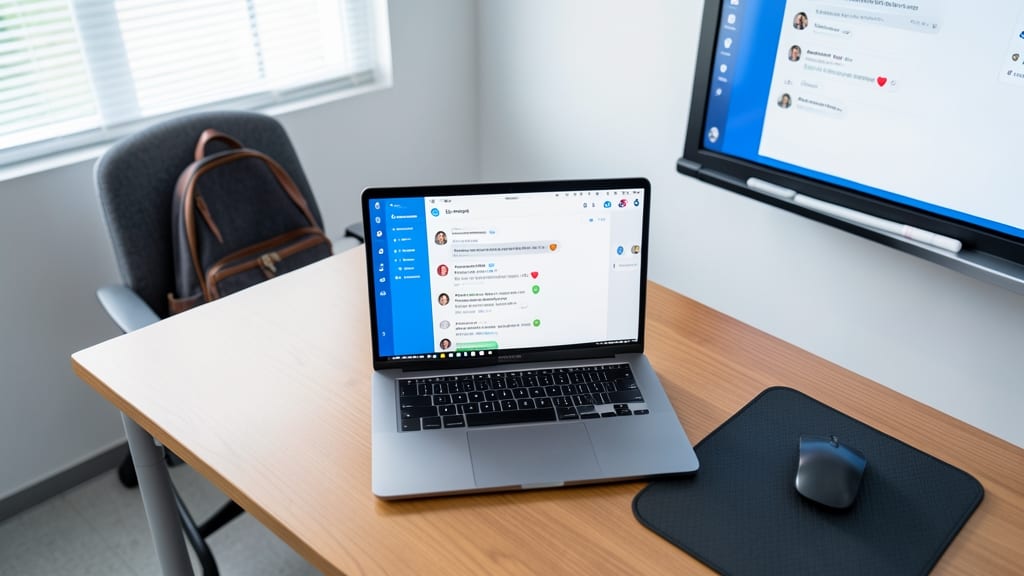
Turn passive lectures into dynamic, interactive sessions with Microsoft Teams’ virtual classroom tools, designed to keep students engaged whether they’re in the room or logging in from home. The platform combines high-quality video conferencing with built-in features like live polls, quizzes, and a digital whiteboard—all without requiring additional apps or complex setups.
Teachers can launch instant polls to gauge understanding mid-lesson, assign real-time quizzes with auto-graded results, or use the whiteboard tool to sketch diagrams, annotate documents, or brainstorm as a class. The Lessons tab organizes materials into structured modules, while screen-sharing lets instructors demonstrate concepts clearly. For hybrid classes, the attendance tracking feature ensures every student—whether virtual or in-person—is accounted for seamlessly.
This integration is ideal for STEM educators demonstrating experiments, language teachers practicing pronunciation, or art instructors guiding digital sketches—all while keeping students actively participating. 💡
Secure file sharing and collaboration
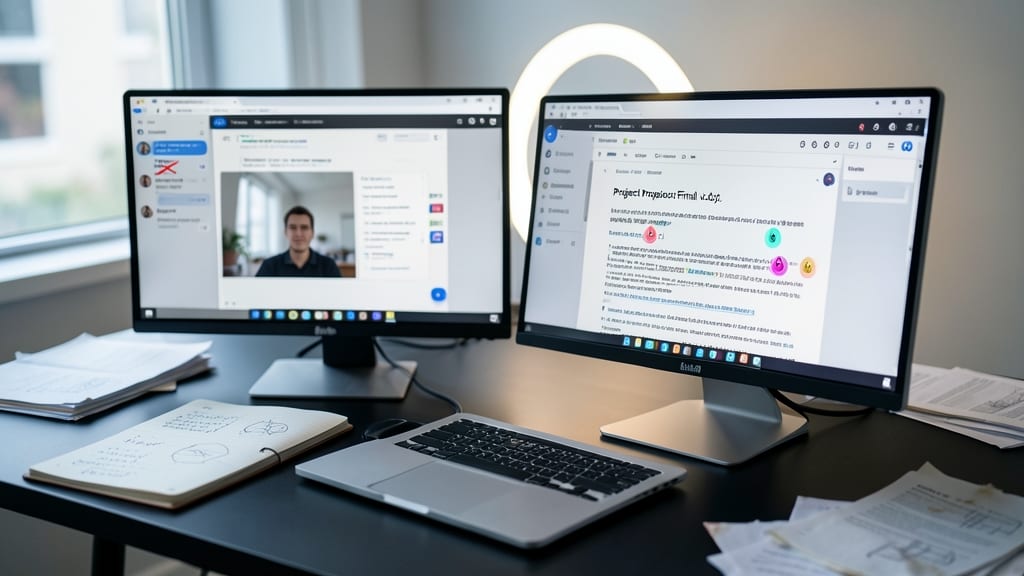
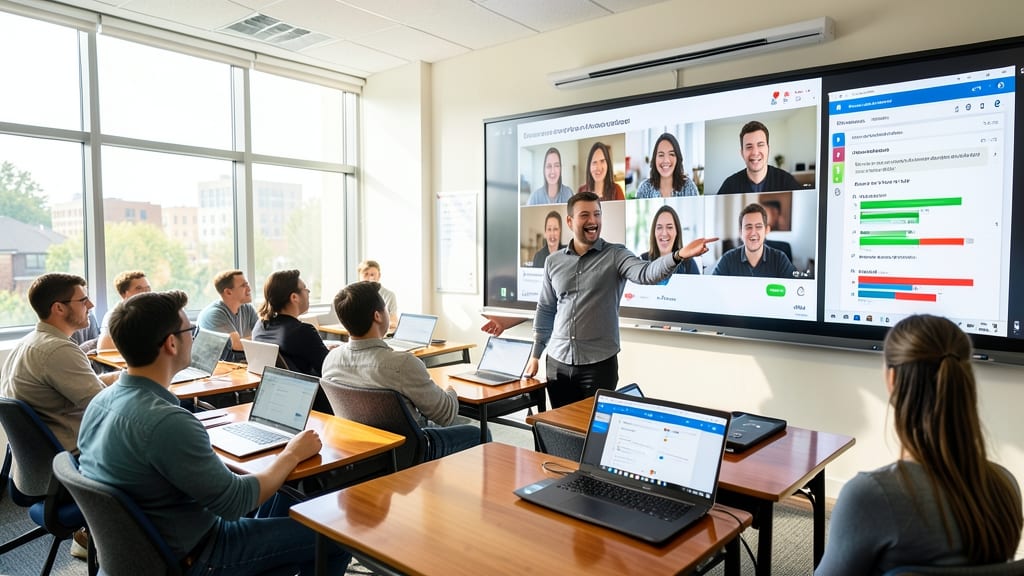
Say goodbye to the chaos of lost email attachments or mismatched assignment versions—Microsoft Teams turns collaboration into a streamlined, version-controlled process. With real-time co-authoring in Word, Excel, and PowerPoint, multiple students can edit the same document simultaneously, while the platform automatically tracks changes and saves backups.
The OneDrive integration ensures all files stay securely stored in the cloud, accessible from any device, while permission controls let teachers restrict who can view or edit submissions. Need to provide feedback? Use the @mentions feature to tag specific students directly in comments, and track progress with built-in version history—no more "I didn’t know you updated it!" surprises.
This feature is a game-changer for group projects, research papers, and peer reviews, especially in higher education or blended learning environments. Teachers love it for grading efficiency, while students appreciate the zero-config setup that works across devices. ✨
Breakout rooms for group work
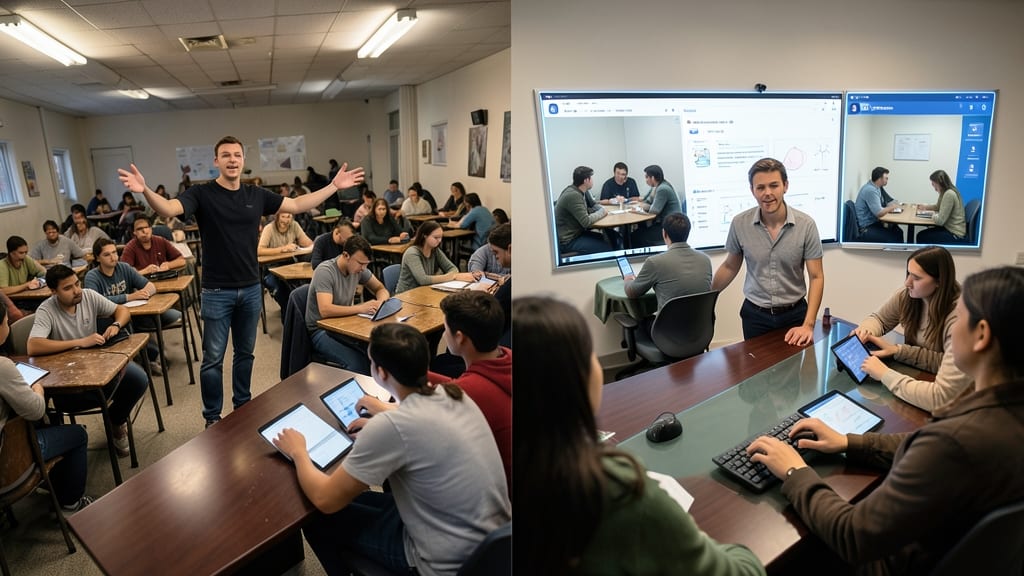
Tired of large-group lectures drowning out quieter voices? Microsoft Teams’ breakout rooms transform whole-class discussions into structured, intimate learning experiences—perfect for language labs, science experiments, or collaborative writing projects.
With just a few clicks, teachers can split a class into up to 50 virtual rooms, each with its own chat, screen-sharing, and whiteboard tools. The auto-assignment feature ensures balanced groups, while timers and reminders keep discussions on track. For STEM classes, students can collaborate on shared documents in real-time, and language teachers can facilitate targeted speaking practice without logistical headaches.
This feature excels in project-based learning, where students tackle complex assignments in smaller teams. Whether it’s a chemistry lab report or a creative writing critique, breakout rooms foster deeper engagement than traditional group work ever could. ✨
Integration with Microsoft 365 tools
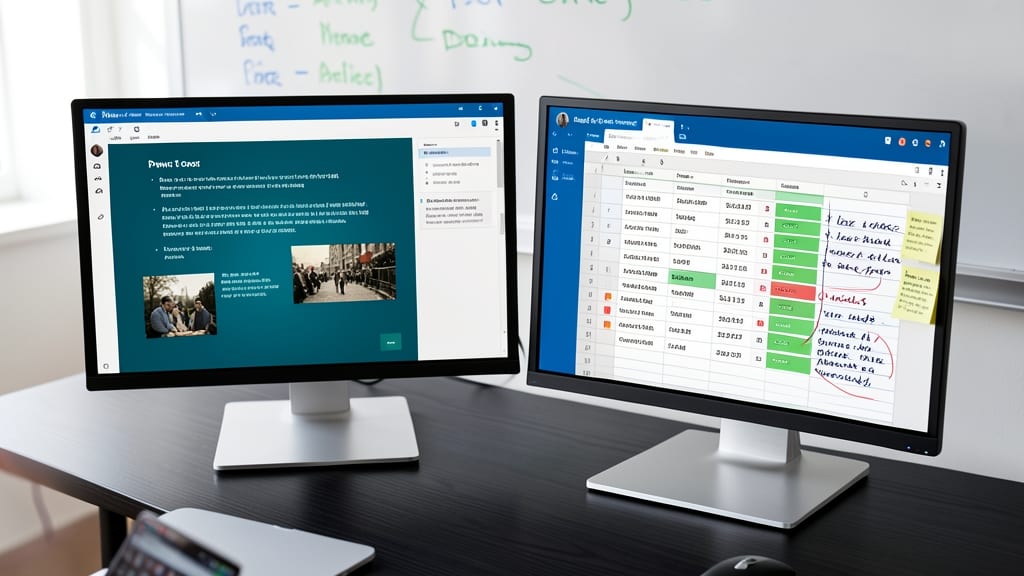
Tired of juggling separate apps for lesson plans, student submissions, and feedback? Microsoft Teams bridges that gap by seamlessly integrating with Microsoft 365 tools—Word, Excel, PowerPoint, and OneNote—right within the platform.
Teachers can draft PowerPoint lessons, grade Excel-based quizzes, and review Word documents—all without leaving Teams. Students submit assignments directly into class folders, and educators provide feedback using real-time comments or voice notes. The ecosystem also syncs with OneNote for digital notebooks, perfect for visual learners or collaborative brainstorming sessions.
This integration is a game-changer for educators overwhelmed by disjointed tools. Whether you're a high school math teacher grading spreadsheets or a college professor reviewing research papers, Teams keeps everything organized in one place. ✨
Parental and guardian engagement
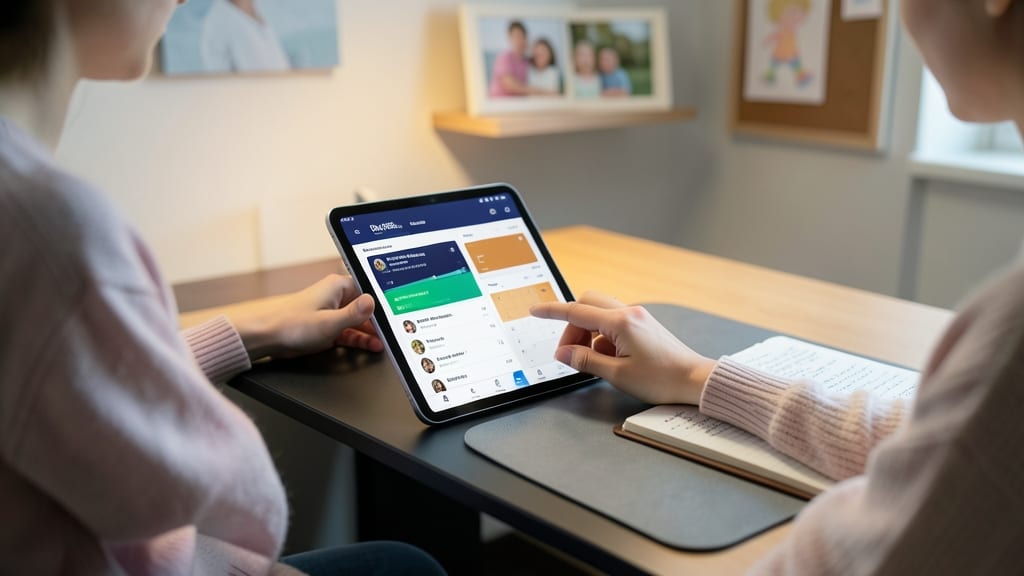
Ever wished parents could easily track their child’s school progress without endless phone calls or confusing portals? Microsoft Teams solves this with its dedicated parent-teacher portals, designed to keep families informed and engaged.
The platform offers real-time assignment tracking, letting guardians view deadlines, grades, and feedback directly in their Teams account. Secure messaging ensures private, encrypted communication between parents and teachers, while progress reports sync automatically with school systems. For busy families, mobile-friendly notifications alert them to important updates—whether it’s a missed assignment or an upcoming test.
This feature is a game-changer for schools prioritizing transparency and family involvement. Perfect for elementary through high school, it turns passive observers into active participants in their child’s education. ✨
Accessibility features for all learners
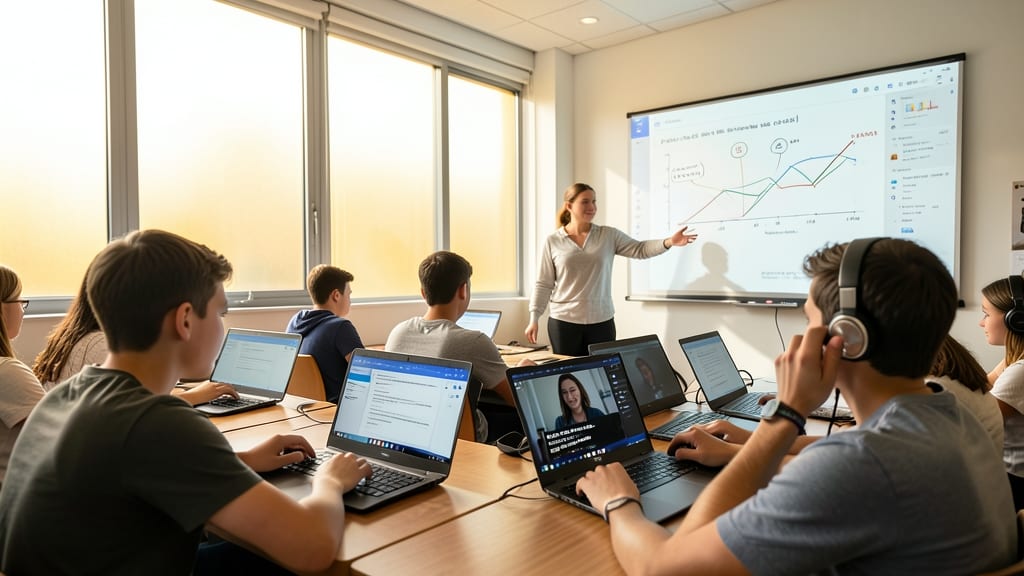
Every student deserves a classroom that adapts to their needs—not the other way around. Microsoft Teams removes barriers with built-in accessibility tools designed to support diverse learning styles, from visual impairments to auditory processing challenges.
In real time, teachers can enable live captions for videos or lectures, ensuring deaf or hard-of-hearing students never miss key discussions. The platform’s screen reader compatibility (via Windows Narrator or Mac VoiceOver) lets visually impaired students navigate assignments independently, while customizable text sizes and high-contrast themes help students with dyslexia or ADHD focus better. These features require zero extra software—just a toggle in settings.
This isn’t just about compliance; it’s about creating an environment where every student thrives. Schools using Teams report higher participation rates from neurodivergent learners when these tools are activated. 💡
Automated grading and feedback tools
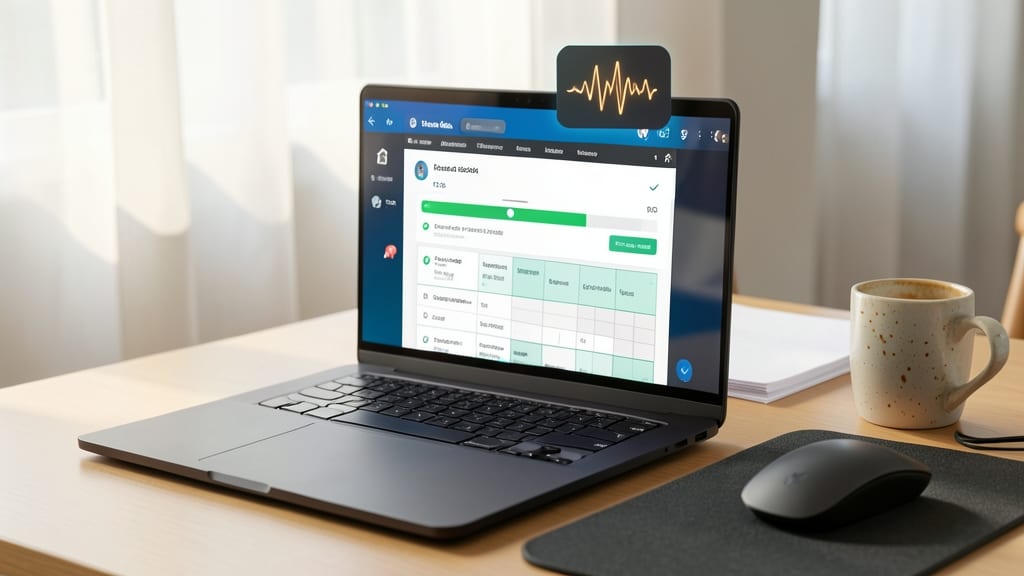
Grading stacks of papers takes up more teacher time than lesson planning—until you automate it. Microsoft Teams’ built-in quiz tools and rubric templates let you create assessments that self-grade multiple-choice questions, while voice-recorded feedback adds a personal touch without the hours spent typing.
The Assignments tab integrates with Microsoft Forms for instant quiz scoring, and OneNote integration lets you embed rubrics directly into student work. For large classes, automated reminders keep submissions on track, while detailed analytics show class-wide performance trends—ideal for distance learning where face-to-face check-ins are limited.
This feature is a game-changer for high school teachers juggling 150+ students or college professors managing online courses. ⚡
Global collaboration opportunities
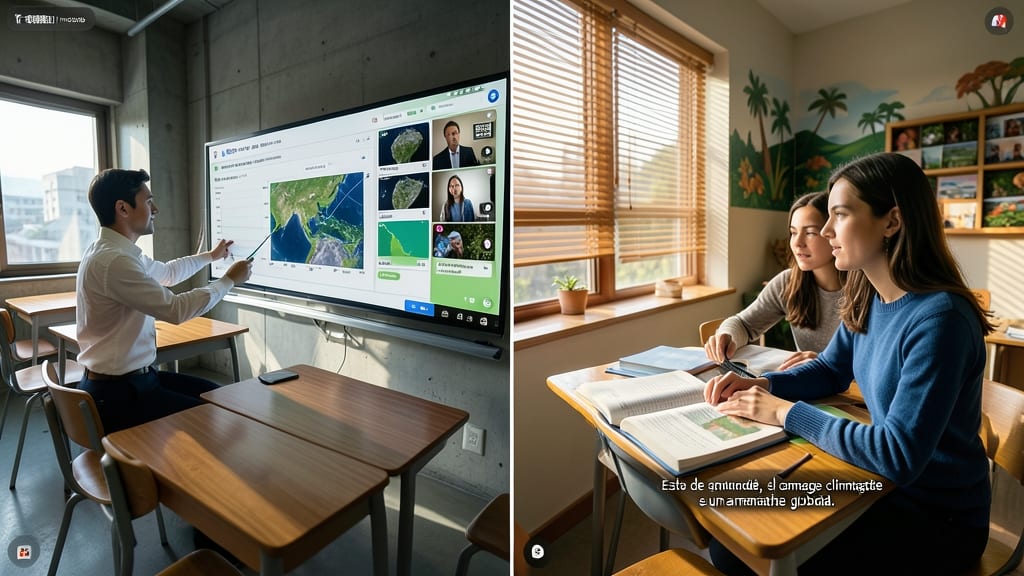
Imagine students in Tokyo collaborating with peers in Texas on a climate change research project—or a Spanish class pairing up with students in Madrid for real-time language practice. Microsoft Teams makes global classroom connections effortless with its built-in translation tools and cross-border video conferencing.
Teachers can create international project channels where students share research, cultural presentations, or joint assignments—all while learning digital collaboration skills. The Teams Translation add-in breaks language barriers during live discussions, while the Whiteboard tool lets geographically dispersed students brainstorm together visually. Schools can even partner with organizations like Classroom Earth or ePals to facilitate structured global exchanges.
This feature is a game-changer for schools aiming to foster cultural literacy and global citizenship. Whether it's a high school debate between U.S. and European students or elementary kids sharing holiday traditions, Teams turns the world into a classroom. 🌟
Cost-effective school-wide solution
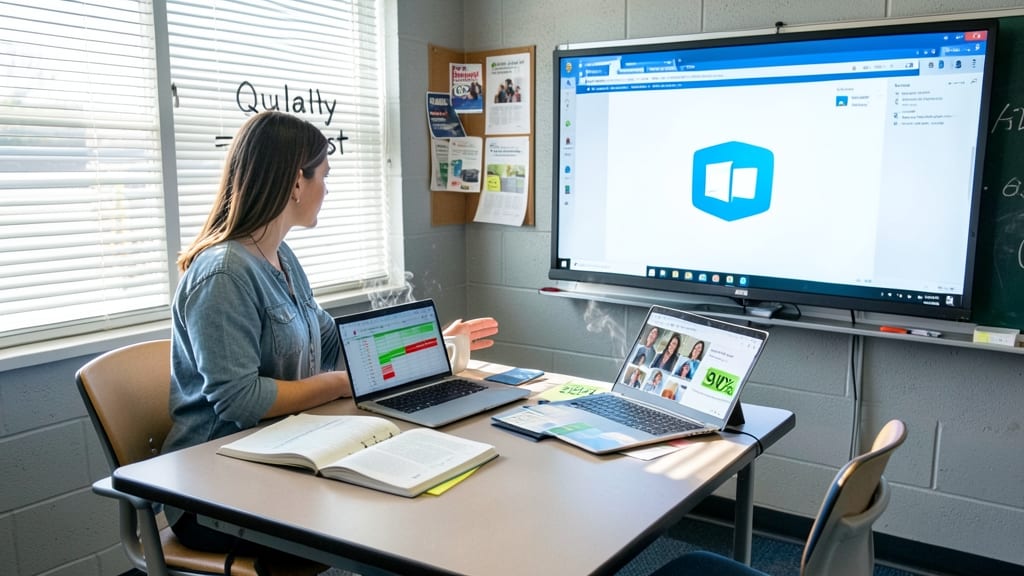
Budget-conscious schools no longer need to choose between quality tools and affordability—Microsoft Teams through Microsoft Education offers free or deeply discounted licenses for eligible institutions, slashing licensing costs by up to 90%. This means even smaller districts can equip every teacher and student with the same powerful collaboration tools as larger schools, without breaking the bank.
The program includes zero-configuration deployment for IT teams, reducing setup time by 80%, and provides 24/7 technical support at no extra cost. Schools also gain access to pre-approved training modules for staff, ensuring smooth adoption without costly professional development programs. Plus, the scalable licensing model grows with your school—pay only for what you need.
Ideal for public, private, and charter schools with limited tech budgets, this solution lets administrators focus on teaching rather than managing complex software costs. ✨