
Tip & Trick
New to SharePoint but struggling to maximize its potential? These eight beginner-friendly tips will help you navigate Microsoft's powerful collaboration tool like a pro, saving time and boosting teamwork instantly.
Master SharePoint homepage customization
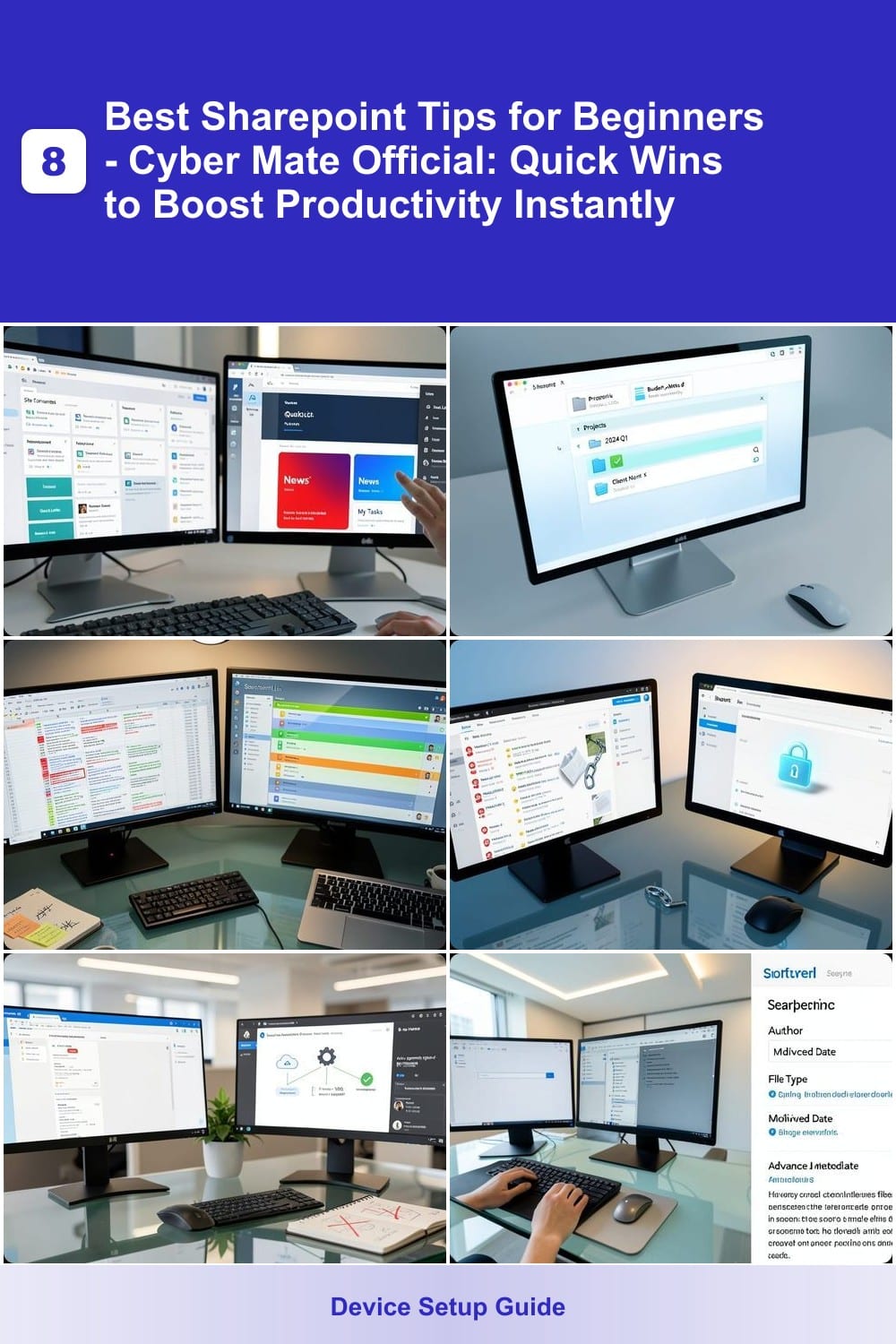
Drowning in SharePoint’s cluttered default homepage? A personalized dashboard can turn chaos into clarity by putting your most-used tools front and center.
Start by editing the homepage in SharePoint Online to add web parts like the Quick Launch menu (for shortcuts), News web part (for updates), and Document Library (for direct file access). Drag-and-drop to rearrange tiles, and use the Search Box web part to filter content instantly. For extra flair, add a Calendar or People web part to track deadlines and teammates—all without coding.
This trick is a game-changer for project managers or remote teams juggling multiple tools. A tailored homepage cuts login time by 50% and keeps critical info visible at a glance. ✨
Use document libraries efficiently
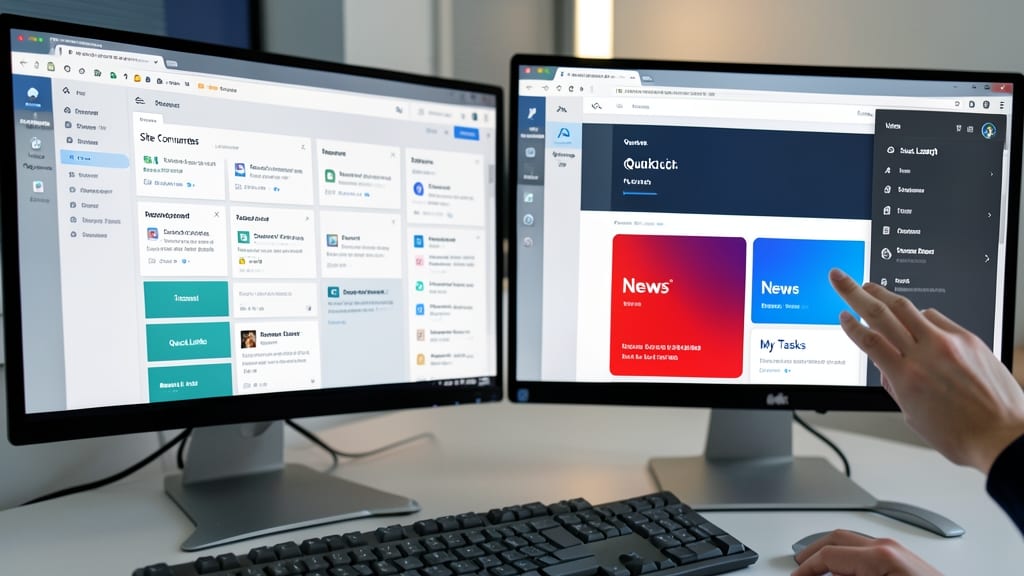
Tired of digging through endless folders to find that one document? SharePoint’s document libraries are your secret weapon—when used right. They’re not just digital filing cabinets; they’re smart systems designed to keep your files organized, searchable, and under control.
Start by structuring folders logically (e.g., “Projects/2024/Q1”) and add metadata columns like “Department,” “Status,” or “Owner” to filter files instantly. Enable versioning to track changes automatically, so you never lose a draft. For teams, use check-out/check-in to prevent conflicts when multiple people edit the same file.
This tip is a game-changer for marketing teams, project managers, or HR departments where documents pile up fast. With a little setup, you’ll spend less time searching and more time collaborating. ✨
Leverage SharePoint Lists for tasks
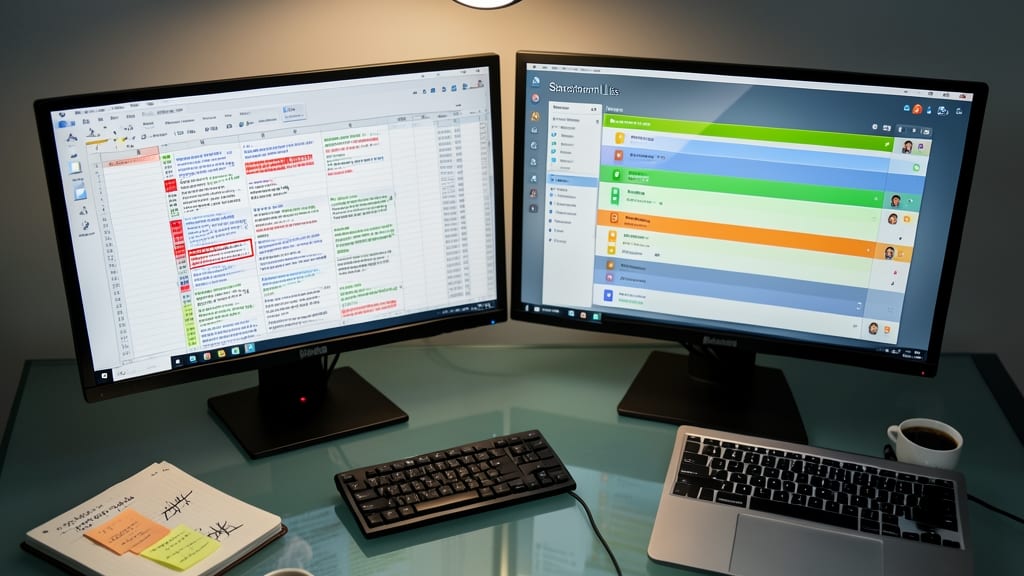
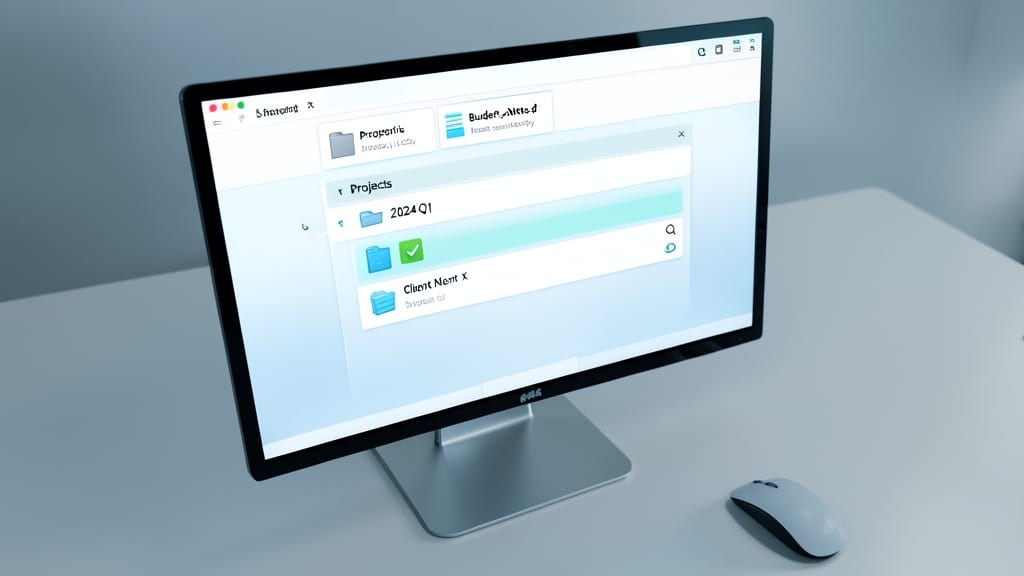
Tired of juggling spreadsheets or Outlook Tasks that feel clunky for teamwork? SharePoint Lists offer a built-in, customizable solution that syncs with your workflow—no extra apps needed. Unlike static spreadsheets, these lists let you track tasks, deadlines, and approvals in one place, with real-time updates that everyone can see.
Create columns for priority levels, due dates, and custom statuses (like "Pending Approval" or "Completed"). Assign tasks directly to team members, set reminders, and even view tasks in a calendar format for better visualization. The best part? You can start with a pre-built task list template or design one from scratch—no coding required.
This is your go-to for solo projects or team collaboration—whether you're managing a small task list or coordinating a full project. Ditch the chaos and try SharePoint Lists today! ✨
Simplify file sharing with links
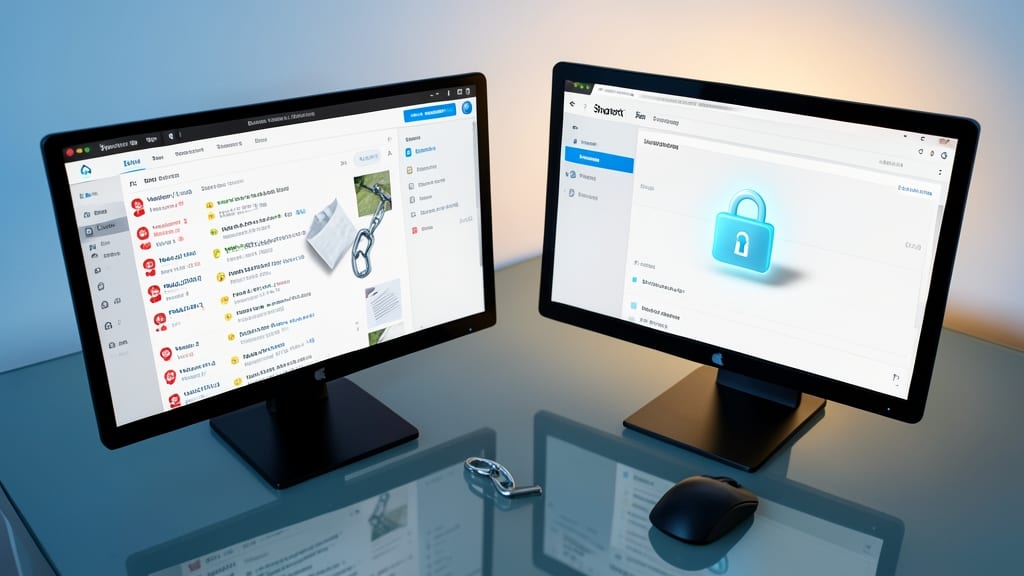
Tired of emailing files only to deal with version chaos or lost attachments? SharePoint’s link-sharing feature lets you generate secure, trackable links that keep files organized and under your control—no more confusing email threads or accidental overwrites.
With just a few clicks, you can create links with custom permissions (view-only, edit, or comment), set expiration dates, and even track who accessed the file. The QR code option makes sharing effortless for mobile users, while audit logs help you monitor activity—ideal for sensitive documents. Plus, recipients don’t need a SharePoint account to view files, simplifying collaboration.
This tip is perfect for beginners who want to eliminate file-sharing headaches while keeping documents secure. Give it a try and watch your workflows get smoother! ✨
Automate workflows with power Automate
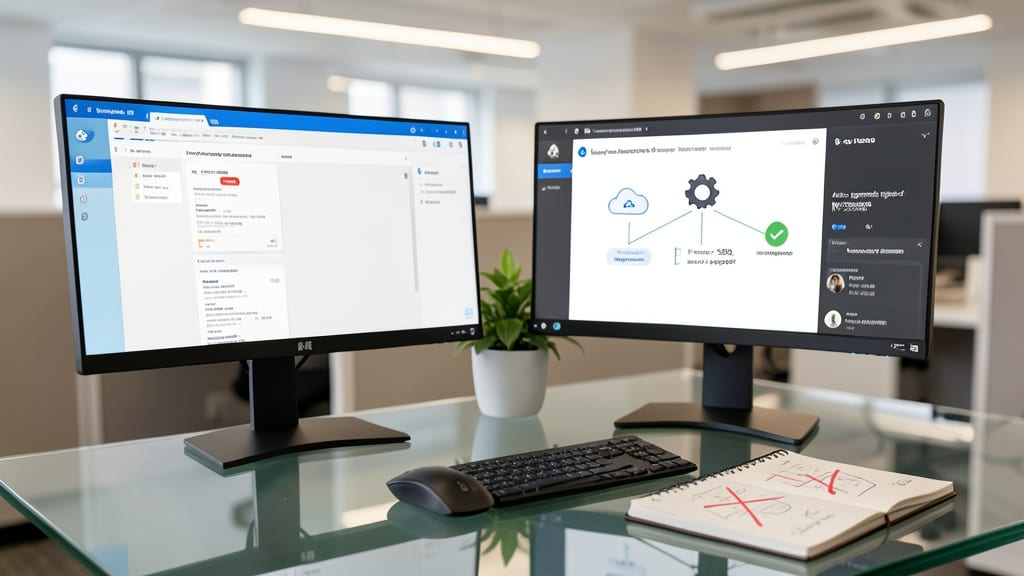
Tired of manually approving documents or chasing down missing files? Power Automate lets you create no-code workflows that handle repetitive tasks automatically—no coding skills required.
With pre-built SharePoint connectors, you can set up flows like "auto-approve invoices over $500" or "send a Slack alert when a new file lands in a folder." The drag-and-drop interface makes it easy to chain actions (e.g., "copy files to OneDrive, then notify the team") in minutes. Best of all, it integrates seamlessly with Microsoft 365 apps like Outlook, Teams, and Excel.
Perfect for admins managing approvals, project managers tracking deadlines, or teams drowning in manual file transfers. Start with a simple flow today and reclaim hours every week! ✨
Search smarter with keywords
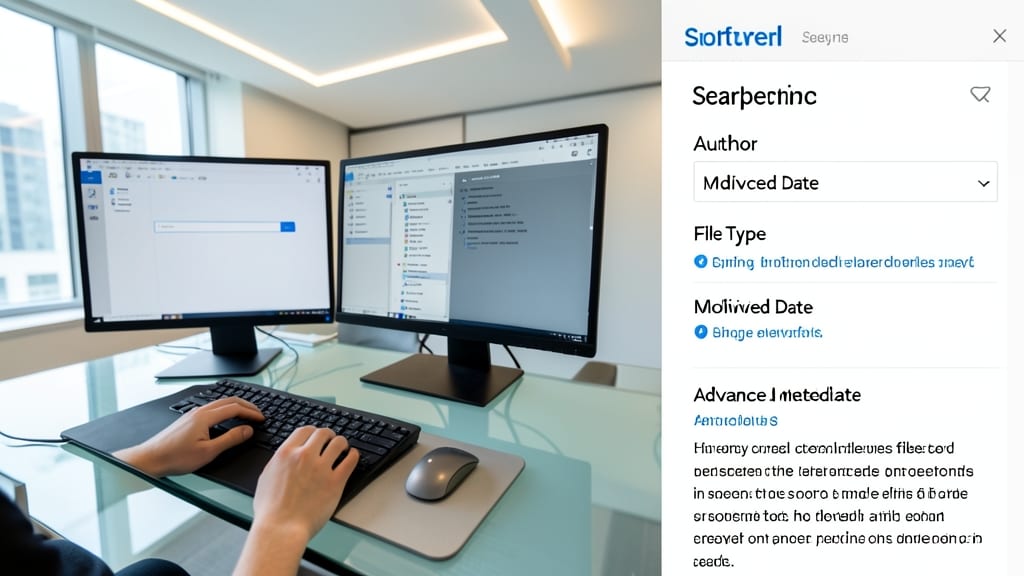
Tired of digging through endless folders just to find that one report? SharePoint’s advanced search filters can turn your file searches from a scavenger hunt into a quick win—no more frustration over vague results.
Start by refining searches with metadata filters like Author, Modified Date, or File Type (e.g., "PowerPoint files edited by Sarah last month"). Use synonyms (e.g., "project" or "initiative") to broaden results, and save frequent searches as favorites for instant access. Pro tip: Combine keywords with Boolean operators (AND/OR/NOT) for laser-focused precision, like "Q3 report" AND "finance" NOT "draft".
This trick is a game-changer for marketing teams tracking client files or HR professionals managing policy documents—cut search time from minutes to seconds. 💡
Collaborate with SharePoint teams

If your team is spread across time zones but still needs to stay aligned, integrating SharePoint with Microsoft Teams turns disjointed communication into a seamless workflow. No more jumping between apps—just one place for chats, file sharing, and project updates in real time.
Start by adding a SharePoint document library as a tab in your Teams channel. Now, every file update or new upload appears instantly in the chat feed, and team members can edit documents without leaving Teams. Use Teams’ built-in project boards (like Planner integration) to track tasks alongside conversations, while @mentions ensure everyone stays in the loop. The best part? Zero setup hassle—Microsoft handles the syncing behind the scenes.
This combo is a game-changer for remote teams managing client projects, marketing campaigns, or IT support tickets. Say goodbye to scattered tools and hello to a unified workspace where collaboration happens naturally. ✨
Enable mobile access for on-the-go work

Tired of being glued to your desk to check SharePoint updates? The SharePoint mobile app bridges the gap between office and on-the-go work, letting you access files, edit documents, and stay alerted to changes—all from your phone.
With the app, you can sync libraries for offline access, edit Word/Excel files directly, and receive real-time notifications about document changes or task assignments. The intuitive interface mirrors the desktop experience, so you won’t need a tutorial to get started. Plus, multi-factor authentication keeps your data secure while you work from anywhere.
This tip is a game-changer for remote workers, sales teams, or anyone juggling meetings and travel. Whether you’re reviewing a report on your commute or approving a document during lunch, the mobile app keeps productivity flowing. ✨