
Software
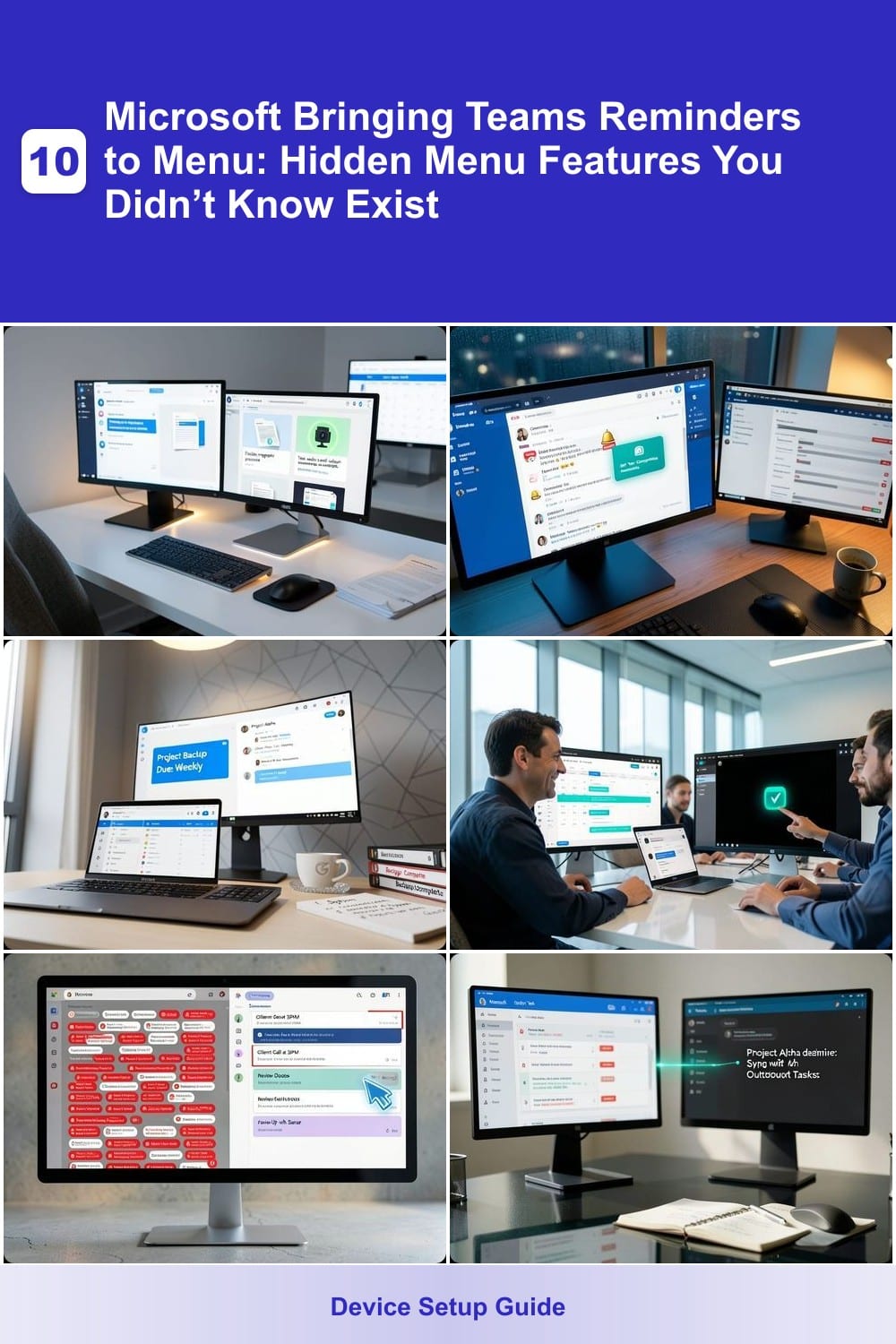
Microsoft is quietly transforming Microsoft Teams with new hidden menu features, including reminders that can streamline your workflow. These under-the-radar tools help you automate tasks, manage deadlines, and boost productivity without cluttering your inbox.
Teams Meeting Reminders with Custom Alerts
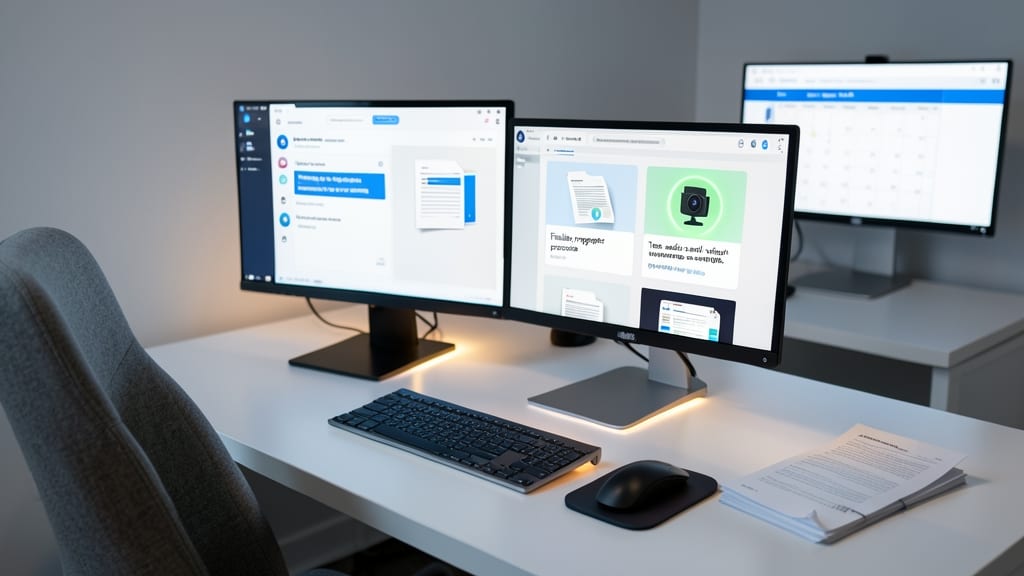
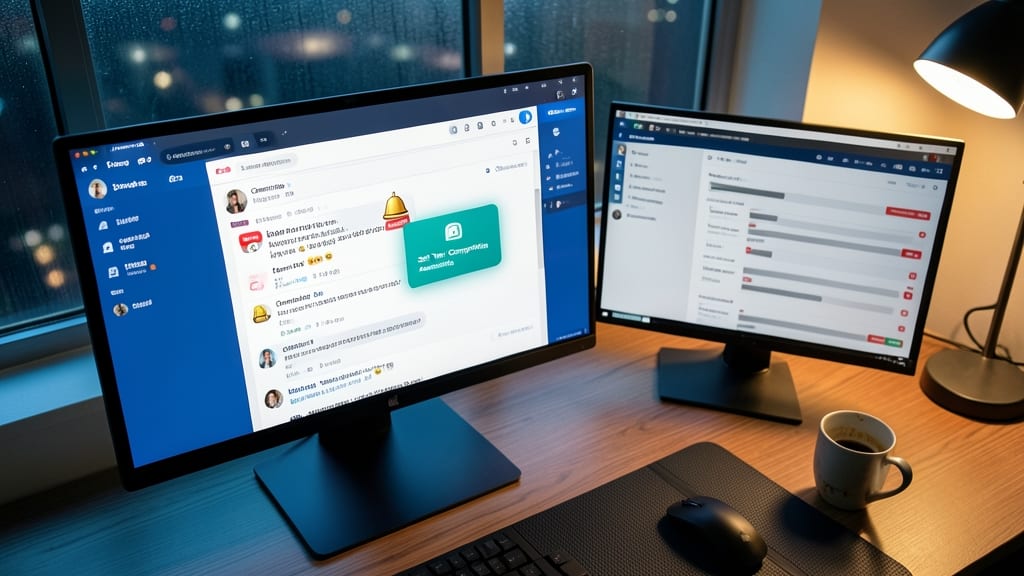
Forget scrambling last-minute to prep for meetings—Microsoft Teams’ custom meeting reminders now let you automate prep tasks like reviewing documents, testing equipment, or setting up presentations. These reminders go beyond basic calendar alerts by tying directly to your meeting prep checklist, so you arrive fully prepared.
You can set multiple alerts per meeting (e.g., a 24-hour doc review reminder, a 1-hour equipment check, and a 10-minute pre-meeting prep alert) with custom messages for each. The system integrates with Teams files and OneDrive, so you can attach relevant documents directly to the reminder. Best of all, these alerts appear in the Teams app sidebar, not your inbox, keeping your workflow focused.
Ideal for presenters, project managers, or anyone juggling multiple meetings daily, this feature turns Teams into your ultimate meeting prep assistant—no more forgotten slides or last-minute tech troubles. ⚡
Task Completion Reminders for Channel Posts
Ever missed a follow-up on a critical channel post because it got buried in the noise? Microsoft Teams’ Task Completion Reminders now let you set automated nudges for unanswered posts or assigned tasks—directly within the channel where the conversation lives.
With this feature, you can pin a post and set a reminder to check back in 24 hours, 48 hours, or a custom deadline, ensuring no response slips through the cracks. Assign tasks to teammates with built-in due dates, and the system will track progress with a visual checklist in the channel header. Best of all, these reminders sync with your Teams activity feed, so you never have to dig through old threads to follow up.
Perfect for project managers, customer support teams, or anyone managing active channels, this feature keeps discussions moving without the back-and-forth of “Did you see this?” messages. ⚡
Recurring Reminders for Team Workflows
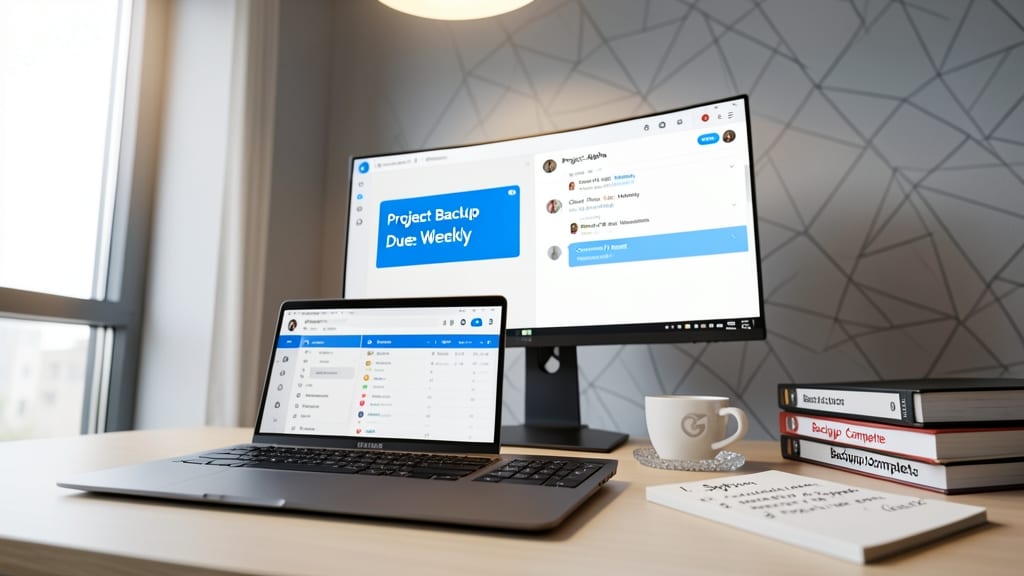
Tired of forgetting to back up project files or submit monthly reports? Microsoft Teams’ recurring reminders now let you tie automated alerts directly to specific channels or projects—no calendar juggling required.
Set up weekly data backups, monthly client follow-ups, or quarterly report submissions with just a few clicks. These reminders appear in the channel where the task belongs, so your team stays aligned without manual nudges. You can even customize frequency (daily, weekly, monthly) and add notes for context.
Perfect for IT teams managing backups, marketing teams tracking campaigns, or project managers coordinating deadlines. Your workflow runs smoother—no more missed tasks slipping through the cracks. ✨
Shared Calendar Reminders with Team Sync
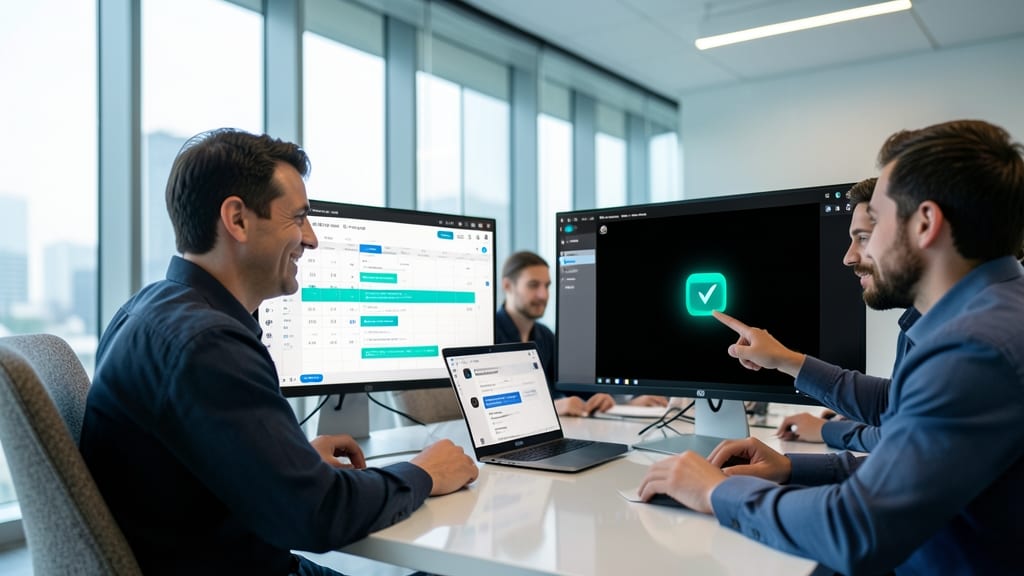
Tired of chasing down team members for deadline updates? Microsoft Teams’ shared calendar reminders now sync across all project calendars, so everyone stays on the same page—automatically. No more “Did you see the deadline?” messages or missed milestones slipping through the cracks.
With this feature, you can create a single reminder tied to a shared calendar (like a client project or internal sprint), and it will notify everyone with access—whether they’re using Teams, Outlook, or both. The sync works in real-time, so updates to deadlines or task priorities automatically reflect for the whole team. Best of all, it integrates with Teams channels, so reminders appear alongside relevant discussions. ⚡
Priority-Based Reminder Notifications
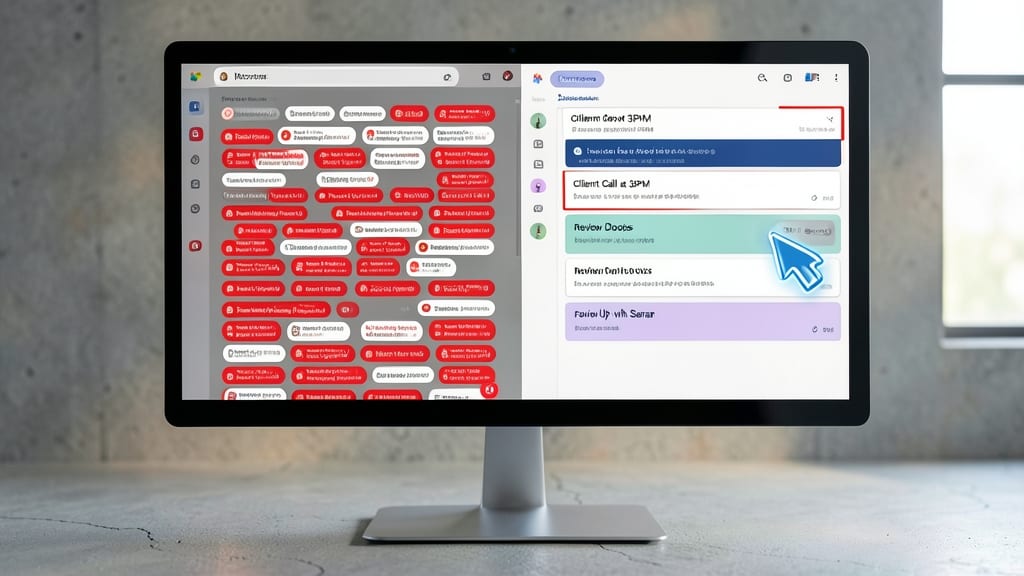
Tired of drowning in notifications where every reminder feels equally urgent? Microsoft Teams’ priority-based reminder system lets you label tasks as high, medium, or low—so deadlines like client calls pop up boldly, while follow-ups can wait until you’re ready.
Behind the scenes, this feature uses visual color-coding (red for high, yellow for medium, green for low) to instantly signal importance. You can even set custom notification thresholds, like muting low-priority alerts during focus hours. The system integrates with existing reminders, so no migration headaches—just smarter filtering.
Perfect for project managers juggling tight deadlines or knowledge workers who need to balance urgent requests with deep work. Say goodbye to context-switching overload! ✨
Reminder Integration with Outlook Tasks
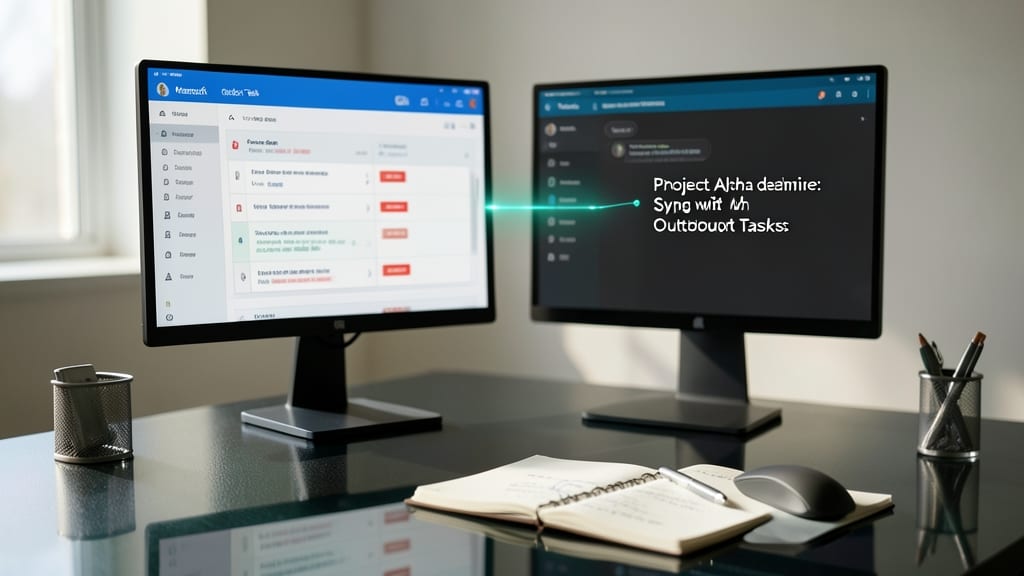
Tired of juggling between Outlook and Teams for your to-do lists? Microsoft’s new reminder integration bridges the gap by syncing Teams reminders directly with Outlook Tasks, so deadlines and team updates stay in one centralized hub.
With this feature, you can create a reminder in Teams—like a project milestone or client follow-up—and automatically push it to Outlook as a task. The best part? Any updates or comments in Teams will reflect in Outlook, ensuring your task list stays real-time and collaborative. No more manual copying or missed deadlines!
This is a game-changer for professionals who rely on Outlook’s task management but still need Teams’ team-focused reminders. Perfect for project managers, sales teams, or anyone balancing individual tasks with group updates. ✨
Custom Reminder Templates for Teams
Tired of recreating the same reminders every week? Microsoft Teams’ custom reminder templates let you save and reuse workflows like client check-ins, internal reviews, or project updates—cutting setup time by 50%. No more manual entry for repetitive tasks; just tweak a pre-built template and hit send.
Create templates with specific deadlines, assignees, and even channel tags to ensure consistency. Share them across teams, so everyone follows the same process—whether it’s a monthly client follow-up or a weekly sprint review. The system remembers your preferences, so recurring tasks auto-populate with the right details.
Perfect for project managers, team leads, or anyone drowning in repetitive tasks. Stop reinventing the wheel every time—let Teams handle the boilerplate. ✨