
Tip & Trick
Microsoft Teams is packed with underutilized features that can transform your workflow. These 10 hidden tips and tricks will help you boost productivity, streamline communication, and master collaboration like a pro—without relying on basic shortcuts everyone already knows.
Customize Meeting Backgrounds with Blur Effects
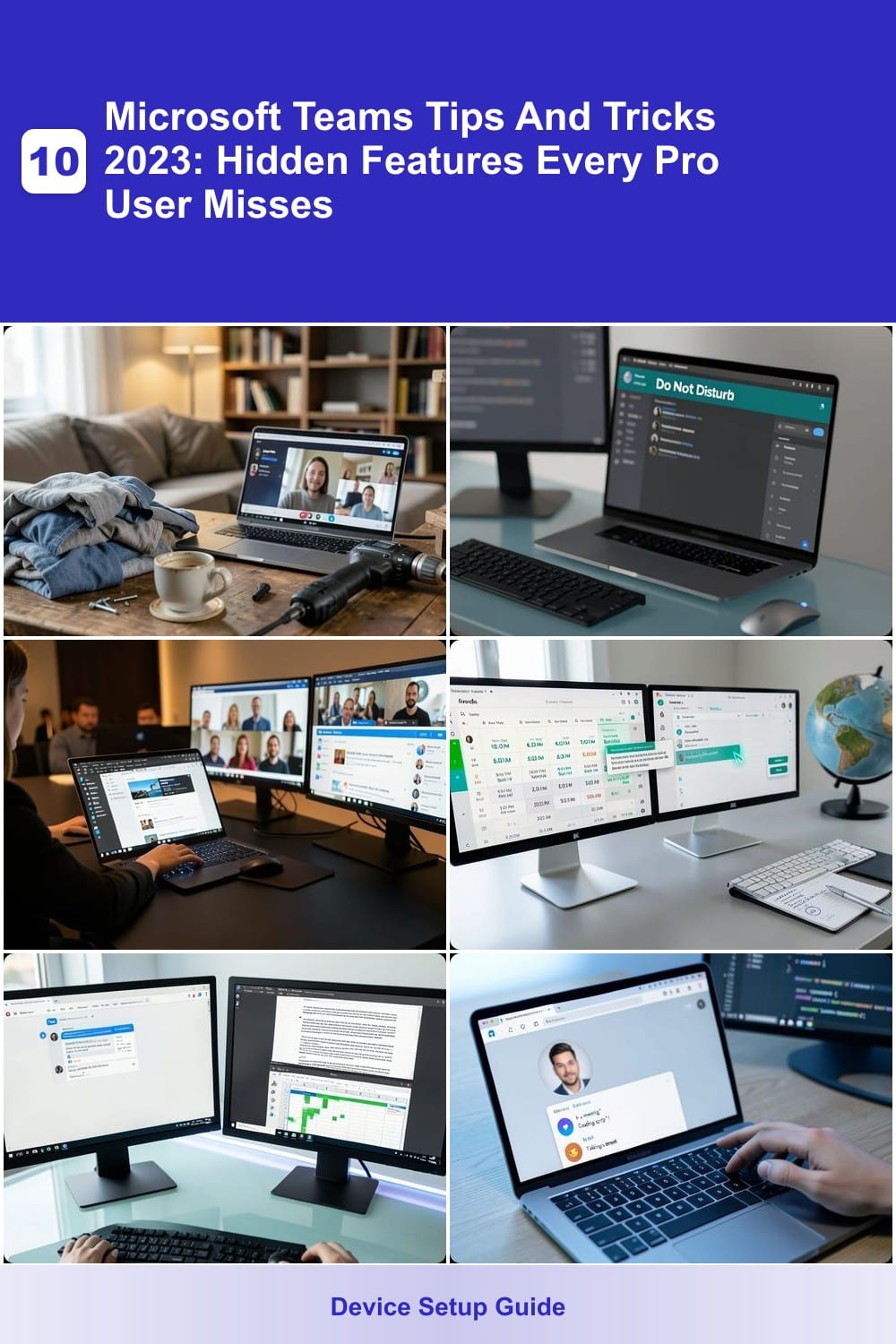
Working from a messy home office? Microsoft Teams’ blur background effect lets you hide distractions while keeping a polished, professional look during video calls. This feature smooths out cluttered backgrounds—whether it’s laundry piles or half-built DIY projects—so your focus stays on the conversation, not your surroundings.
To enable it, join a meeting, click the three-dot menu next to your video preview, and select Blur background. You can also choose from pre-loaded virtual backgrounds (like a sleek office or cozy café) if you prefer a completely clean look. The blur effect works in real-time, so no extra setup or lighting adjustments are needed—just instant professionalism.
This trick is ideal for remote workers, freelancers, or anyone who wants to maintain a polished virtual presence without investing in expensive backdrops. Perfect for client calls, team meetings, or even casual catch-ups where first impressions matter. ✨
Enable Focus Mode to Block Distractions
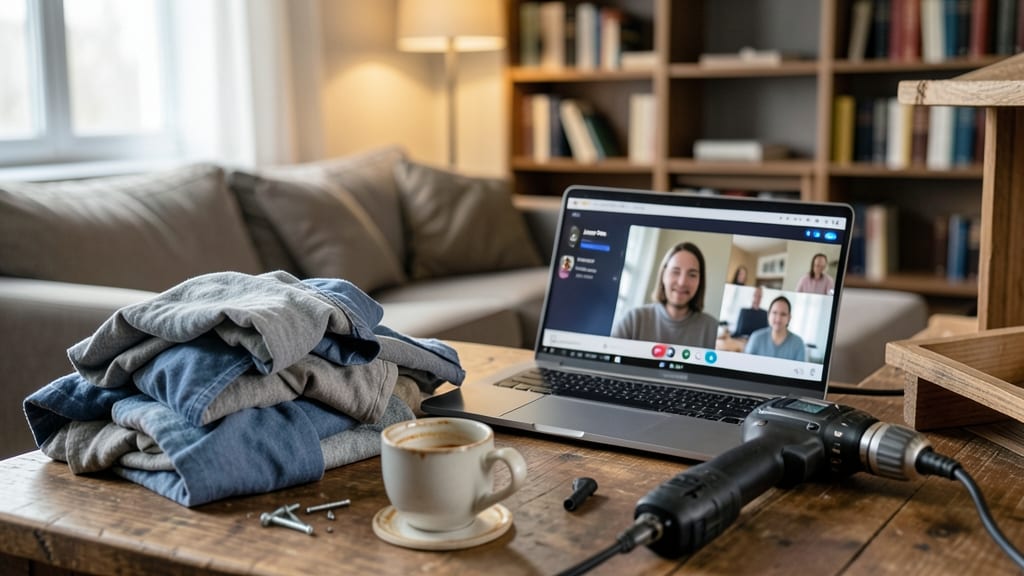
Struggling to maintain focus during deep work sessions in Teams? Focus Mode is your secret weapon—it silences notifications, hides non-essential channels, and even displays a "Do Not Disturb" banner to signal your availability status. This feature transforms your workspace into a distraction-free zone, letting you tackle complex tasks without constant interruptions.
To enable it, click your profile picture in the top-right corner, then select "Focus" from the dropdown menu. You’ll see a "Do Not Disturb" status update automatically, and Teams will mute all non-critical notifications. The best part? You can customize which channels stay visible—perfect for keeping only the most relevant conversations open while you work. This works seamlessly across desktop and mobile, so you can stay focused whether you're at your desk or on the go.
This trick is a game-changer for developers, writers, or anyone juggling high-priority projects. Try it during your next coding sprint or report deadline—your productivity will thank you! 💡
Use PowerPoint Live in Teams Meetings
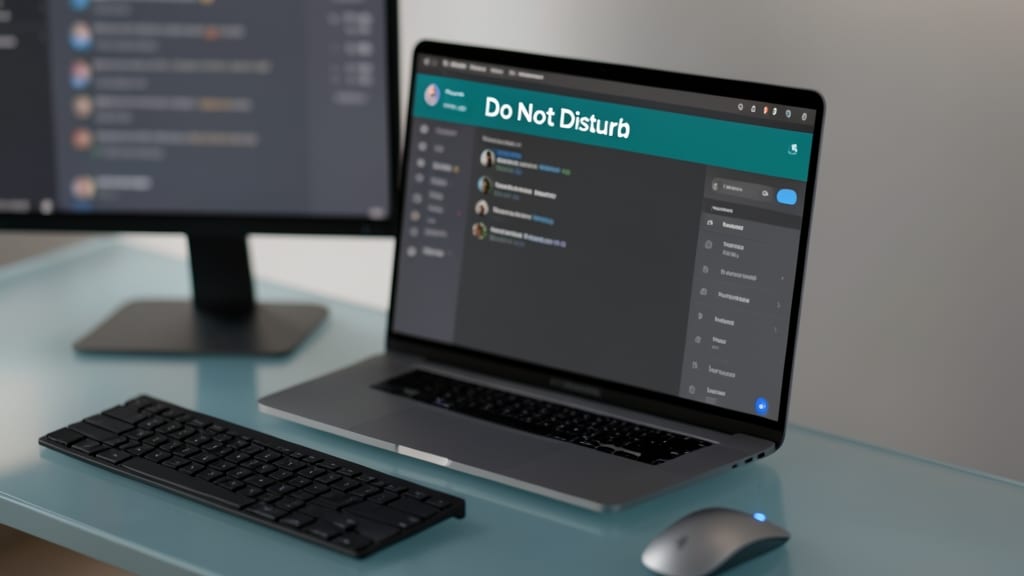
Need to present a polished pitch or training session in Teams? PowerPoint Live lets you share your slides directly from PowerPoint while keeping full control—no more awkward screen-sharing glitches or losing your place.
With real-time sync, your audience sees updates instantly, and the presentation mode hides your notes while displaying speaker view. You can even highlight key slides or pause to discuss without losing flow. Best of all, it works seamlessly with PowerPoint 2016 or later, so no extra setup is needed.
Trainers, sales teams, and educators will love this for interactive sessions—whether you're walking clients through a proposal or leading a workshop. ⚡
Schedule Meetings with Time Zones Auto-Adjusted
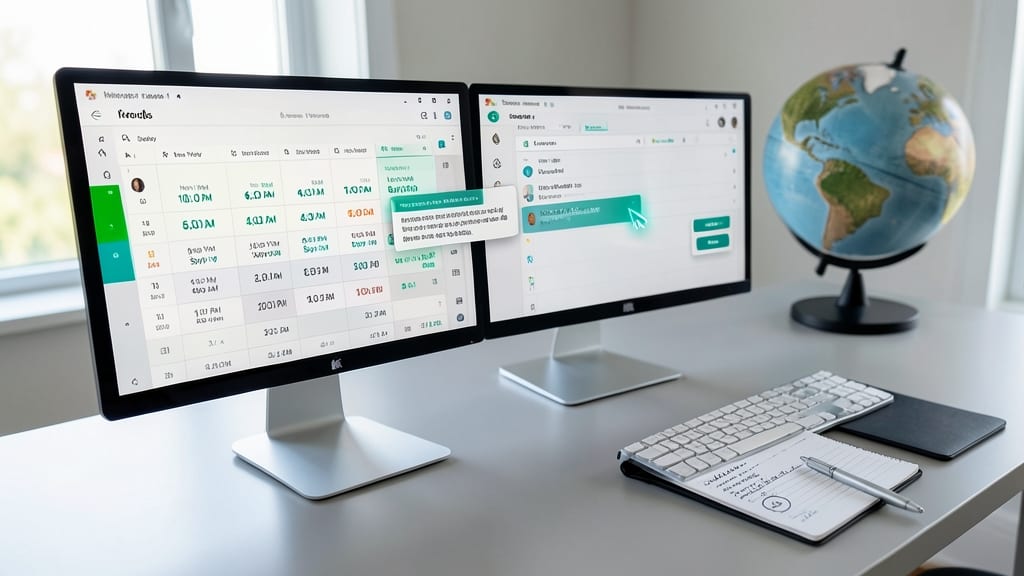
Say goodbye to the back-and-forth emails of "What time works for you?" when coordinating across continents. Microsoft Teams now automatically adjusts time zones when scheduling meetings, so everyone sees the meeting time in their local format—no more confusion or last-minute rescheduling.
When creating a new meeting, simply add participants from different regions, and Teams will display each attendee’s local time alongside the meeting time. This feature works seamlessly with Outlook calendar integration, ensuring your global team stays aligned without manual conversions. The dropdown menu even lets you toggle between time zones for clarity.
This is a game-changer for remote teams spanning multiple time zones, from cross-border projects to international client calls. No more missed meetings due to time zone mix-ups! ⚡
Pin Important Tabs for Quick Access
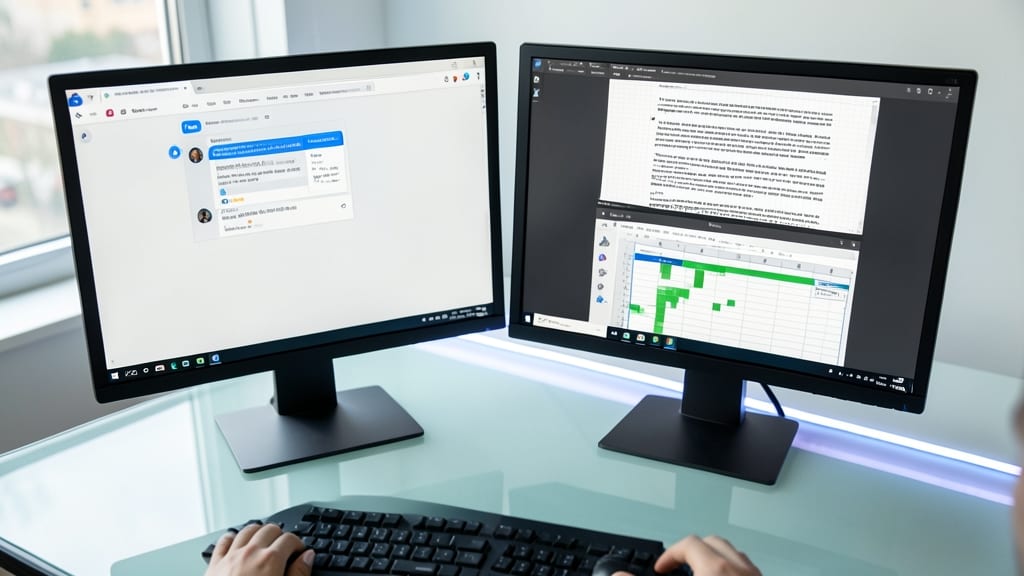
Tired of wasting time switching between apps while working in Teams? The pin tabs feature lets you keep Word, Excel, or PowerPoint permanently visible—no more alt-tabbing or minimizing windows mid-conversation.
Right-click any app tab in Teams and select Pin to lock it in place. You can pin up to six tabs at once, making it perfect for multitaskers juggling documents, spreadsheets, and chats simultaneously. The pinned apps stay accessible even when you switch between channels or meetings.
This trick is a game-changer for project managers, writers, or analysts who frequently reference multiple files during calls. Try it and reclaim your focus! ✨
Create Custom Status Messages with Emojis
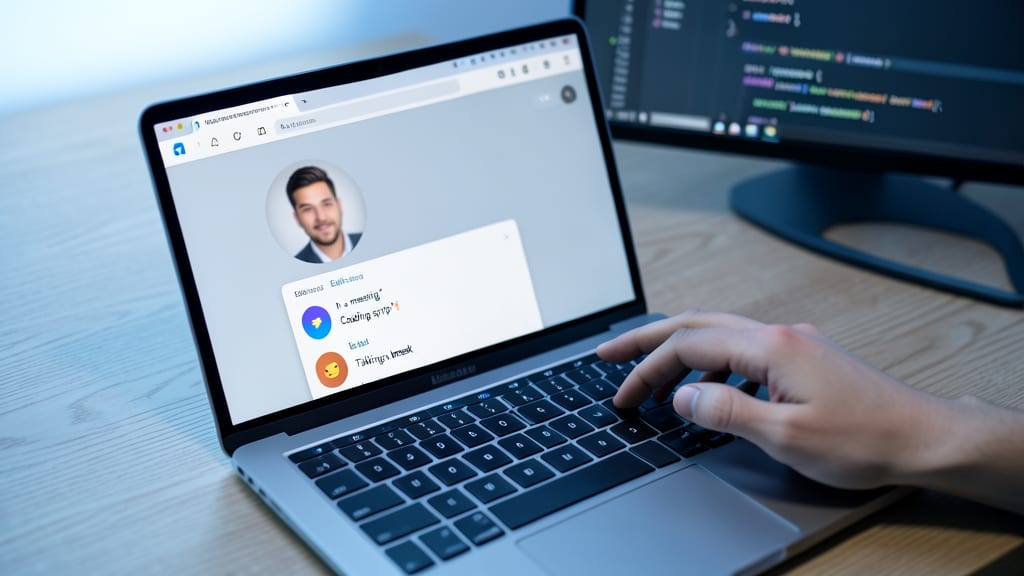
Tired of generic "available" statuses that don’t reflect your actual work mode? Microsoft Teams lets you add personality with custom status messages—complete with emojis—so colleagues instantly know if you’re in a meeting, coding, or taking a break.
Simply click your profile picture, select Edit status, and type a short message like “Debugging 🐞” or “Offline for lunch 🍽️”. Teams supports hundreds of emojis, so you can visually communicate your availability without typing. The feature syncs across devices, ensuring your status updates everywhere—perfect for remote teams.
This trick is ideal for creative teams, developers, or anyone who wants to make their Teams presence more engaging while keeping colleagues informed. It’s a small tweak with a big impact on workplace clarity! ✨
Use the 'Together Mode' for Immersive Meetings

Tired of staring at a grid of faces during meetings? Together Mode in Microsoft Teams transforms your virtual gatherings into immersive, shared spaces—like a virtual coffee shop or living room—where everyone appears in a cohesive scene instead of isolated video tiles.
To enable it, simply start or join a meeting, then click the "..." menu and select "Together mode" (available for meetings with 3+ participants). The feature works seamlessly with up to 49 participants and supports custom backgrounds (like a café or office setting) to match your vibe. It’s perfect for team-building activities, casual check-ins, or even brainstorming sessions where visual engagement matters.
Remote teams and managers leading hybrid groups will love how this fosters connection—no more awkward silences or staring at empty chairs. Give it a try next time you host a fun or collaborative meeting! ✨
Record Meetings Automatically with Transcripts
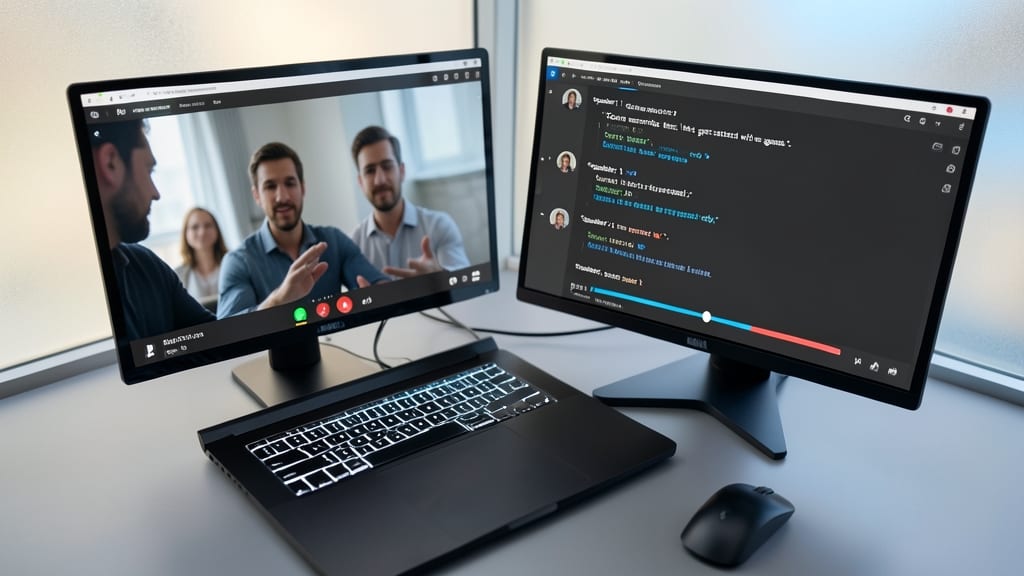
Never miss a critical detail in meetings again—Microsoft Teams now automatically records and transcribes your calls with real-time captions. This feature eliminates the need to manually note key points, ensuring you capture action items, decisions, and discussions effortlessly.
The transcript appears alongside the recording, letting you search for specific keywords (like "Q3 budget" or "client approval") instantly. With AI-powered accuracy, it handles multiple speakers and background noise better than ever. For compliance-heavy industries, this also creates an auditable trail of discussions—no more scrambling for notes after the fact.
Ideal for trainers, legal teams, or managers, this trick turns every meeting into a searchable resource. Just hit Record during your next call and let Teams handle the rest. ✨
Set Up Private Channels for Sensitive Discussions
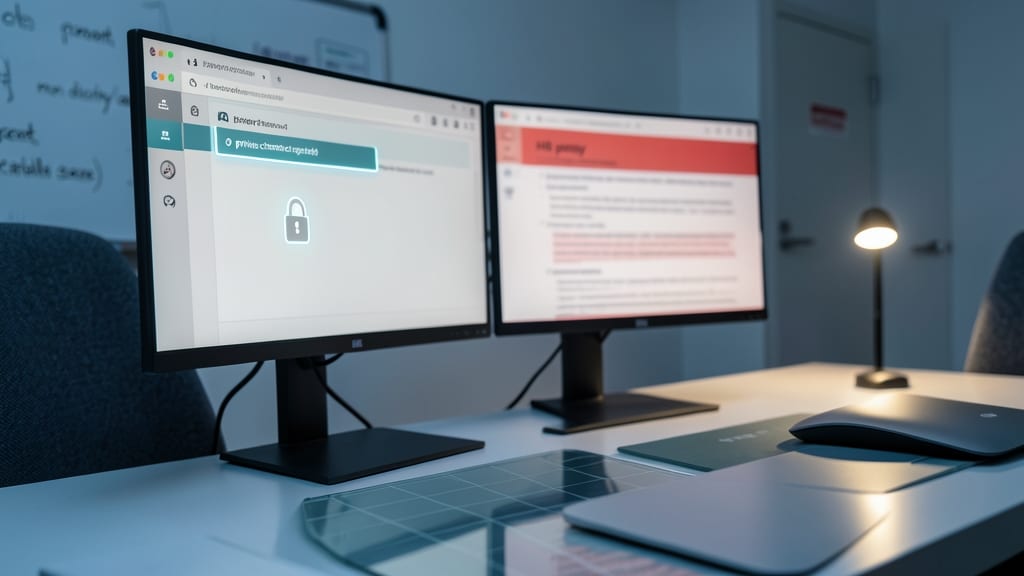
Not every conversation belongs in a public chat—especially when discussing sensitive topics like HR policies, legal matters, or confidential project details. Microsoft Teams’ private channels let you create secure spaces where only approved members can join, keeping discussions confidential by default.
To set one up, navigate to your team’s channel list, click the "+" icon, and select "Private channel". You’ll then define custom permissions, such as restricting access to specific roles (e.g., only managers or legal teams). Files shared here stay hidden from prying eyes, and notifications only reach those with access—no accidental leaks. The feature even syncs with Microsoft 365 compliance tools for extra security.
This is a game-changer for HR teams managing employee records, legal departments handling case details, or project managers discussing proprietary strategies. No more guessing who’s listening—just controlled, private conversations where they belong. 💻
Use the 'Walkie-Talkie' Feature for Instant Voice Chats
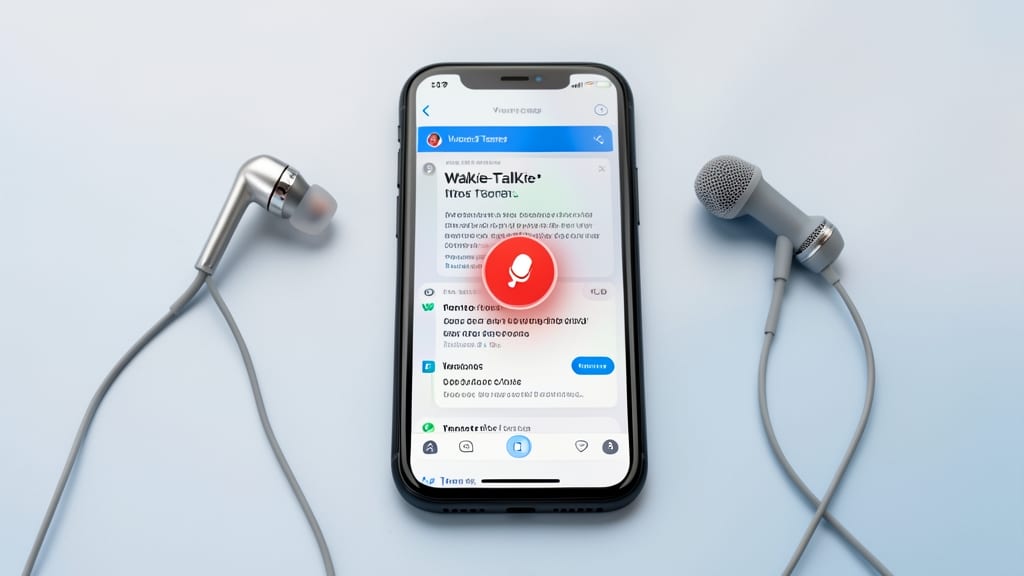
Need to chat with a colleague but don’t want to schedule a full meeting? Microsoft Teams’ ‘Walkie-Talkie’ feature turns your chat into a push-to-talk experience—just like a walkie-talkie. It’s perfect for quick, hands-free updates when you’re on the move or juggling tasks.
To enable it, open a chat, click the walkie-talkie icon (🎤), and press your designated key (default: Ctrl+Alt+T). Your voice transmits instantly, and others hear it like a live broadcast—no need to lift a finger. Works seamlessly with headsets or speakers, and you can even set a custom keybind for faster access.
This is a game-changer for field teams, remote workers, or anyone who hates typing out messages. Try it during your next standup or brainstorming session—it’s faster than typing and more engaging than text. ✨